 PixelyChat
From reacting to talking
The Companion already reacts to follows, subs, gifts and viewers who mention it. Now you can talk to it yourself. Ask what it thinks of the boss fight, let it hype up a raid or have it tease you after a bad round, without typing a word.
Press, talk, press again
Press your Talk hotkey, say something and press it again. A few seconds later the Companion answers out loud on stream, with its own voice, captions and personality.
- The hotkey works everywhere, even in the middle of a game.
- When you start talking, the Companion stops and listens. Reactions that were waiting come after your reply.
- It remembers what you just said, so you can keep the conversation going.
- An optional Cancel hotkey throws a recording away.
Your voice stays on your PC
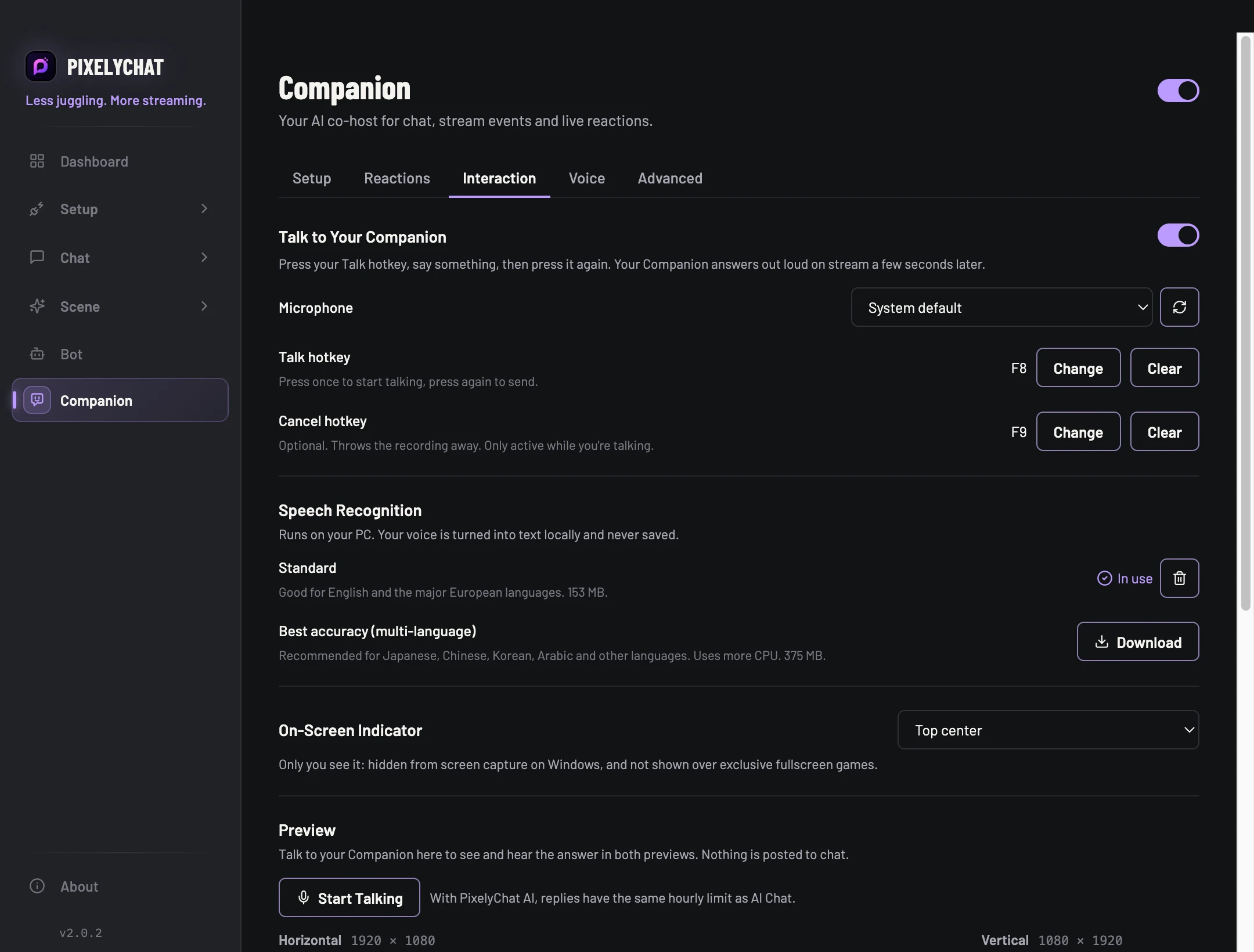
Speech recognition runs on your computer. Your recording is turned into text locally and never saved. Choose Standard for English and the major European languages, or Best accuracy for Japanese, Chinese, Korean, Arabic and other languages.
You always know it's listening
A small indicator on your screen shows when the Companion is listening and which key sends. Only you see it. On stream, the avatar switches to a listening pose, so your viewers can follow along.
Good to know
The Companion Browser Source has to be in OBS, because that's where the Companion speaks. Replies are also posted to Twitch and Kick chat while you're live when “Send event reactions to chat” is on. With PixelyChat AI, replies have the same hourly limit as AI Chat. The indicator can't appear over games in exclusive fullscreen.
Try it
- Update to the latest PixelyChat.
- Open Companion → Interaction and switch it on.
- Download a speech recognition model and set a Talk hotkey.
- Click Start Talking in the preview to try it, or press your hotkey while you stream.