Name, personality & avatar
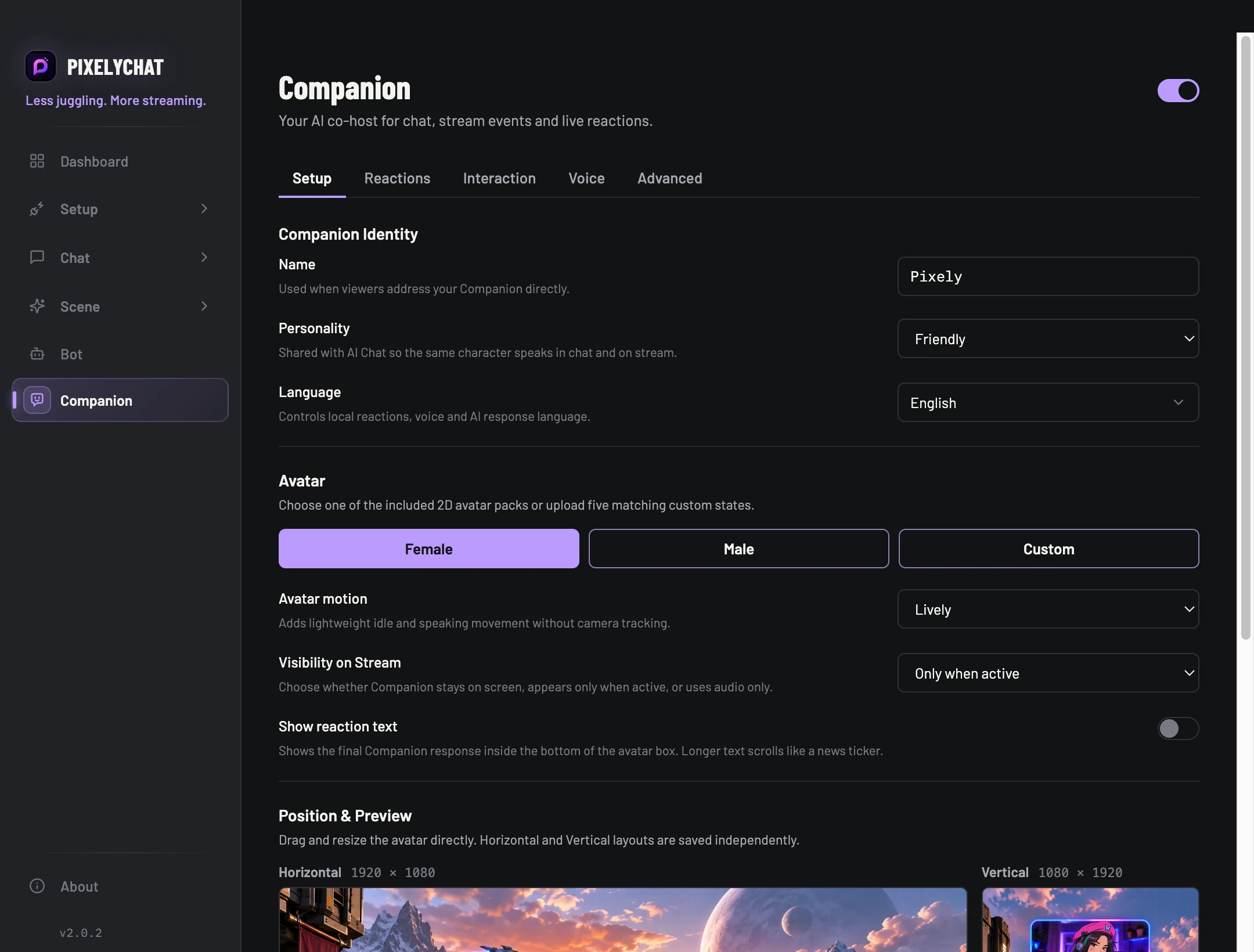
Choose the Companion name, personality, language, display mode and included avatar — or supply a matching custom avatar set.
 PixelyChat / Manual
Control & automation
Pixely is a separate AI co-host layer: a 2D avatar, spoken reactions and live-chat interactions designed to stay lightweight while you stream.
Enable Companion and add its separate Browser Source from Overlays. Configure an available AI provider and voice before expecting spoken replies.
You see and hear the expected response. If the avatar is missing, check the Companion source and visibility mode. If there is no answer, check AI/voice setup and any limit or error. If the microphone is silent, check the selected PC input and permissions.
Choose the Companion name, personality, language, display mode and included avatar — or supply a matching custom avatar set.
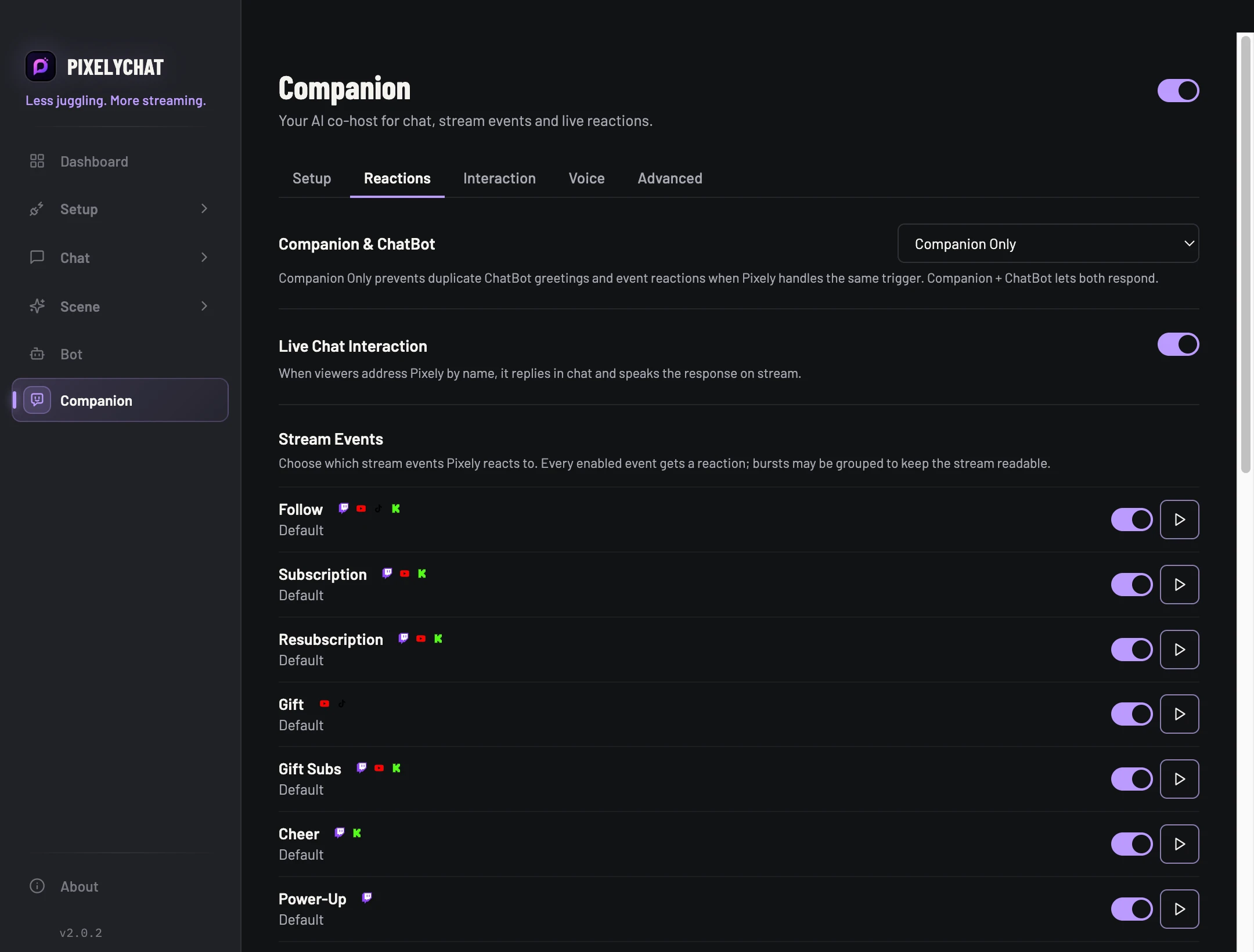
Respond when viewers address the Companion by name, greet selected viewers, react to stream events and use Auto Talk after quiet periods.
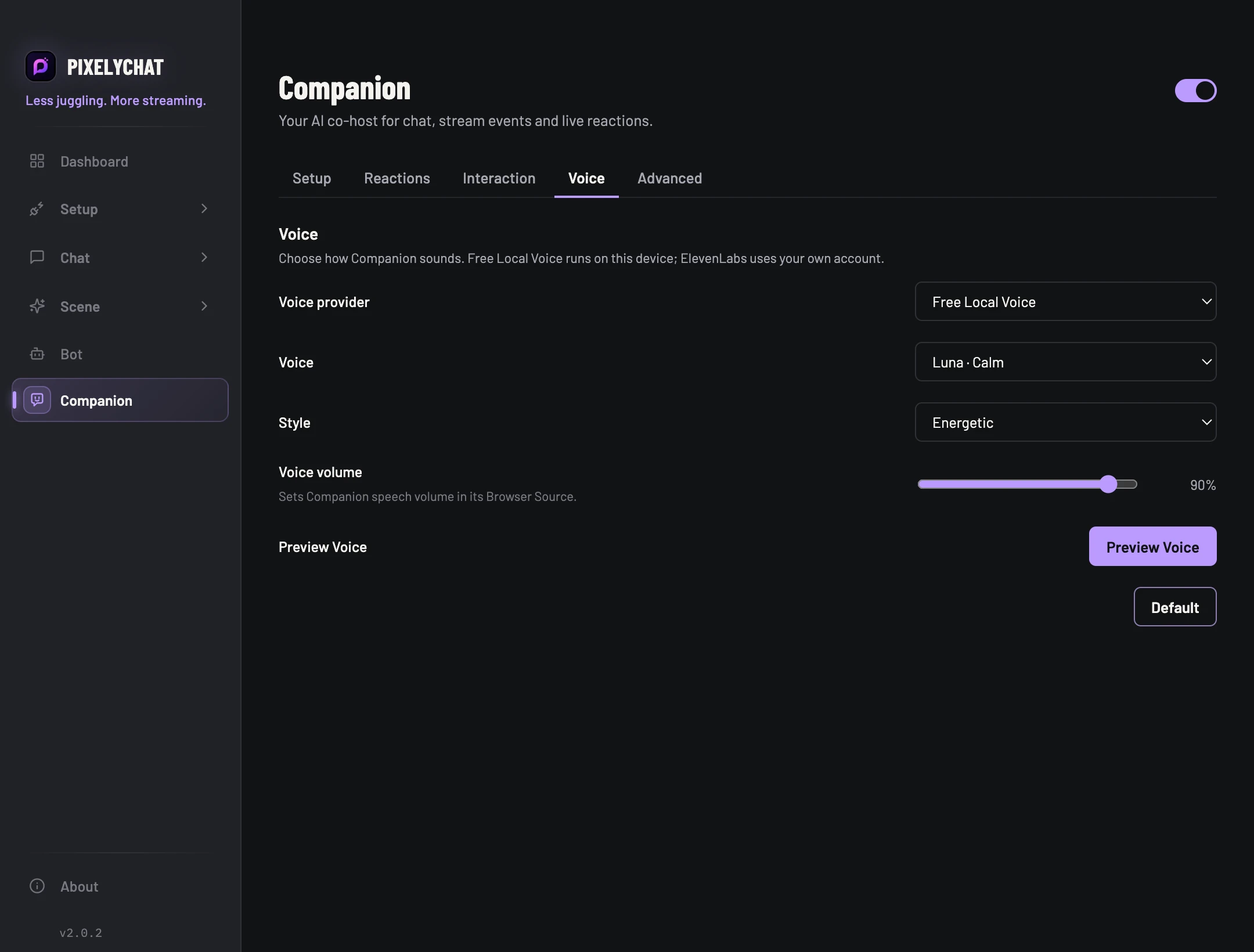
Install the free local voice package for supported PixelyChat languages, or connect a supported external voice provider such as ElevenLabs when configured.
Use Always visible, Only when active or Audio-only, with independent horizontal and vertical stream placement.
Switch it on under Companion → Interaction. Press your Talk hotkey, say something and press it again. Your voice is turned into text on your PC, the Companion's AI platform writes the answer, and the Companion says it on stream a few seconds later. While you talk, the avatar shows a listening pose and stops what it was saying; waiting reactions come after your reply. The Companion Browser Source has to be in OBS.
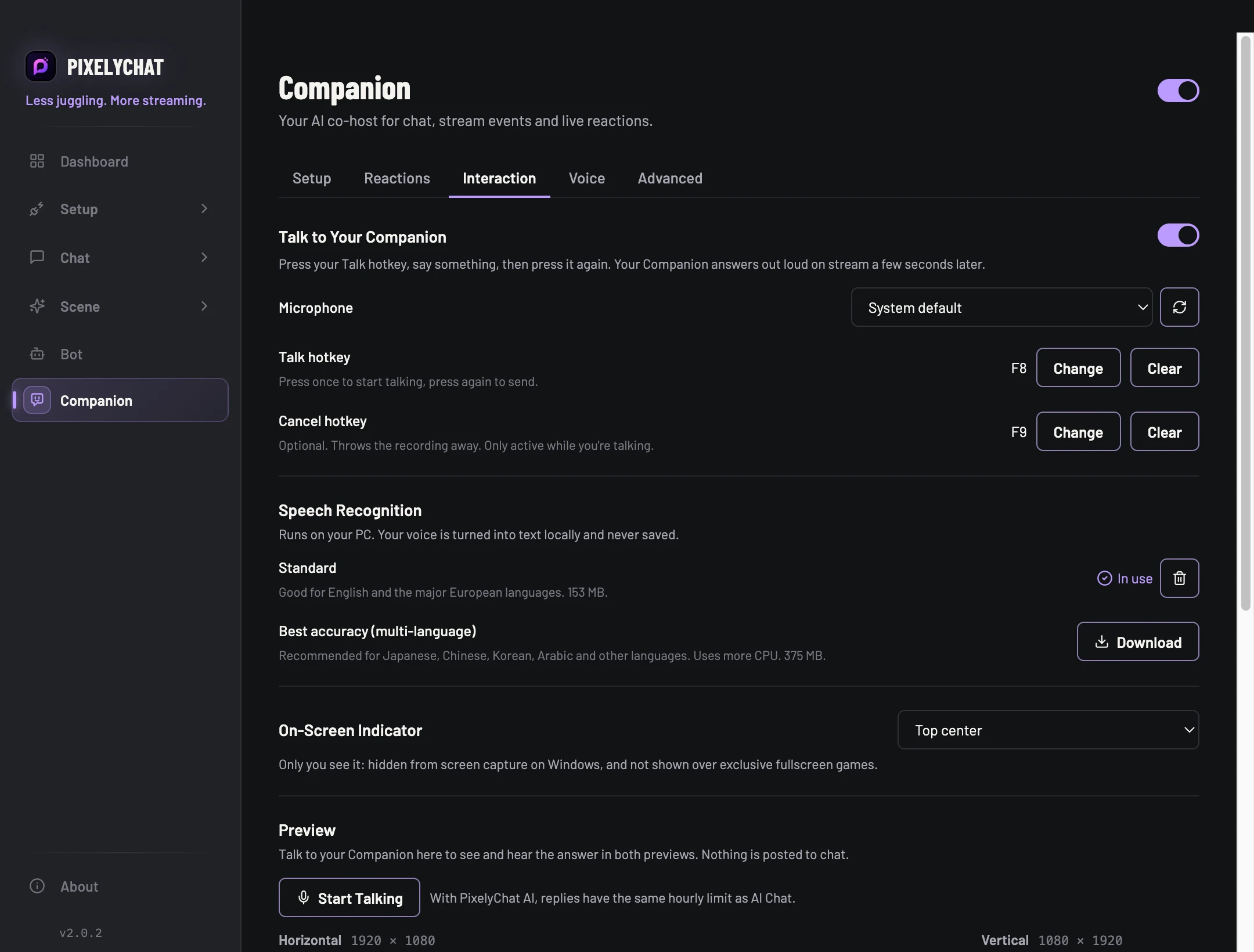
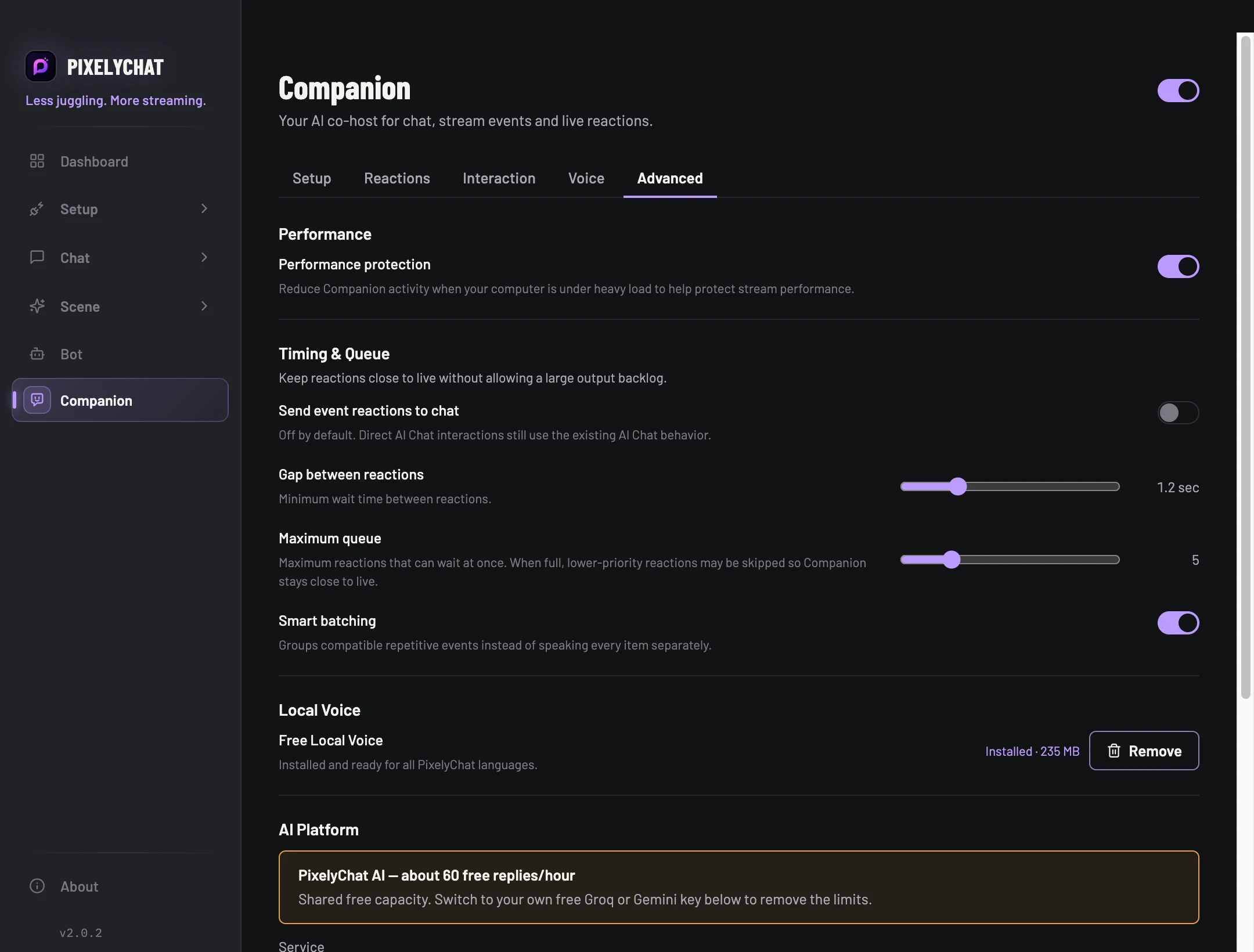
Replies are also posted to Twitch and Kick chat while you're live when Send event reactions to chat is on in Advanced. With PixelyChat AI, replies have the same hourly limit as AI Chat.
Companion Mentions use the same AI response path rather than creating a duplicate response. Choose Companion Only or Companion + ChatBot for how that one direct reply is presented.