Chat
Viewer-facing chat overlay plus TTS audio. Add it as a Browser Source.
 PixelyChat / Manual
Getting started
PixelyChat serves local Browser Source URLs. Copy the source you need, add it once, and future visual changes update from the app.
Keep PixelyChat running on the streaming computer. Choose the scene where you want its output to appear.
The expected feature appears in the recording. An inactive source is normal in an unloaded scene. If your active scene is empty, verify the source URL, visibility and that PixelyChat is still running. Avoid adding duplicate audio sources for the same output.
Viewer-facing chat overlay plus TTS audio. Add it as a Browser Source.
The shared visual layer for Alerts, Rewards, Overlay Widgets, Action Widgets and Specials.
A separate Browser Source for the Companion avatar and its stream output.
Most action widgets use Stream Scene; individual Browser Sources are available where a separate source fits your layout better.
Open Overlays in PixelyChat.
Choose Chat, Stream Scene or Companion.
Select the matching horizontal or vertical layout where offered.
Copy the Browser Source URL, or use the direct OBS add action when available.
In OBS/Streamlabs add a Browser Source, paste the URL and use your chosen scene dimensions.
Keep PixelyChat running while streaming — the URLs are served locally by the app.
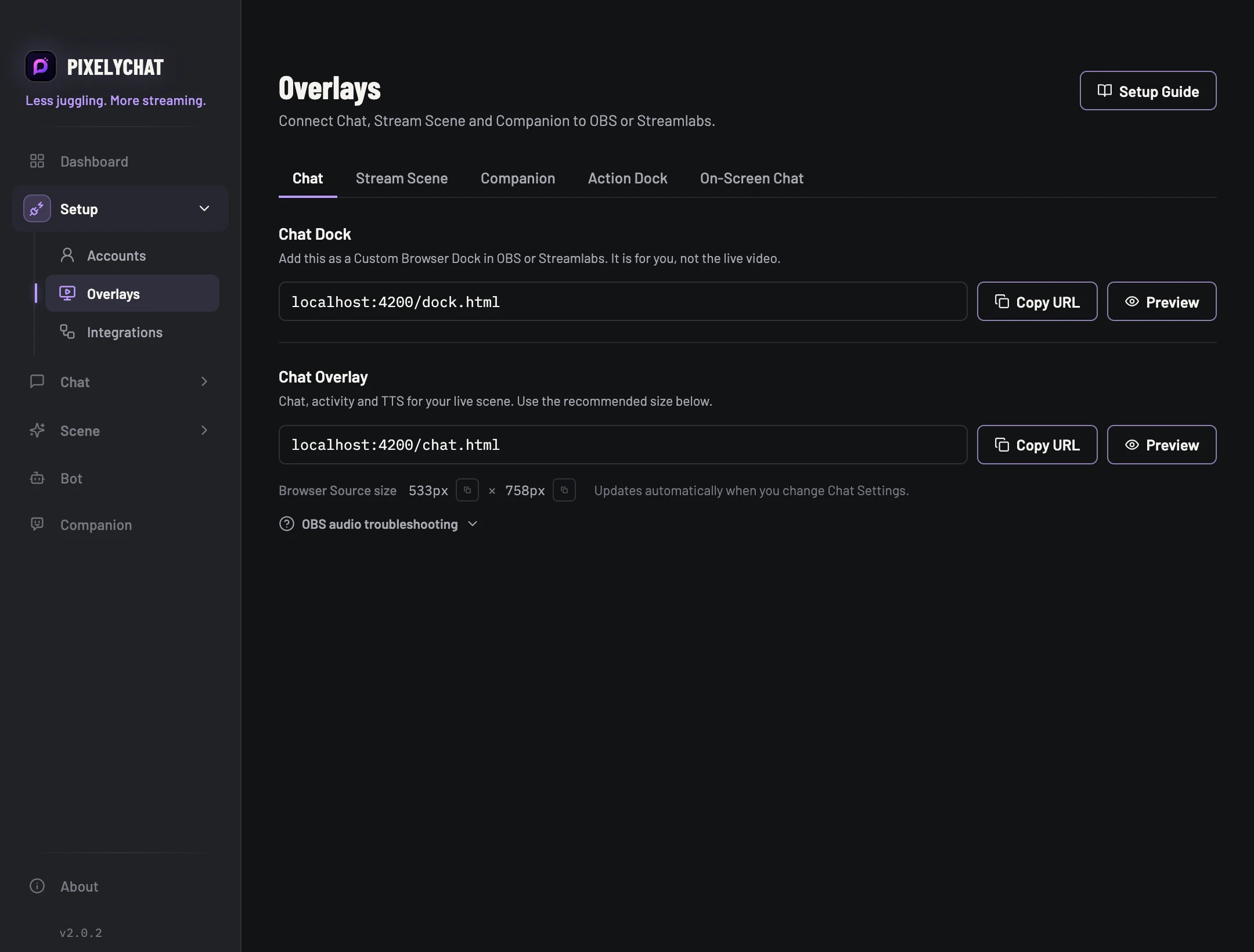
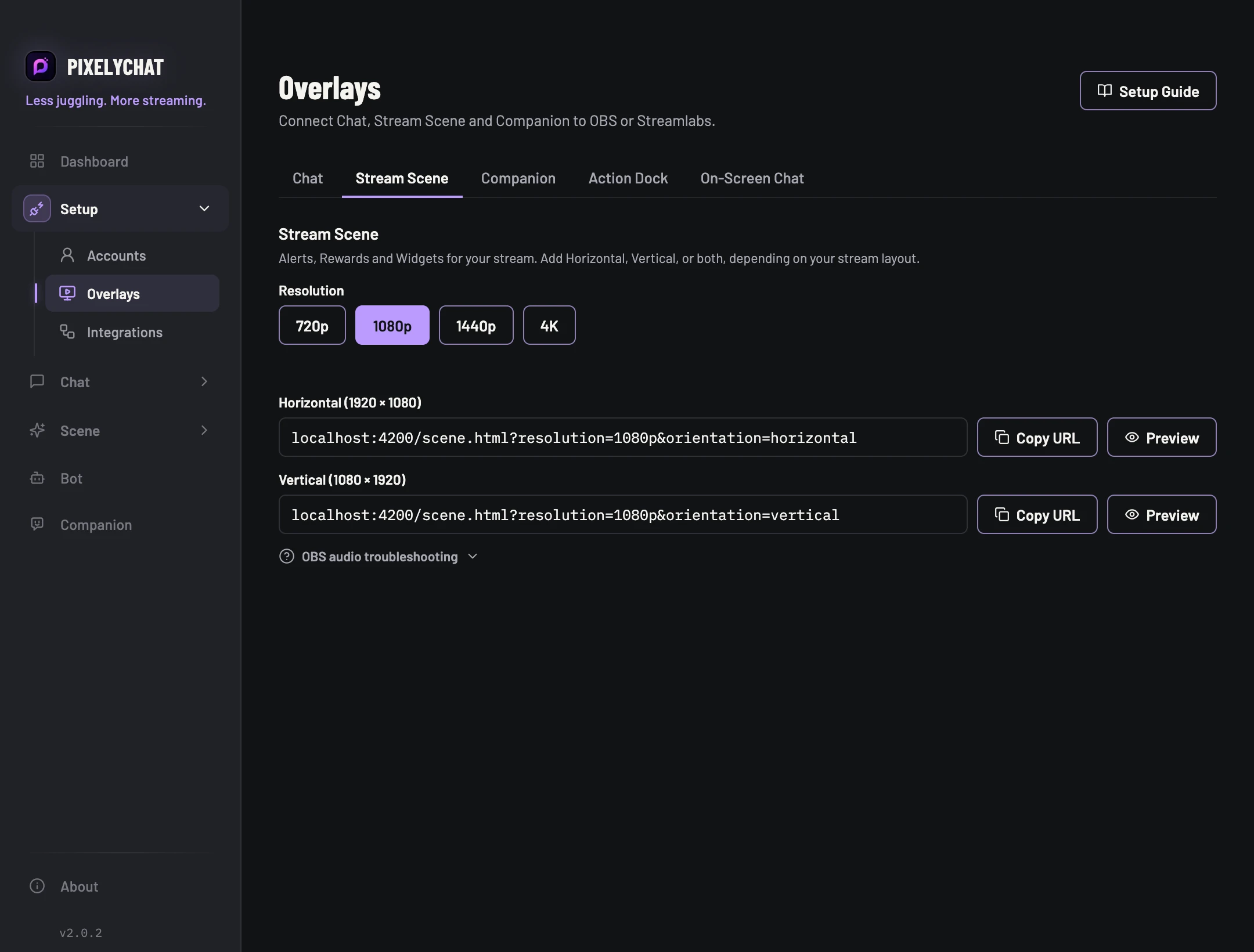
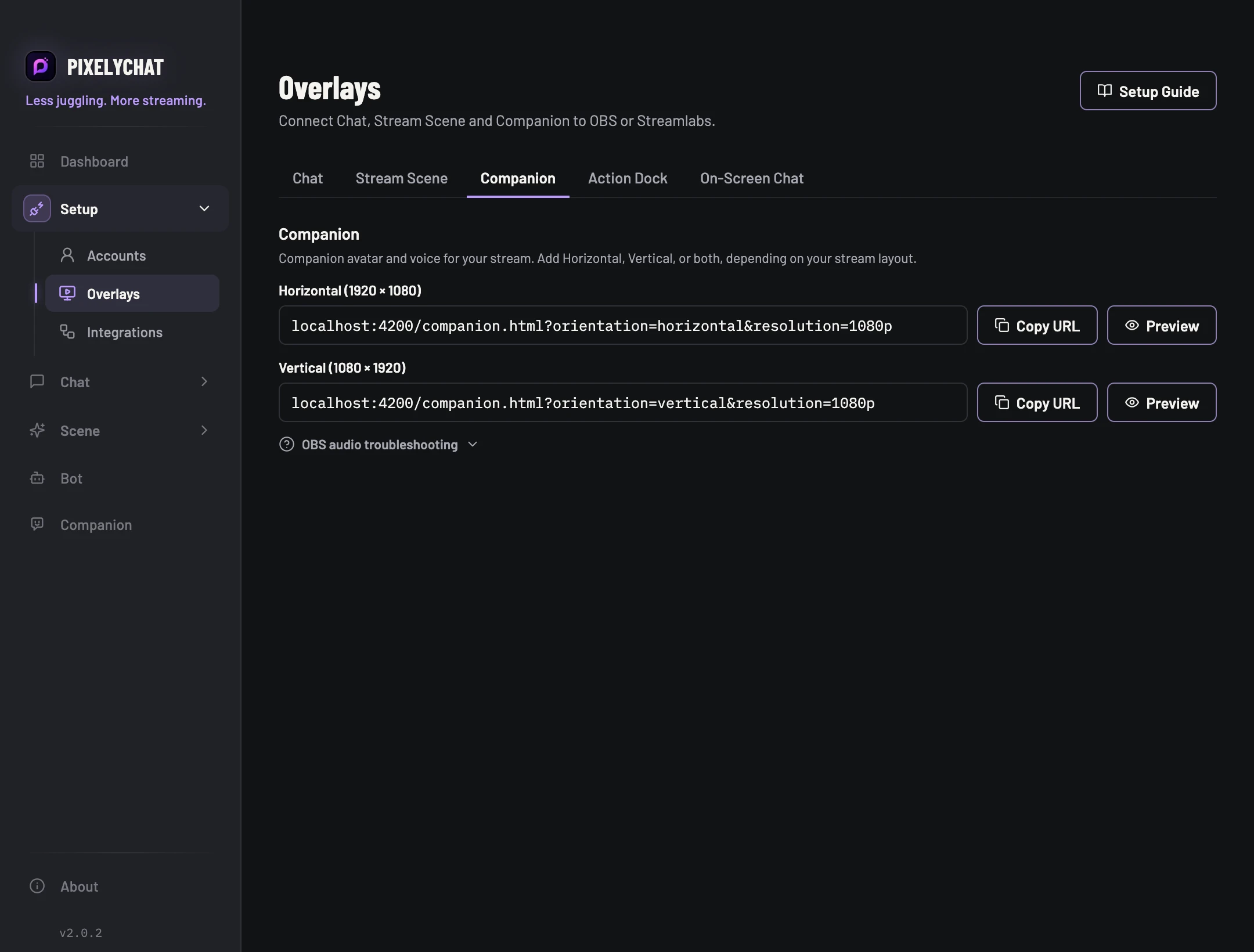
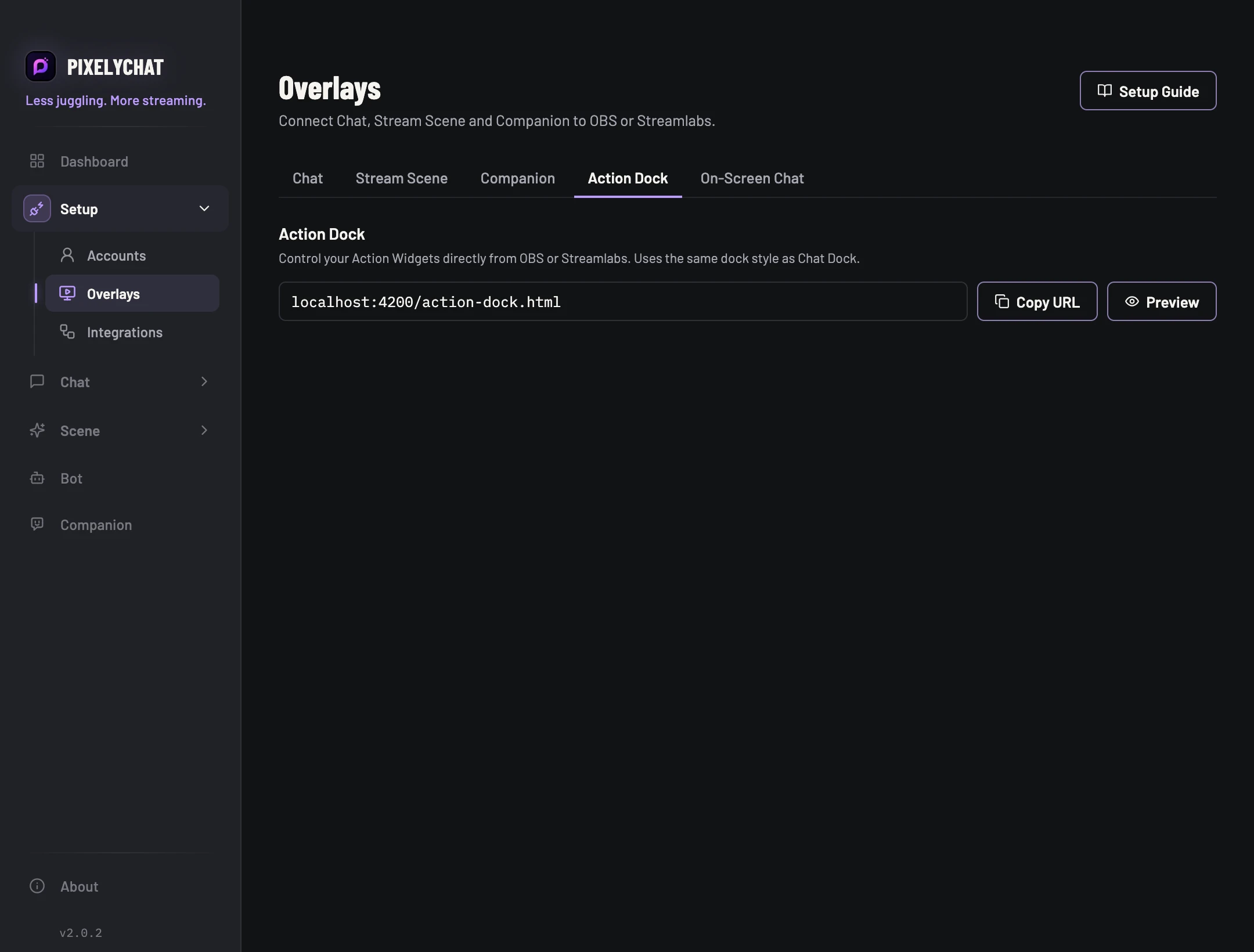
The Dashboard reports whether PixelyChat can see its browser sources. If a source says Inactive while that OBS scene is not loaded, that is expected.