 PixelyChat
 Stream appearance
Media Library
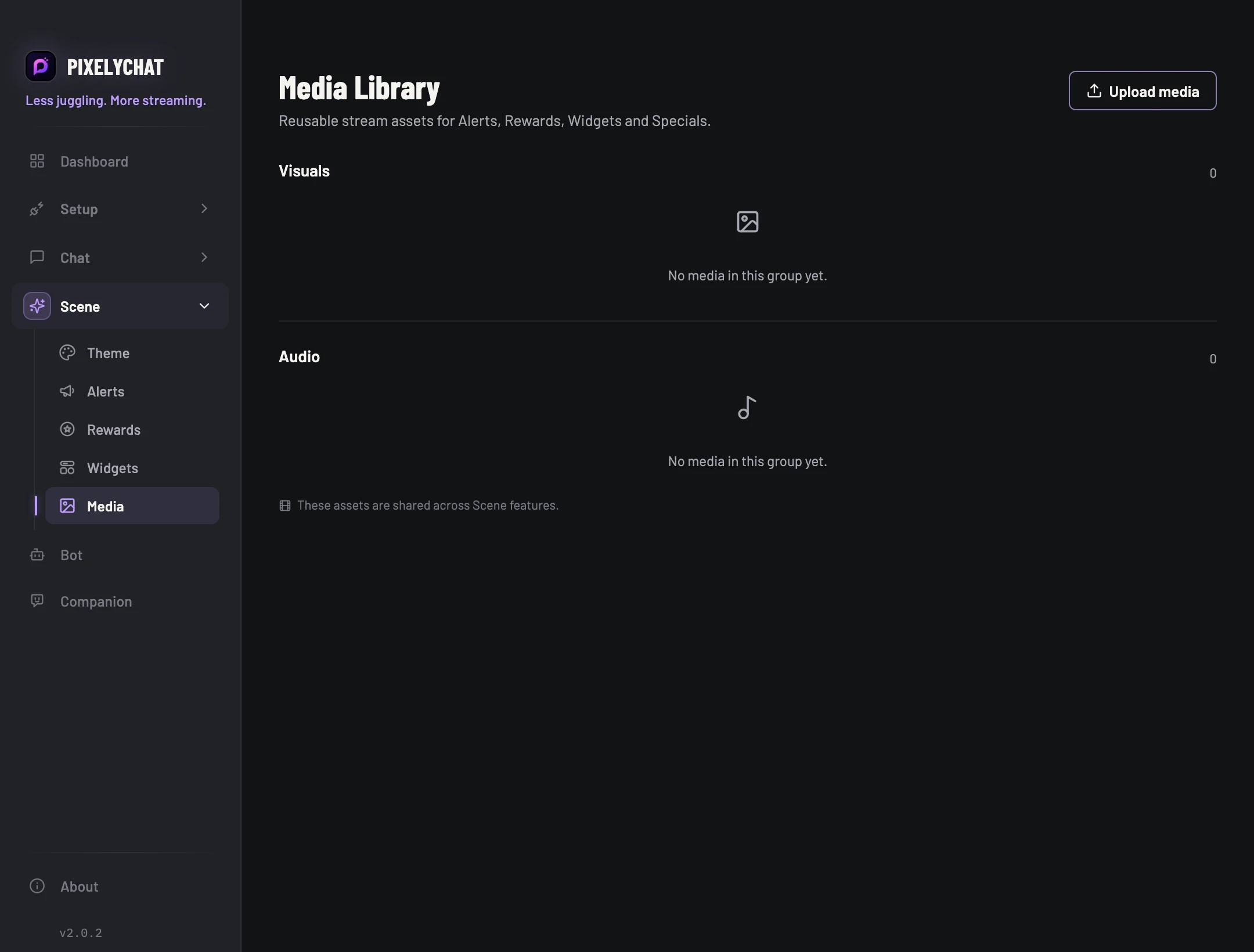
Upload once, reuse across Alerts, Rewards, Widgets and Specials.
Before you start
Choose a file you want to use in an alert, reward or widget. Media is shared, so one uploaded asset can be used in several places.
Reuse a sound or visual
- Open Media and use Upload to add your file. Check that it appears in the appropriate visual or audio group.
- Open the feature that should use it and select the uploaded asset from its media controls. Save any editor changes.
- Preview that feature and adjust its own placement, volume, looping or background removal where those controls are available.
Check the result
The asset plays or displays in the intended feature. If a change to playback is needed, use that feature’s editor. Before deleting shared media, check which alerts, rewards or widgets still use it.
Settings and further help
Stop uploading the same file four times.
The Media Library is shared across scene features. Organize reusable Visuals, Audio and Fonts here, then select those assets from feature editors. Deleting an item removes it from the shared library, so check where it is used before cleanup.
Put brand assets and reusable sounds in Media first. Configure positioning, volume, chroma key and behavior in the feature that uses the asset.