 PixelyChat
Stream appearance
Scene Theme
Give alerts, rewards, widgets and Specials one shared look.
Before you start
- The Stream Scene source is in OBS. See OBS & Streamlabs.
- The chat overlay has its own styles. See Chat & Dock.
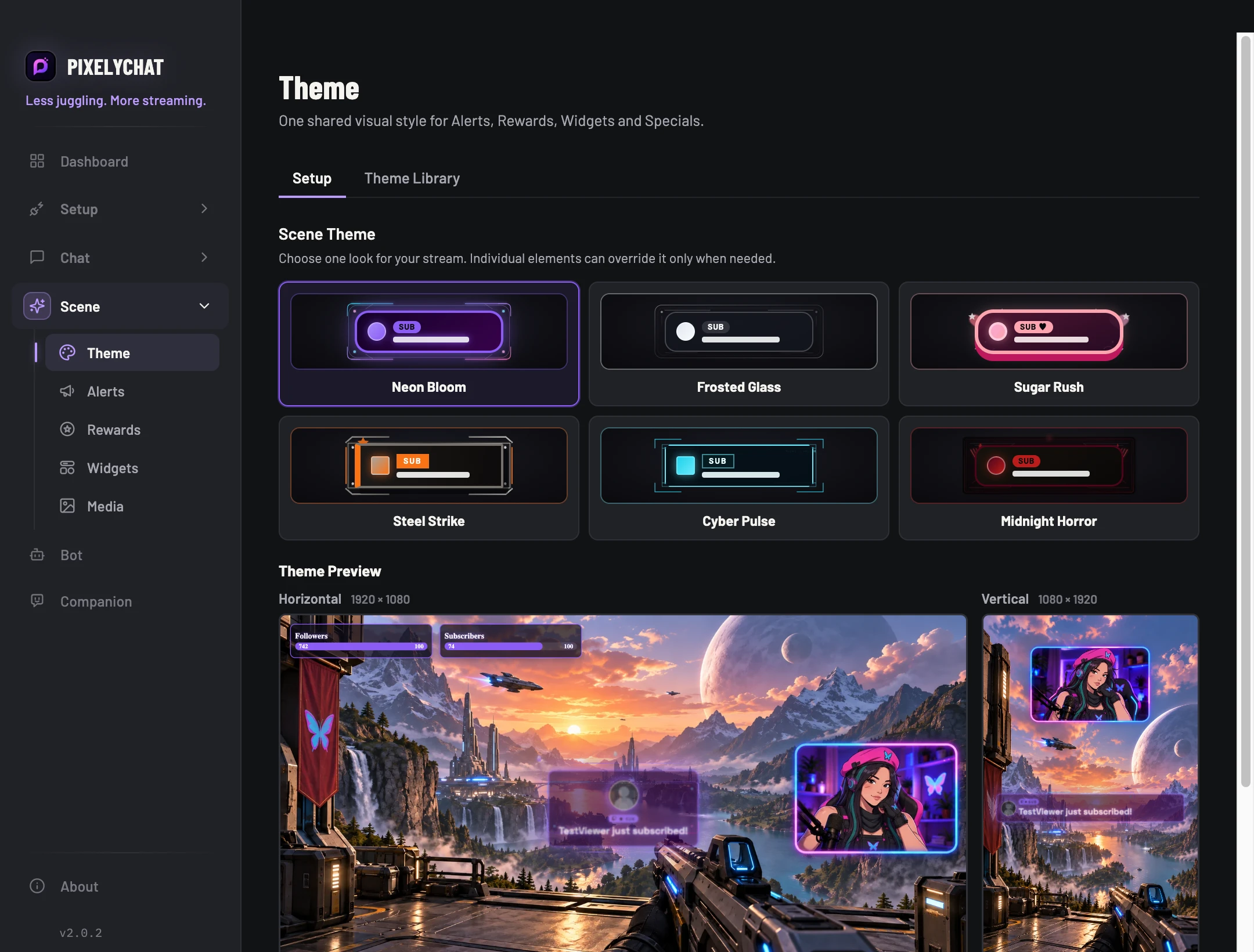
Pick a theme
- Open Scene → Theme.
- On Setup, choose a theme.
- Alerts, rewards, widgets and Specials set to Use Scene Theme change to the new look straight away.
Get more themes
- Open Theme Library. Free themes from PixelyChat and the community. Install one with a click; it then appears under My Themes.
- Click Install, then Use theme.
Fine-tune the look
- Shared Style: Optional typography and color adjustments applied to Scene elements that follow the Scene Theme.
- To give one element a different look, choose its own style in that element's editor. Set it back to Use Scene Theme to follow the theme again.
- Creator Tools: Create, validate and export Theme v2 packages. Advanced tools stay out of the normal theme workflow.
Check the result
You should see: An alert and a widget both show the new theme in OBS.
If it doesn't work
- One element looks different: it has its own style. Set it back to Use Scene Theme in its editor.
- The chat overlay doesn't change: chat styles are set in Chat & Dock.
- Check horizontal and vertical scenes separately.