Chat Overlay
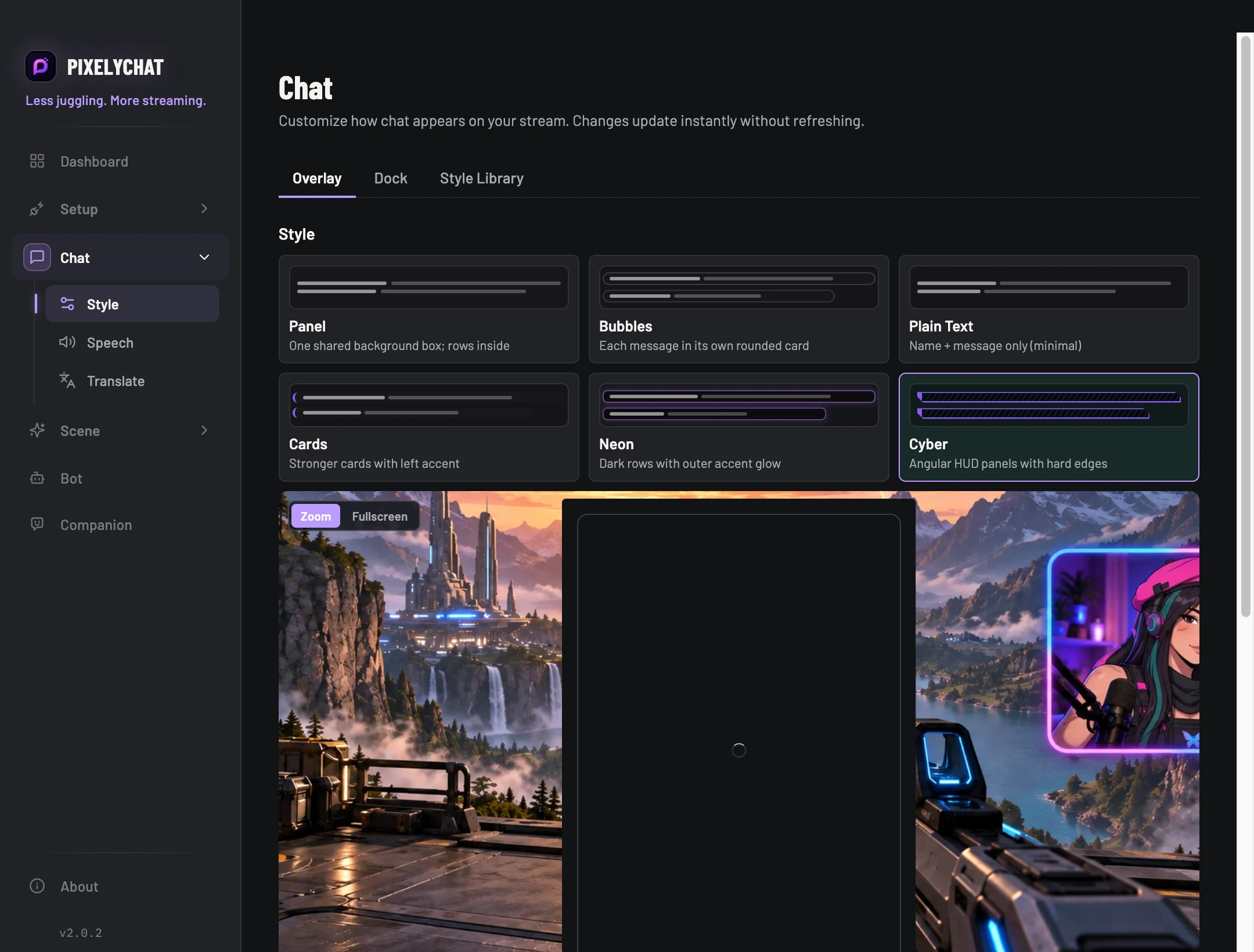
Use this Browser Source on stream. Choose Panel, Bubbles, Plain Text, Cards, Neon or Cyber, then tune avatars, platform icons, timestamps, fonts, colors and visible lines.
 PixelyChat / Manual
Chat & moderation
There are two different chat views: the viewer-facing Chat Overlay and the operator-facing Dock/Dashboard.
Connect a platform and confirm real messages arrive in Dashboard. Decide whether this chat view is for your audience or for your own controls.
Viewers see the styled overlay while your dock remains a private control surface. If an action is unavailable, check the platform and account permissions. If messages disappear too quickly, check message duration and visible-line settings.
Use this Browser Source on stream. Choose Panel, Bubbles, Plain Text, Cards, Neon or Cyber, then tune avatars, platform icons, timestamps, fonts, colors and visible lines.
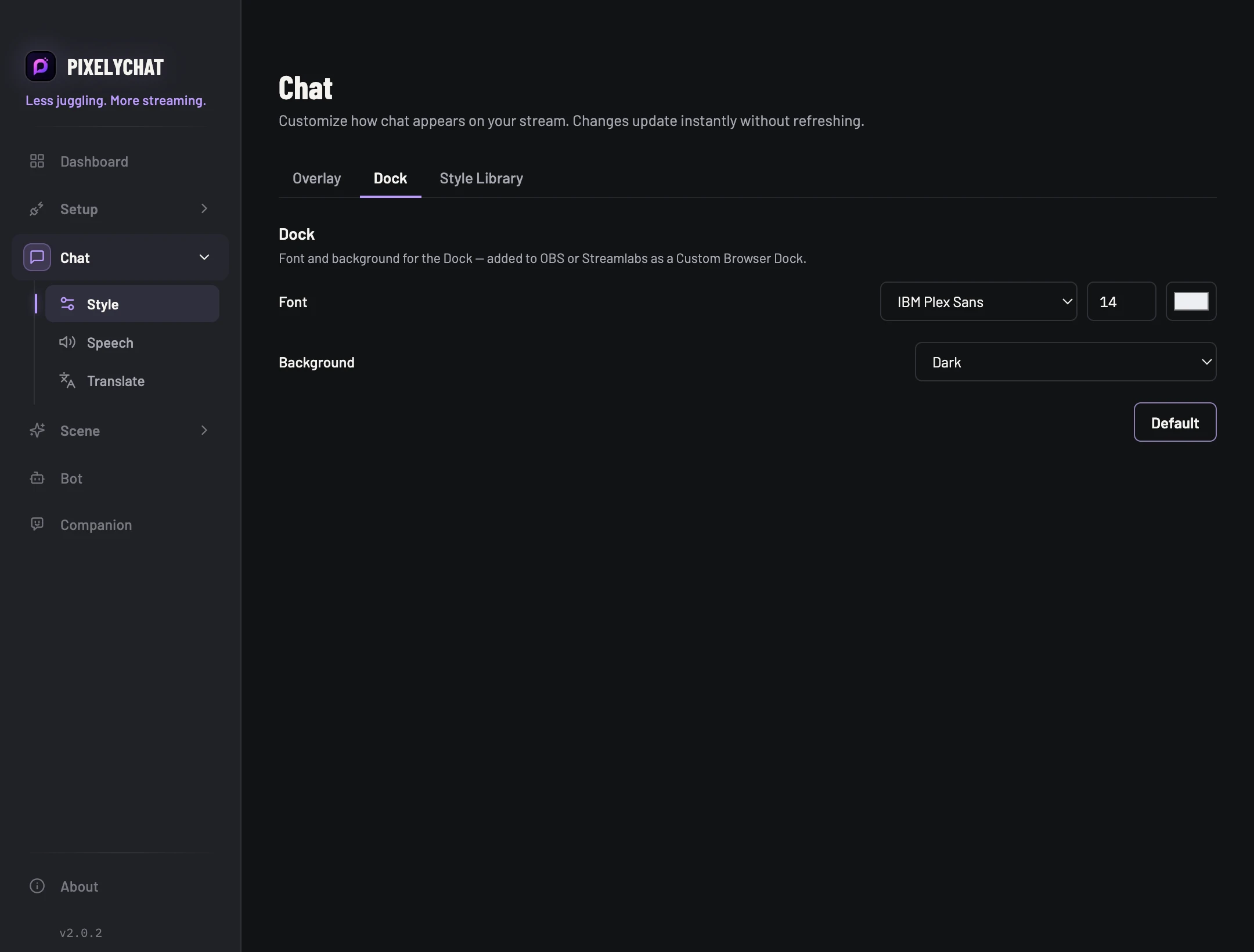
Add the Dock as an OBS/Streamlabs custom browser dock when you want chat, sending and moderation controls beside your production tools without showing them to viewers.
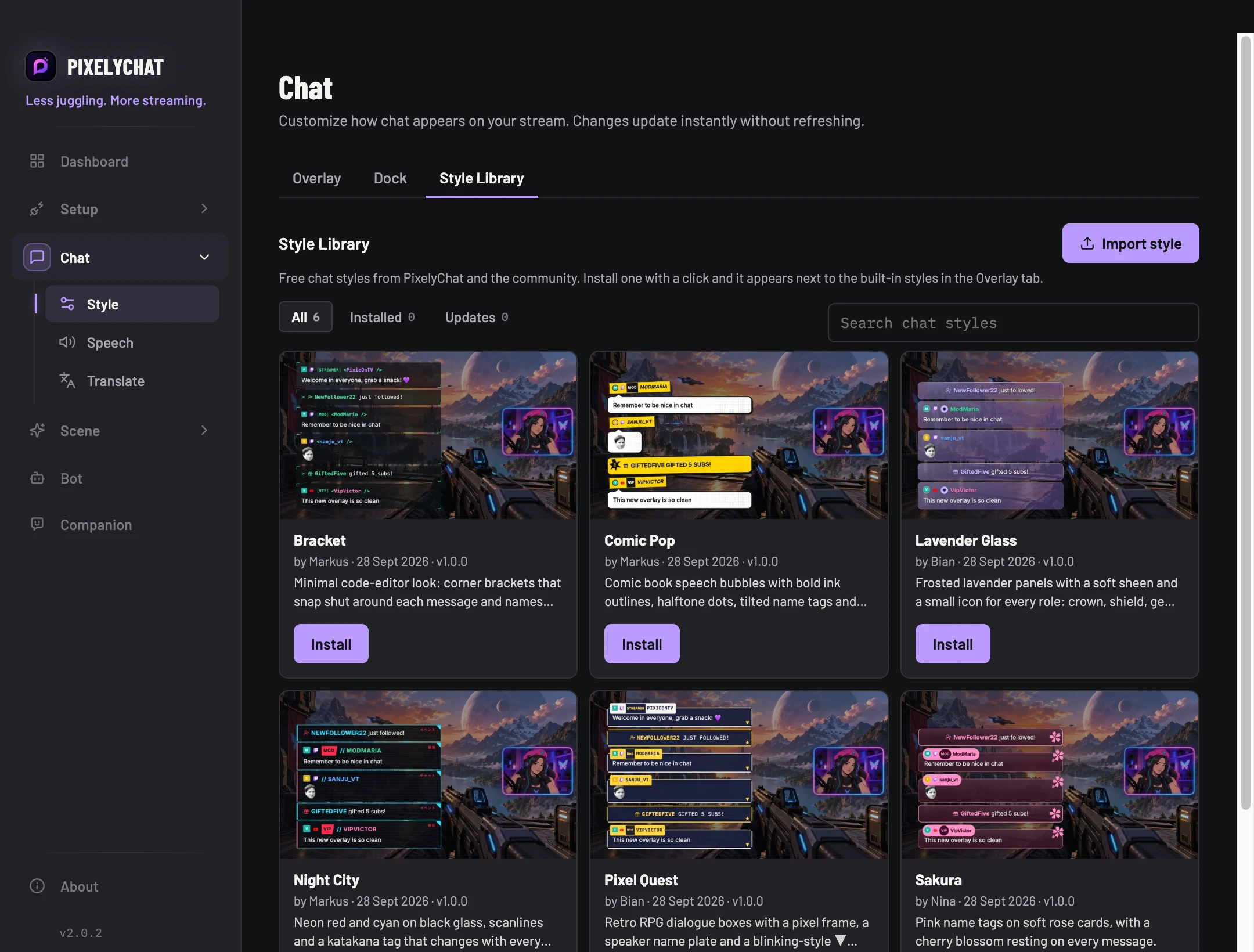
Chat styles give the Chat Overlay a completely different design, with their own name tags, cards, badges and decorations. An installed style appears next to the built-in styles under Overlay, and the background, corner, edge and accent settings still work with it. Chat styles are used by the Chat Overlay on stream; the Dock and On-Screen Chat keep their own look.
.pixelystyle file you downloaded or got from someone.From the Dashboard or Dock you can open a viewer profile, delete supported messages, time out or block users, and use platform actions such as pinning where available.