 PixelyChat
 Viewer interactions
Run your first poll
Ask your audience a question with PixelyChat Polls. Collect chat votes across Twitch, YouTube, Kick and TikTok, show results on stream and control widgets from the Dashboard.
Before you start
Connect at least one streaming platform in Accounts. To show a Chat Vote on stream, add the Stream Scene Browser Source to OBS or Streamlabs and keep PixelyChat running.
This guide starts with a Chat Vote: connected viewers vote through chat and see the results on your overlay.
1. Enable Poll and choose a mode
- Open Scene → Widgets → Specials and enable Poll.
- Open its editor. Under General → Mode, choose Chat Vote.
| Mode | How viewers participate | Where it appears |
|---|---|---|
| Chat Vote | Type an option number in a connected platform’s chat. | PixelyChat’s scene overlay. |
| Twitch Vote | Use Twitch’s native poll. | Twitch’s own poll interface. No PixelyChat scene overlay is shown. |
Twitch Vote needs a connected Twitch account with poll access. PixelyChat reports eligibility or authorization errors when the channel cannot create a native poll. Use Chat Vote for a combined vote across connected chats.
2. Create a reusable question
- Open Templates in the Poll editor and select an existing template or add one.
- Give the template a name you will recognize in Dashboard, such as “Next game.”
- Enter your Question and two to five answer options.
- Set Duration (seconds). Start with 60 seconds for a simple test.
- Select Save to keep your changes.
What should we play next?
- Co-op adventure
- Another ranked match
- A horror game
Duration: 60 seconds
Questions can be up to 60 characters and each answer up to 25 characters. Duration can range from 15 to 1,800 seconds. Empty answers prevent saving.
3. Position the poll
- In the Widgets scene preview, position and resize the Poll for your layout. Check the horizontal or vertical layout you intend to use.
- In Overlays → Stream Scene, copy the matching Browser Source URL.
- If you have not added it already, add a Browser Source in your streaming software and paste that URL. Keep it visible above your game or background.
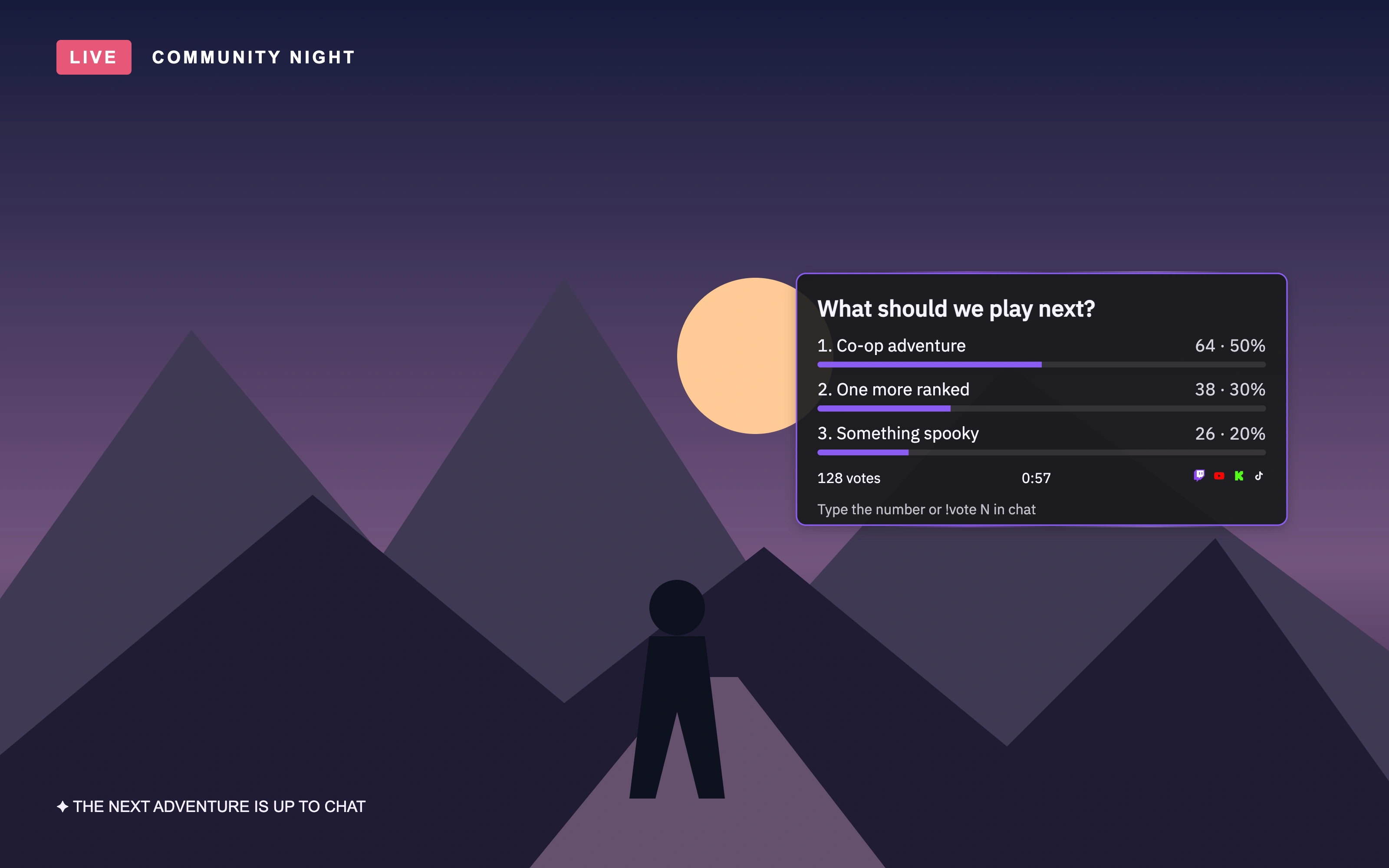
The editor preview uses simulated data. It helps you set the appearance, but it does not prove that a live vote is receiving chat messages.
4. Start voting and test it
- Open Dashboard → Action Widgets.
- Select your saved Poll template and press its play control. Watch for the voting status and timer.
- Have a viewer type
1or!vote 1in a connected chat while voting is open. - Check that the first option’s count changes on the overlay. The message must be a real chat message; editor sample data is not a live vote.
- Let the timer finish and check the displayed result.
Your question appears in OBS, a real vote changes the totals, and the result appears when voting finishes.
A viewer can change their choice by sending another valid number while voting is open. Their latest accepted choice replaces their earlier one on that platform; repeating the same choice does not add more votes. Accounts on different platforms are counted separately.
Only one poll can be active at a time. Finish the current poll before starting another. You can select a template and run the same controls from Pilot’s Actions tab.
5. Choose how results behave
For Chat Vote, open the Poll editor’s General tab and adjust Show results (seconds). Use 0 to keep results visible until you stop/hide them with the Poll control. Save your settings.
Announce in chat sends announcements on Twitch and Kick. YouTube and TikTok viewers use the overlay to read the question and options.
For a normal result, let the timer complete. The Dashboard stop control is also available when you need to stop the widget. Check the resulting state before starting the next question.
If the poll does not work
The poll starts, but nothing appears in OBS
Check the mode first: Twitch Vote does not show a scene overlay. For Chat Vote, check the Stream Scene source URL, source visibility and chosen orientation. Confirm that the poll is placed inside the scene.
Messages arrive, but votes do not count
Check that voting is still open and the message is exactly a valid option number or !vote N, replacing N with the number. Test messages, bot output and unsupported chat events do not count. Sending the same choice again does not increase the total.
My edited question is not being used
Save the template in the editor, then select that template in Dashboard. Finish any active poll before starting a new one.
Twitch asks for permission or cannot confirm a poll
If PixelyChat asks you to reconnect Twitch for poll access, reconnect it in Accounts. For an eligibility error, use Chat Vote instead. If creation is unconfirmed, check the current state before attempting another poll; avoid repeated start requests while PixelyChat is reconnecting or waiting for confirmation.
The announcement is missing
Confirm Announce in chat is enabled and you are checking Twitch or Kick. A failed announcement does not by itself mean the poll failed; check the timer and overlay.