 PixelyChat
 Getting started
Connect your accounts
Accounts is where PixelyChat gets access to chat, stream events and platform-specific controls.
Before you start
Keep access to the streaming account you want to connect. Start with one platform so you can identify any connection problem before adding the others.
Connect and verify an account
- Open Accounts, choose your platform and complete its sign-in prompts. Confirm you are authorizing the intended streaming channel.
- Return to Dashboard and check the channel name and connection status. A connected account is not necessarily live.
- Send a message through the platform’s own chat while its live chat is available. Confirm the same message appears in Live Chats, then repeat for your next platform.
Check the result
The correct channel and a real message appear in Dashboard. If the wrong account was reused, use Force Fresh Login under Accounts → Advanced. For a lost connection, reconnect that platform and test again.
Settings and further help
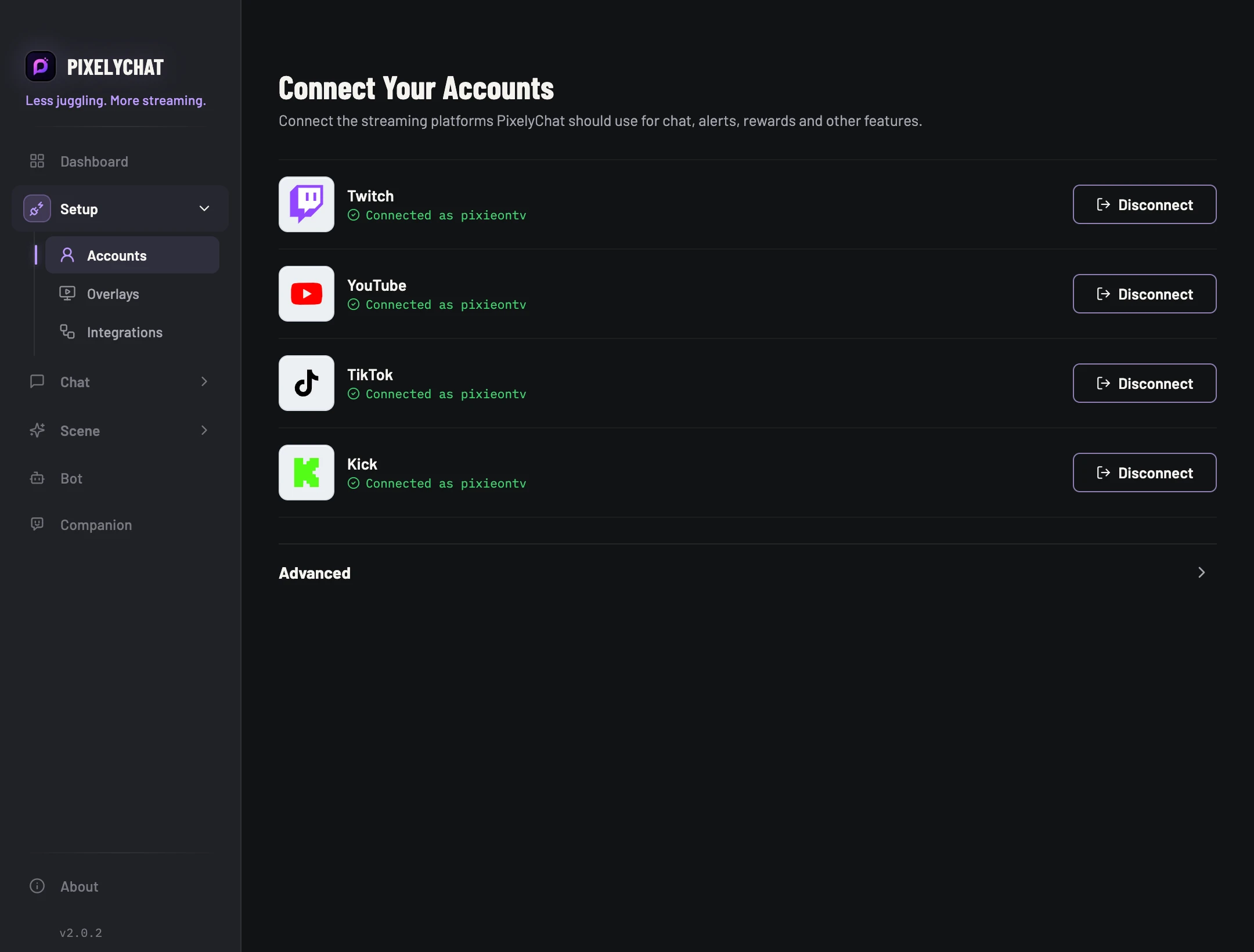
Connect only the channels you stream on.
Use the platform row to log in, reconnect an expired session, or disconnect a channel. Twitch, YouTube, Kick and TikTok can all feed the unified experience, but some actions remain platform-specific.
If the wrong browser account is being reused, use Force Fresh Login in Accounts → Advanced. You can also add your own EulerStream API key there if your setup uses one.