 PixelyChat
Viewer interactions
Play games with your chat
Set up Arena, Trapdoor and Word Mix, put them in your Stream Scene, and manage participation, sound and player records.
Before you start
Connect a streaming account in Accounts and confirm its live messages arrive in Dashboard. Games accepts eligible messages from your selected Twitch, YouTube, Kick and TikTok chats. Keep PixelyChat running.
Add the Stream Scene Browser Source from Overlays to OBS or Streamlabs. Games appears automatically inside that connected scene while a game runs. Choose the matching horizontal or vertical source and check its visibility in the scene you will broadcast.
Setup
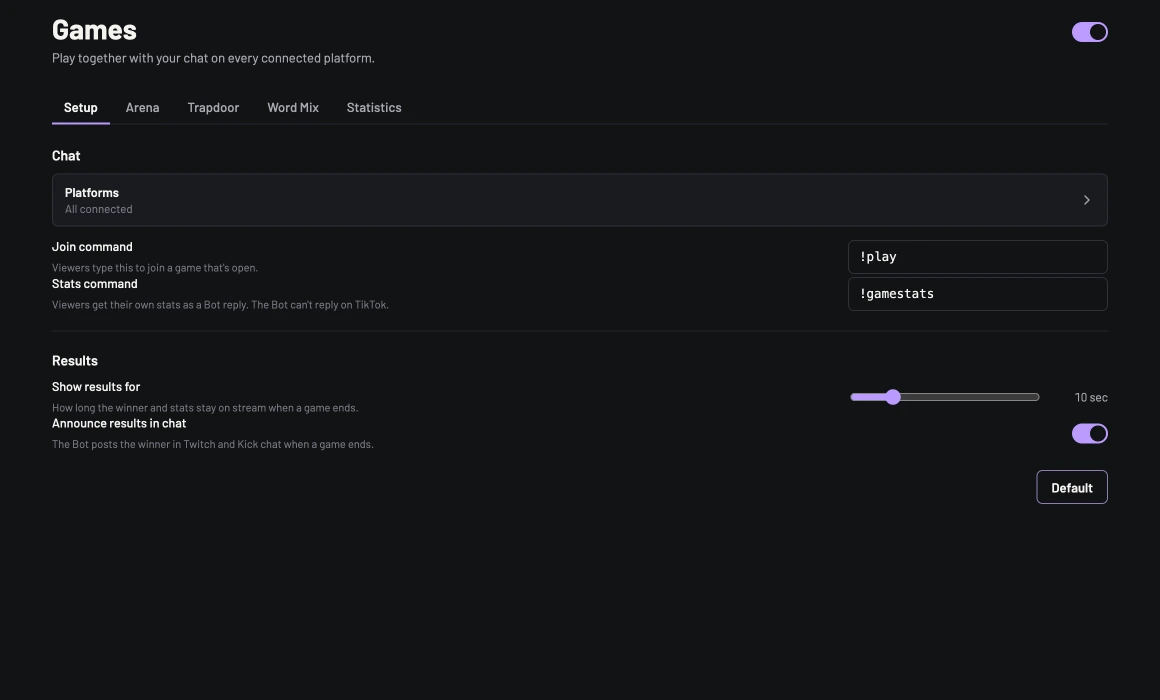
- Open Games → Setup and turn on the master Games switch. In the platform picker, include every connected chat you want to play.
- Enable the games you want in their tabs. Arena has an overall switch and separate Duels and Boss Fight switches. Trapdoor and Word Mix each have their own switch.
- Set Join command and Stats command if you want different commands. The defaults are
!playand!gamestats. Games uses!play, while the separate Game Queue widget uses!joinby default. - Open each game's preview and drag or resize the game. Horizontal and vertical layouts, and each game's placement, are saved separately. Games follows your Scene Theme.
Results
- Show results for: How long the winner and stats stay on stream when a game ends.
- Announce results in chat: The Bot posts the winner in Twitch and Kick chat when a game ends.
Default chat commands
These are defaults, not fixed commands. Change them in Games → Setup or the relevant game tab, and use the on-stream instructions after changing them. For the three general start commands, the default permission is streamer and moderators; viewers can still join and play.
| Command | Action |
|---|---|
!play | Join an open Boss Fight or Trapdoor lobby before recruitment closes. |
!fight @name | Challenge one viewer, or omit the name for an open duel challenge. |
!accept | Accept an open challenge or one addressed to you. |
!decline | Refuse a duel challenge addressed to you. |
!bossfight | Open Boss Fight recruitment if permitted. |
!trapdoor | Open Trapdoor recruitment if permitted. |
!wordmix | Start a Word Mix run if permitted. Answers are ordinary chat messages. |
!gamestats | Request your own game records. Bot replies are unavailable on TikTok. |
Trapdoor choices are numbers such as 1, 2 or 3. Word Mix answers are plain words. Neither needs another bot command.
Start, stop and repeat
Start Boss Fight, Trapdoor or Word Mix with Play under Quick Actions on Dashboard, in Title, or in the OBS action dock. Viewers start duels from chat; there is no host Play button for an idle duel.
Only one game can run at a time. End the current game before switching. A manual host start may replace an unanswered duel challenge, but does not interrupt an accepted duel. External starts also need an on-stream source and a usable selected chat.
Start Now or Fight Now can close recruitment early once at least two people joined. Otherwise Boss Fight and Trapdoor recruit for 30 seconds by default; fewer than two participants cancels without wins or losses.
Stop Game ends the current game and its automatic repeats. A later permitted command or reward can still start another game. Where Cancel is offered, it discards the unfinished match and lets the configured repeating mode continue. Players must join each new Boss Fight or Trapdoor lobby.
Trapdoor
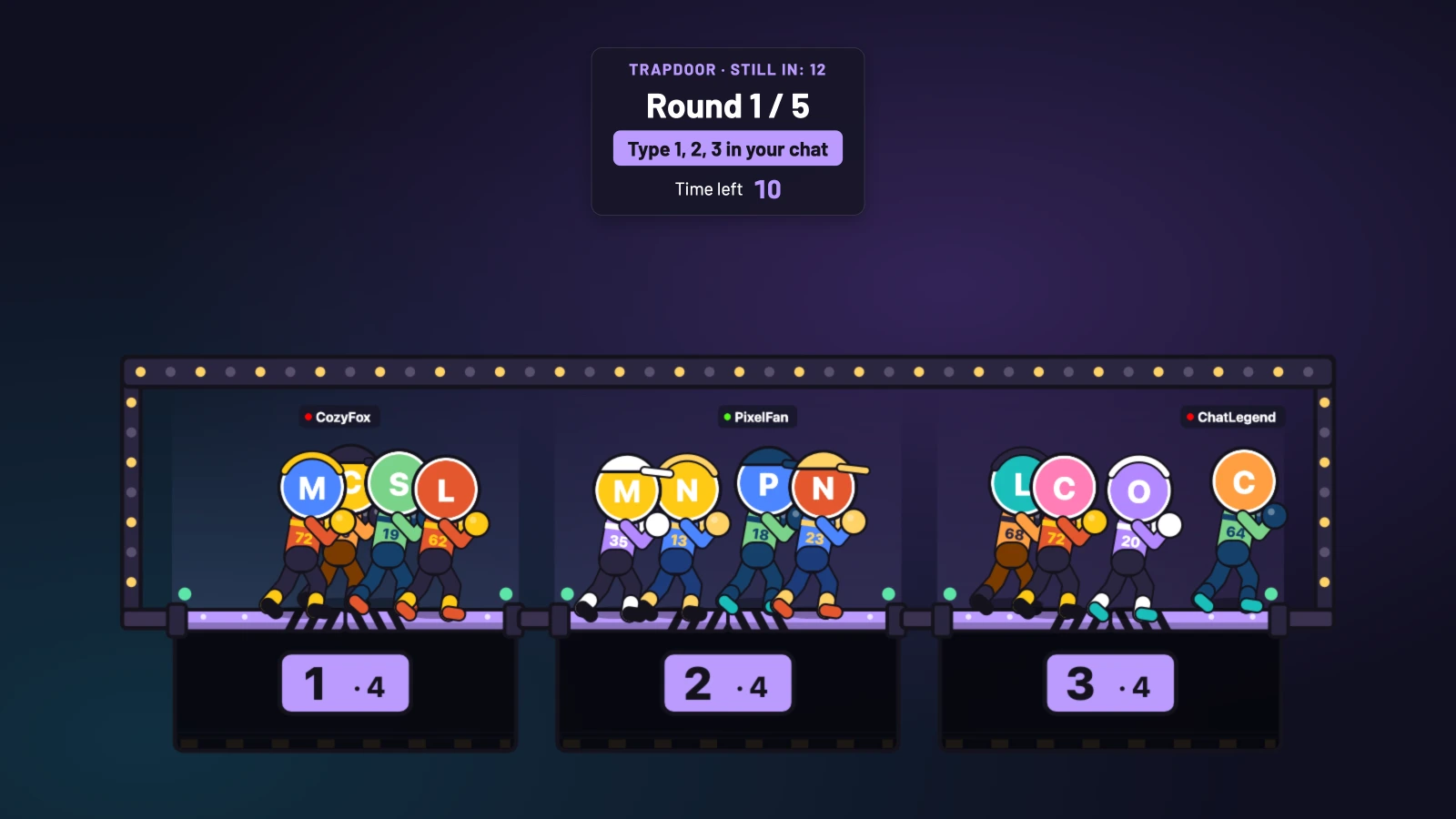
One door opens each round and anyone on it falls. Your door stays until you switch. Everyone left after round 5 wins.
- Type
!playwhile the lobby is open, then type a door number: 1, 2 or 3. - Change your mind before the countdown ends. Your door stays selected until you switch; you don't need to repeat the same message each round.
- The last survivor wins. If several survive the configured limit of up to five rounds, they share the win. If everyone falls, the floor wins.
Defaults: three doors, 15 seconds to choose, 30 seconds to join and at most five rounds. Configure two or three doors and one to five rounds. Up to 250 participants can join.
Someone who has not chosen a door is assigned one randomly. Silence does not eliminate a player. Once selected, a door stays selected until changed. Choices sent after the lock apply to the next round if the player survives; they do not change the current locked result.
Boss Fight
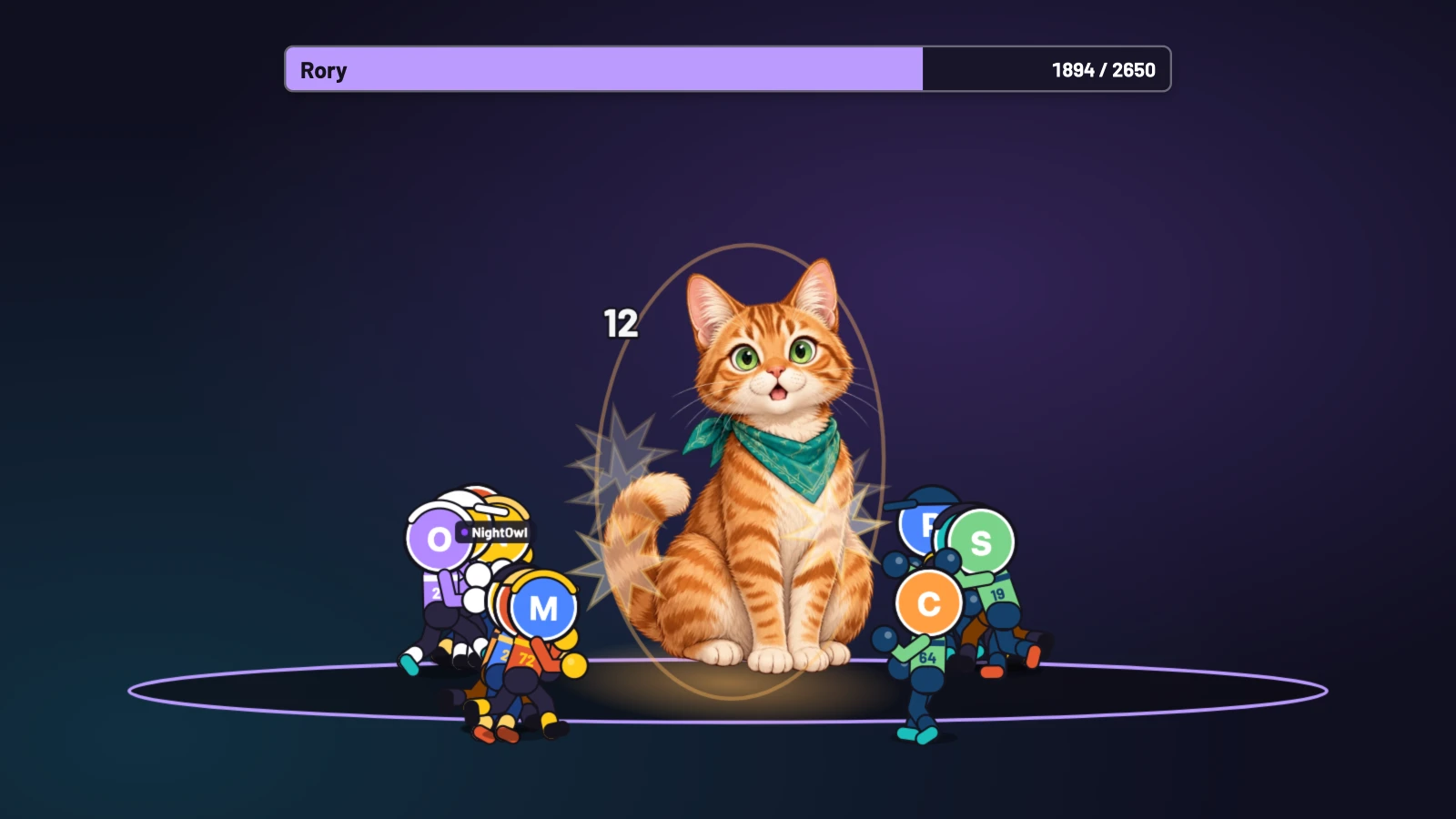
Chat teams up against a boss. Viewers join, then their fighters attack automatically until the boss or the team falls.
- Open a Boss Fight from the host controls, an enabled start command or a linked reward. Viewers join with
!play. - Once recruitment closes, the team attacks automatically. Watch the health bar, big hits and knockouts—joining is enough to take part.
- Bring down the boss to win as a team. Auto difficulty sizes the boss to the joined roster; fixed difficulty presets are available too.
In Arena select Boss Fight. Choose an installed Companion under Boss avatar. Face defaults to a connected account's profile photo; it keeps the Companion face until a photo is available. Select the cartoon face, a different connected profile or an image from the Media Library if preferred.
For an uploaded face, use a PNG, JPEG or WebP up to 5 MB, position it in the crop preview, adjust zoom and save. Leave Boss name empty to use your channel name.
Difficulty defaults to Auto, sizing the boss to the locked roster. Fixed presets target 2–4 viewers, 7–15 viewers, or 20+ viewers. Boss Fight accepts up to 250 participants, but only a manageable selection is drawn individually.
On a team win, everyone in the locked roster gets a victory, including knocked-out fighters. Damage and the finishing hit are tracked separately. If time runs out with the boss alive, the boss wins.
Duels
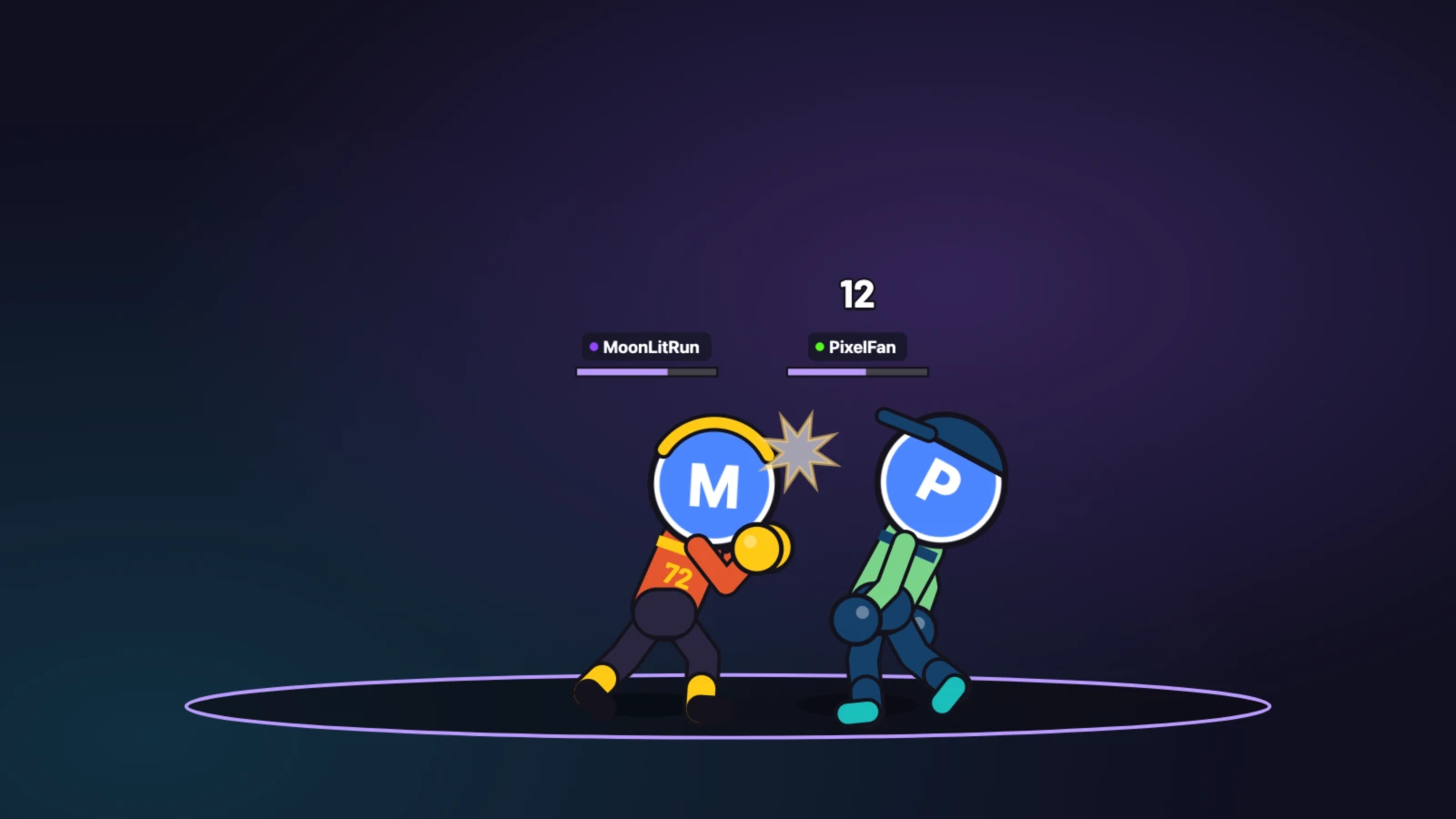
Two viewers fight it out on stream. They start it themselves at any time.
- Type
!fight @nameto challenge a viewer, or just!fightto open a challenge anyone eligible can accept. - The other viewer types
!acceptto fight or!declineto refuse a direct challenge. No acceptance, no duel. - The fight plays automatically. Wins and rivalries are recorded, but previous results never make a fighter stronger.
Both fighters have equal combat stats and fight automatically with randomized attacks. Previous wins and cosmetic gear never increase combat power.
Set Per-viewer cooldown to control how often one viewer can challenge or fight again: 60 seconds by default, or 0 to disable that per-viewer cooldown. A shared 15-second gap still separates duel endings from the next challenge. Time to accept defaults to 30 seconds.
Word Mix
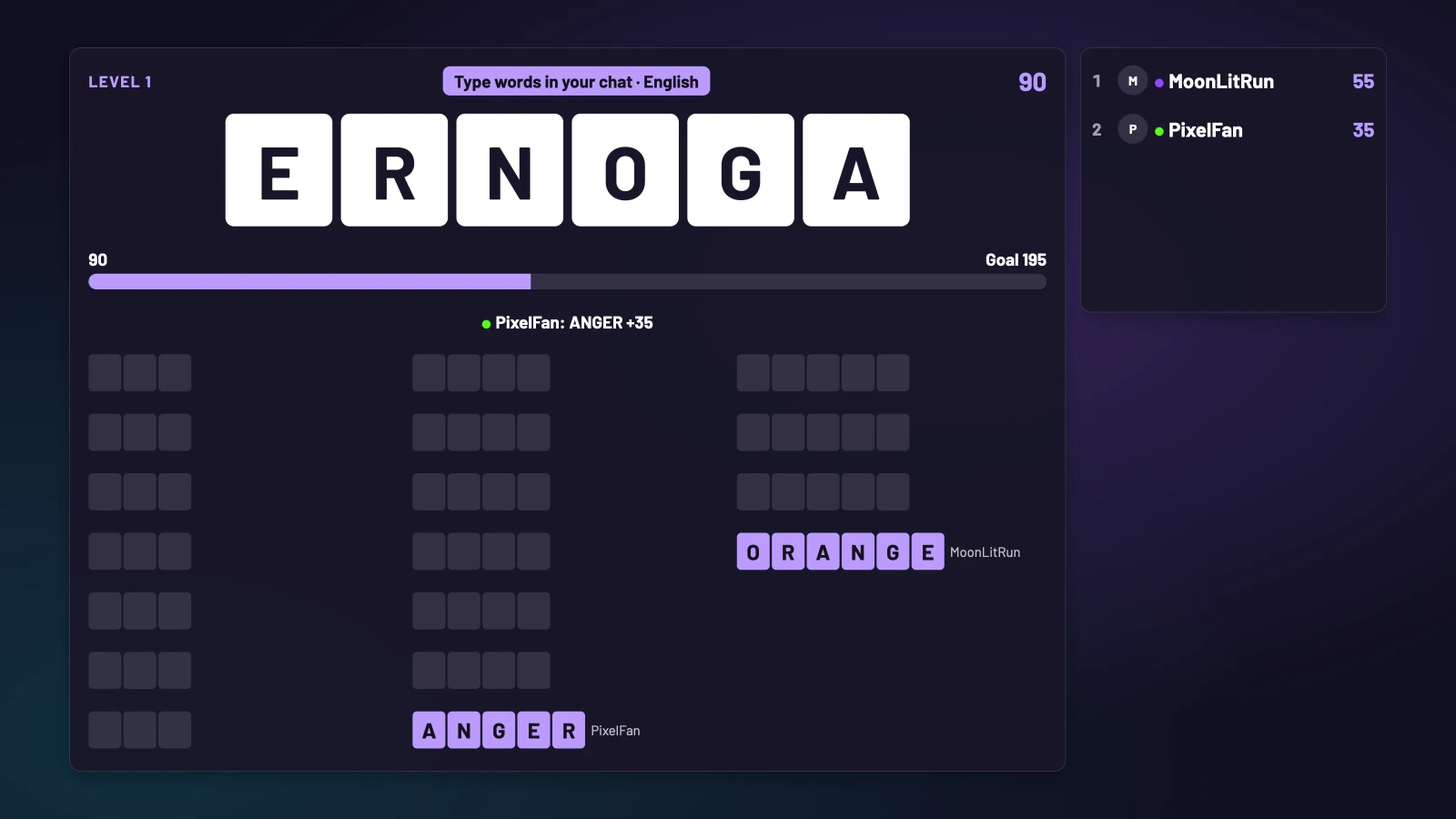
Chat works together to find words in the letters and reach the goal before time runs out.
- Type words made from the letters directly in chat. No join command is needed.
- The first eligible correct answer claims the word and its points. Reach the goal before time runs out to keep the run going.
- Choose automatic progression or Bonus Hunt, where chat keeps finding words after reaching the goal. Word packs cover all 15 app languages; non-English packs are compact and repeat sooner.
The default round lasts 90 seconds with a five-second wait between a player's credited answers. An ineligible answer during cooldown cannot reserve a word. A claimed word scores once; bonus words add personal points but do not fill the team goal.
After the goal can advance after a short celebration or keep Bonus Hunt open until time ends or every target is found. If time expires before the goal, the run ends. Perfect Clear awards an extra bonus to contributors when every target is found and the setting is on.
Choose Word language before starting a run. All 15 app languages have packs; non-English packs are compact and repeat sooner. Language changes apply to the next run. Later levels add hidden and decoy letters.
The display switches control the leaderboard, finder names, platform marks and platform totals. Automatic repeat starts a fresh run after a break; it does not restore a failed round.
BRB screens
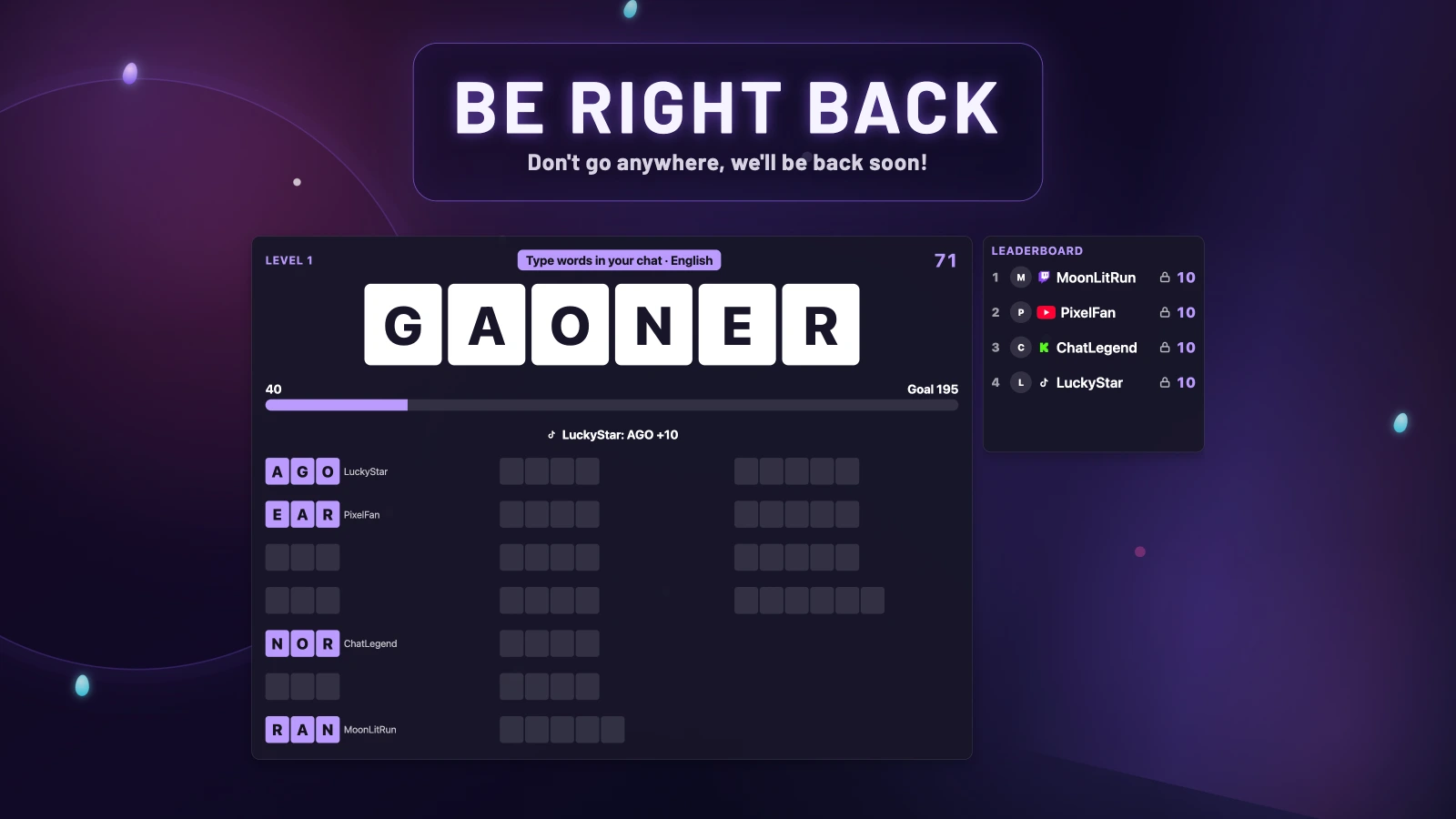
Your BRB screen can be a place to play. Put Word Mix inside the new themed BRB layout and let your community keep solving words while you're away. Trapdoor and Boss Fight are available too. BRB keeps its chosen game going automatically until you return.
- Open Games → Setup, enable Games and Word Mix, and select the connected chats you want to include.
- Open Scene → Widgets → Specials and edit Be Right Back. In General, find Content.
- Set What to Show to A Game, choose Word Mix under Game, then Save. Games must be enabled for the game option to appear.
- Press Play for Be Right Back from the Dashboard, Pilot or OBS action dock when you step away. Stop BRB when you return.
Want a highlight break instead? Choose Twitch Clips to play clips from your own connected Twitch channel, or Custom Video to choose an uploaded video and optionally loop it. Personalize the title, subtitle, horizontal and vertical backgrounds, and music; your Scene Theme supplies the look.
A game started by BRB stops when BRB ends. A game that was already running moves into the BRB area and continues afterwards.
Music, sound and previews
Expand Audio Settings inside each game. Sound effects and background music have independent switches and volume controls. Choose included music or select uploaded audio from the Media Library.
A sample Preview can appear, with sound, in a connected Stream Scene. It never sends chat messages, triggers Rewards or saves statistics. A real game takes priority. Use Stop Preview when finished.
Check sound in a short OBS recording. Keep one audible source path: duplicate Stream Scene sources can double the game sound. When an on-stream source is connected, the app preview does not add a second local audio copy.
Statistics
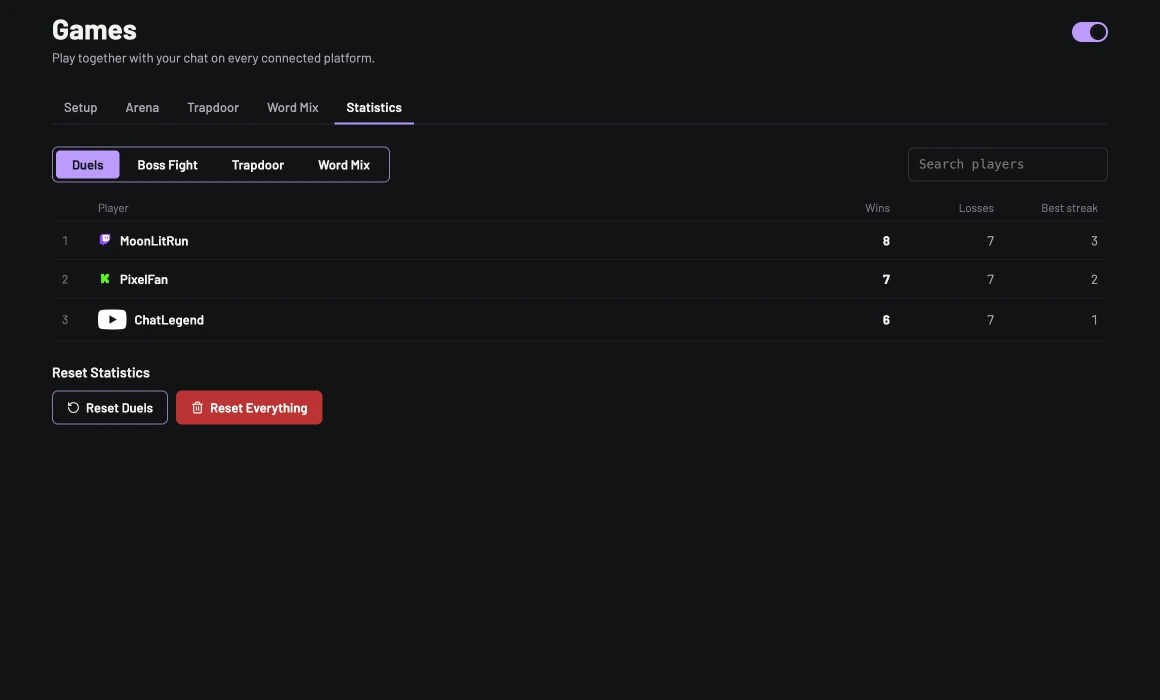
Open Games → Statistics, select a game, search for a player and open their row for detailed records. Accounts from different platforms remain separate, even when display names match. The statistics button on a game's Dashboard, Pilot or dock row shows or hides its all-time top five on stream.
Reset one player's selected game, reset the whole selected game, or reset everything. Deleting a player removes their records across games. These actions require confirmation and also clear related history in their scope; they are unavailable while a game runs or a result awaits saving. Completed Word Mix rounds remain saved if a later unfinished round is stopped.
Check the result
- Nothing on stream: check the master and individual switches, selected chat connection, active OBS scene, matching orientation and Stream Scene Browser Source visibility.
- A direct challenge cannot find someone: ask that viewer to send a normal chat message first so PixelyChat can identify them. Use an unambiguous account name; a display name shared by several accounts cannot identify one player safely.
- A reward does not start a game: enable Rewards as well as Games, add Start a game to the reward, choose Boss Fight, Trapdoor or Word Mix, and verify its supported platform binding. Game starts do not refund points. Manual and chat controls work independently of Rewards.
- A result could not be saved: use Retry Save. If you choose Discard Result, that unsaved result is lost. New games remain blocked until the pending result is resolved.
- After a restart, unfinished play is abandoned without awarding a result; completed records remain. Start a fresh game rather than expecting a lobby or automatic repeat to resume.