 PixelyChat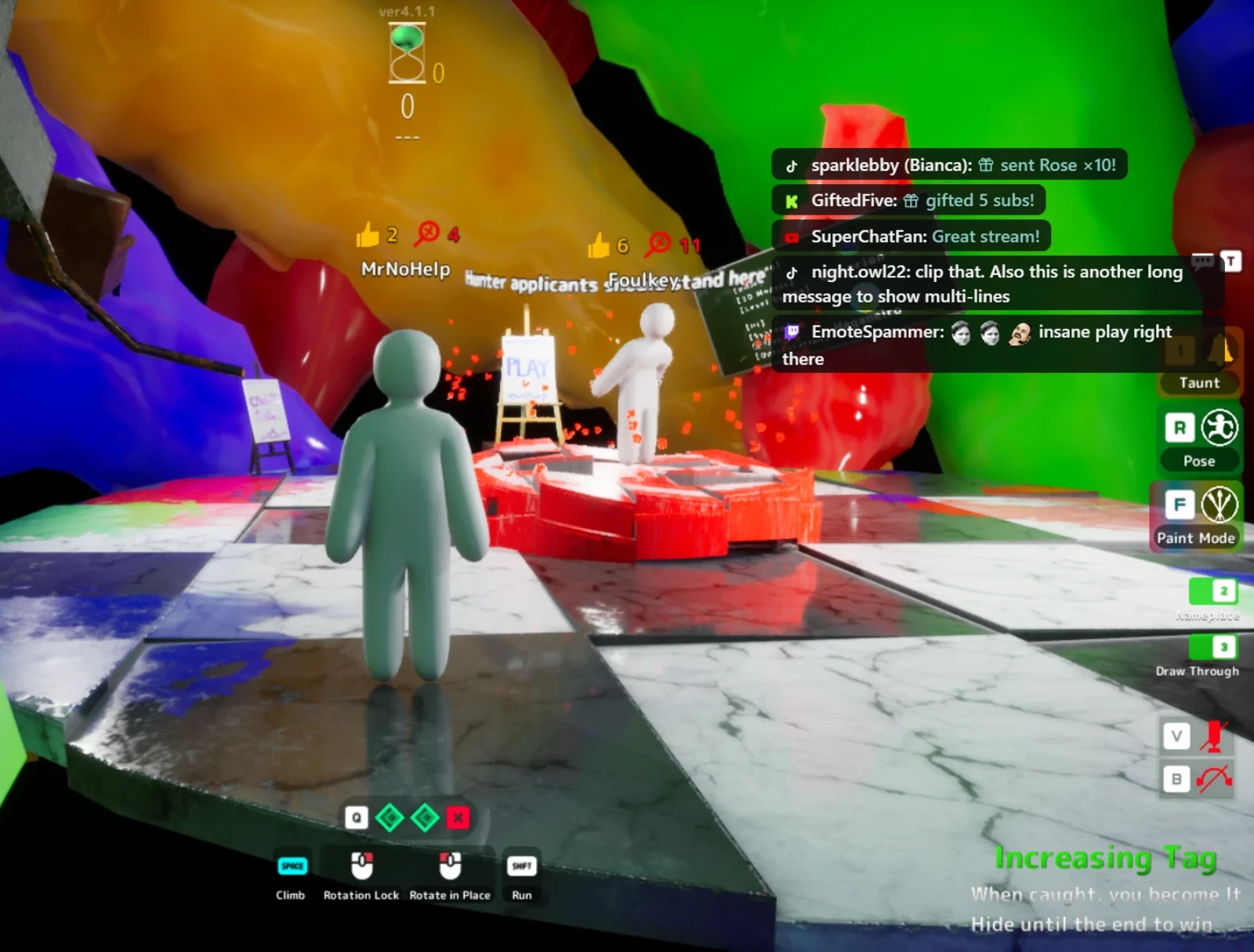
One screen, lots of chat
If you stream with one monitor, reading chat means leaving your game: alt-tab out, scroll, jump back in, and hope nothing happened in the meantime. Text-to-speech helps, but you still miss who followed, who subbed and which message was a question.
Chat right where you're looking
On-Screen Chat shows new messages and events from Twitch, YouTube, Kick and TikTok in a small window on top of your game. Each message fades out after a few seconds. When chat is quiet, the window disappears completely.
- Your clicks and key presses still go to the game. The window never takes the mouse or keyboard.
- Follows, subs, gifts, cheers, raids and redeems show up too, if you want them.
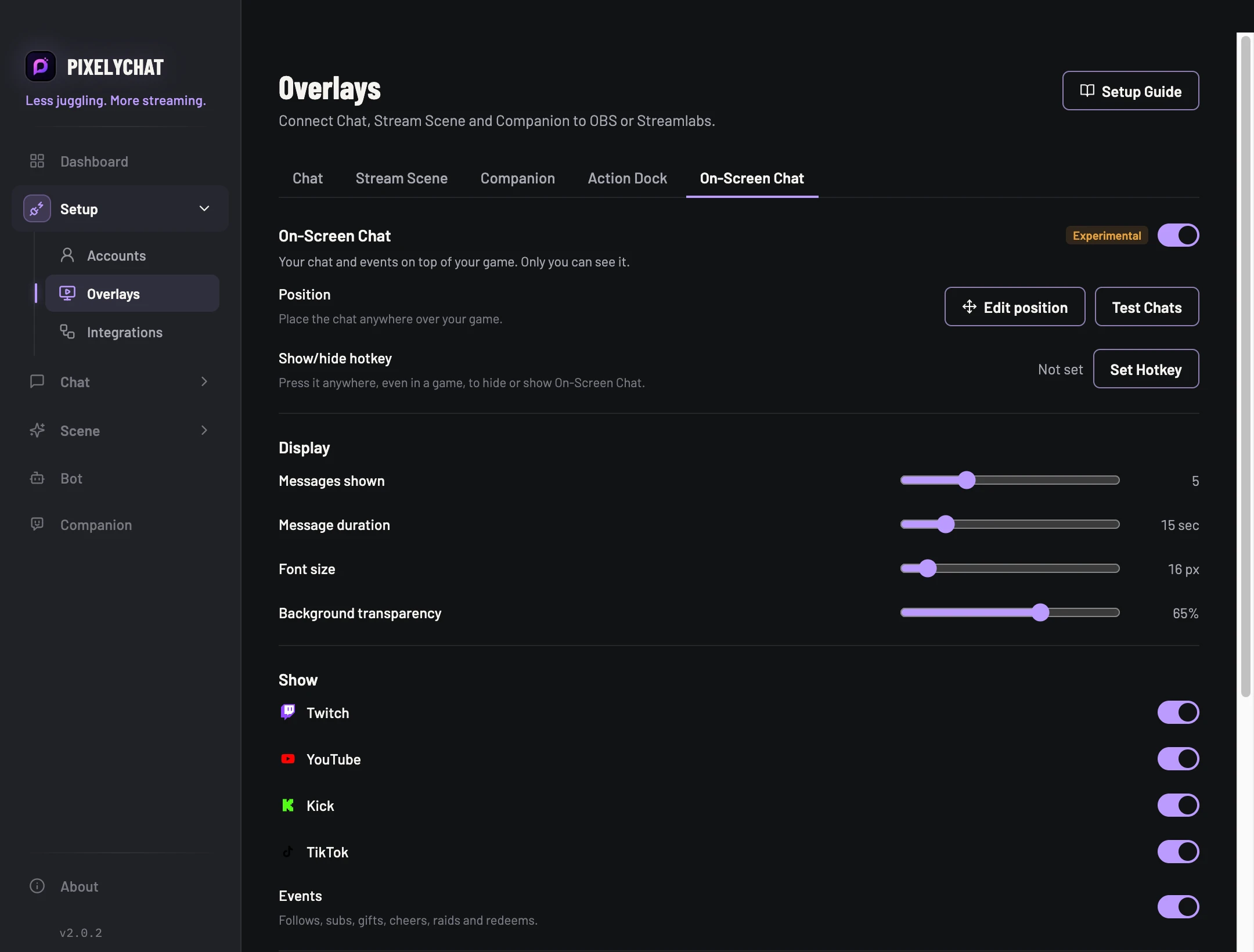
- Set a hotkey to hide it or bring it back, even in the middle of a match.
Only for your eyes
On-Screen Chat is not a Browser Source, so it isn't part of your stream. With Game Capture or Window Capture in OBS it never appears on stream. On Windows 10 (version 2004 or newer) it also stays out of Display Capture. On macOS, capture only the game window or app.
Make it yours
Drag it where it doesn't cover your minimap, resize it, and pick how many messages it shows, how long each one stays, the font size and the background.
Good to know
On-Screen Chat works over games in windowed or borderless fullscreen. A game in exclusive fullscreen can cover it. While messages are on screen, some games can't use their fastest fullscreen mode, which can add a little input latency. For competitive games, use a short message duration or the hotkey. The feature is marked Experimental while we collect feedback.
Try it
- Update to the latest PixelyChat.
- Open Overlays → On-Screen Chat and switch it on.
- Click Edit position, drag the window into place, then click Done.
- Click Test Chats to see how it looks over your game.