 PixelyChat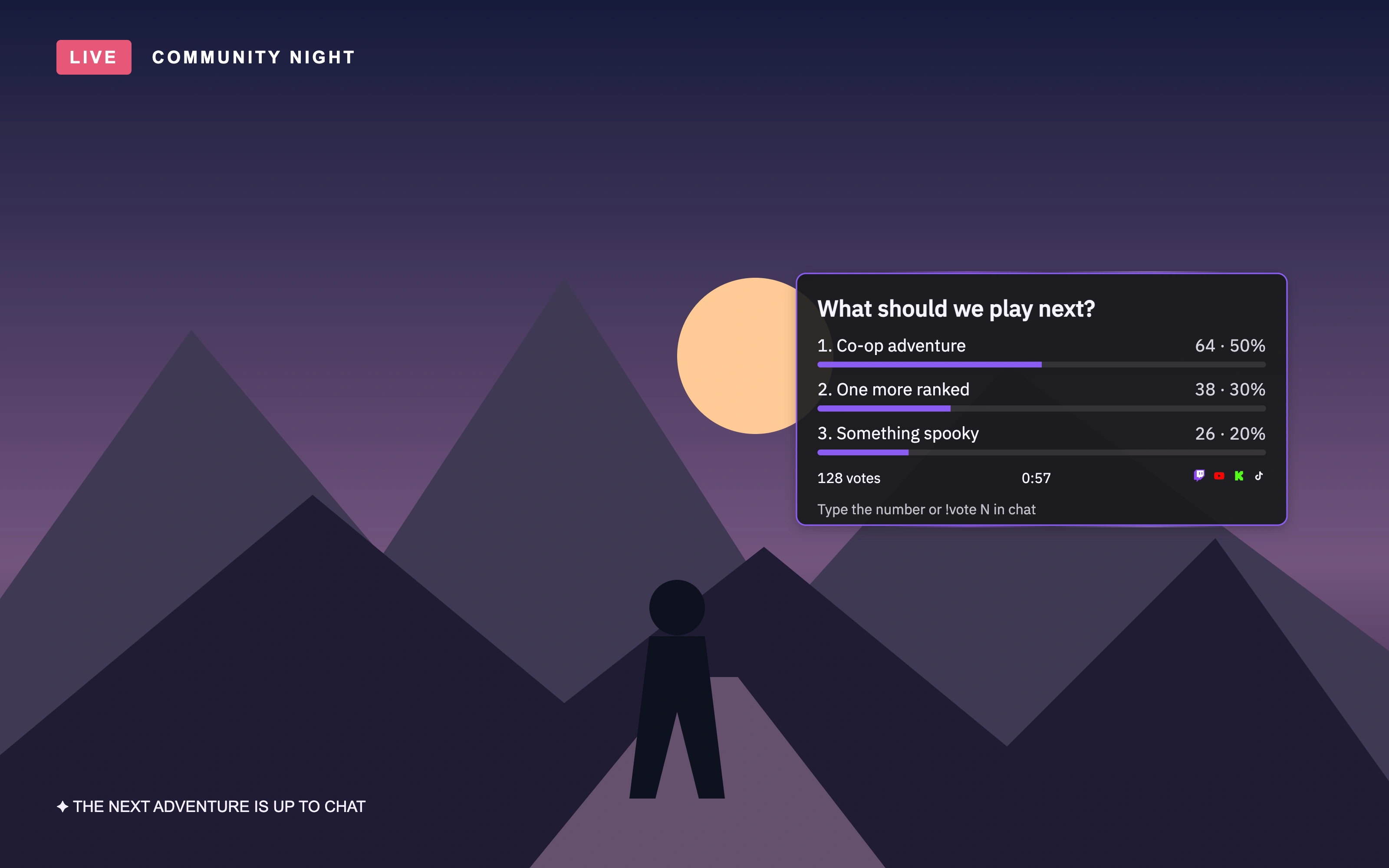
One question. Every chat gets a say.
“What should we play next?” “Do we try that again?” “Which challenge are we taking?” The new Poll widget turns those moments into a live vote your audience can see on stream.
In Chat Vote mode, viewers on your connected Twitch, YouTube, Kick and TikTok chats vote by typing an option’s number or !vote N. The overlay brings the votes together, showing the totals, percentage bars and time remaining.
Set it up once. Ask it again whenever you like.
Save questions as templates, choose two to five answers and set the voting duration. Keep a few ready for the questions you ask every stream, then select the one you need from the controls. When voting ends, show the result on stream.
There is also a Twitch Poll mode for eligible Twitch accounts, using Twitch’s own poll system. Use Chat Vote when you want your connected chats to vote together.
Your Action Widgets, right on the Dashboard.
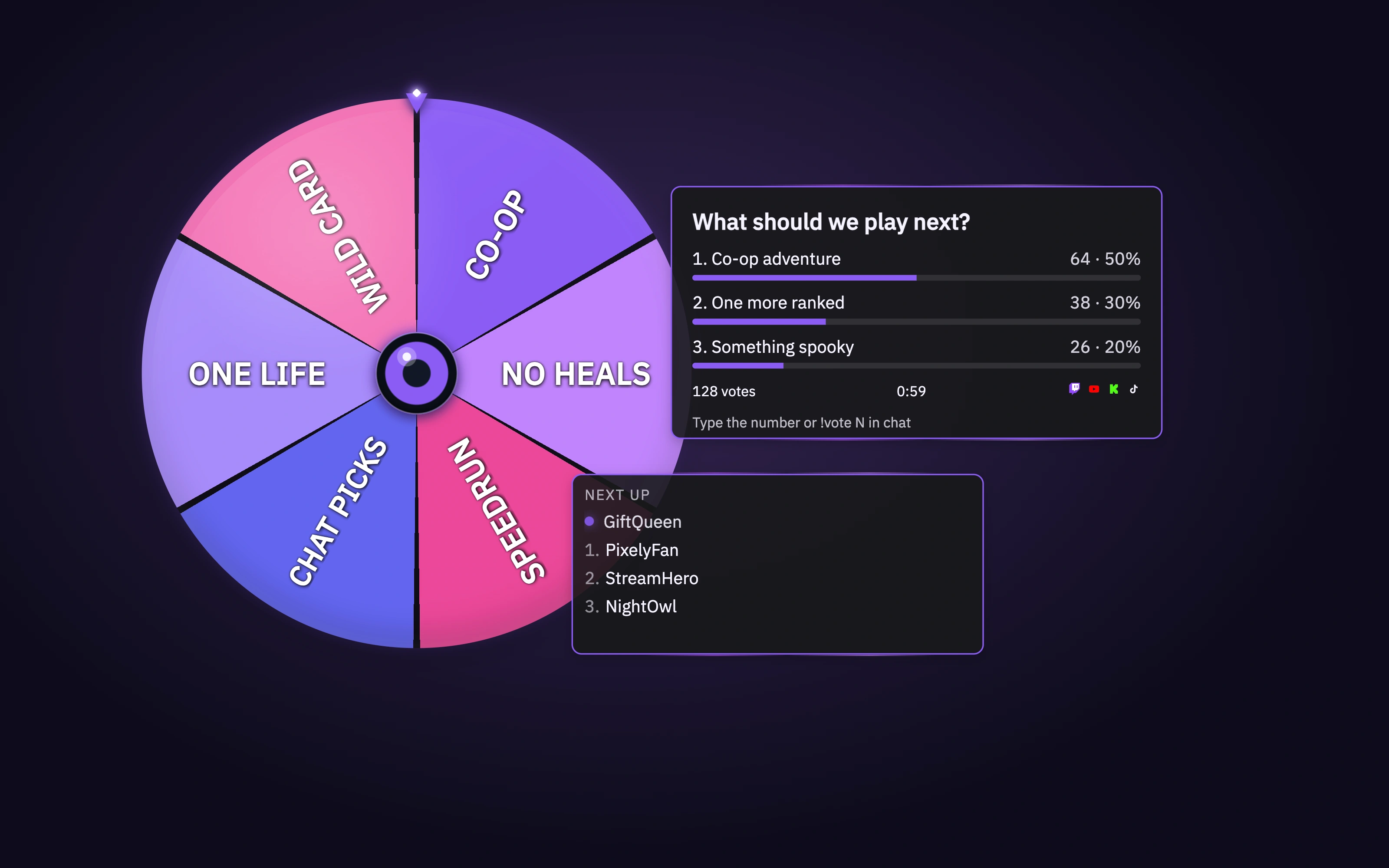
The Dashboard’s Action Widgets controls put the next moment within reach. Start and stop widgets, see their live status and timers, and choose saved Poll and Spin Wheel templates without going back into the editor.
Poll joins Spin Wheel and Game Queue: let the audience choose, leave a challenge to chance, or have viewers type !join to line up for the next game. Together, they give your community more ways to take part.
Put your first question to chat.
- Open Scene → Widgets → Specials and enable Poll.
- Choose Chat Vote, edit a template and position the poll in your scene.
- Add your Stream Scene Browser Source to your streaming software if you have not already.
- Pick your template on the Dashboard and start voting. You can also run it from your phone with Pilot.