 PixelyChat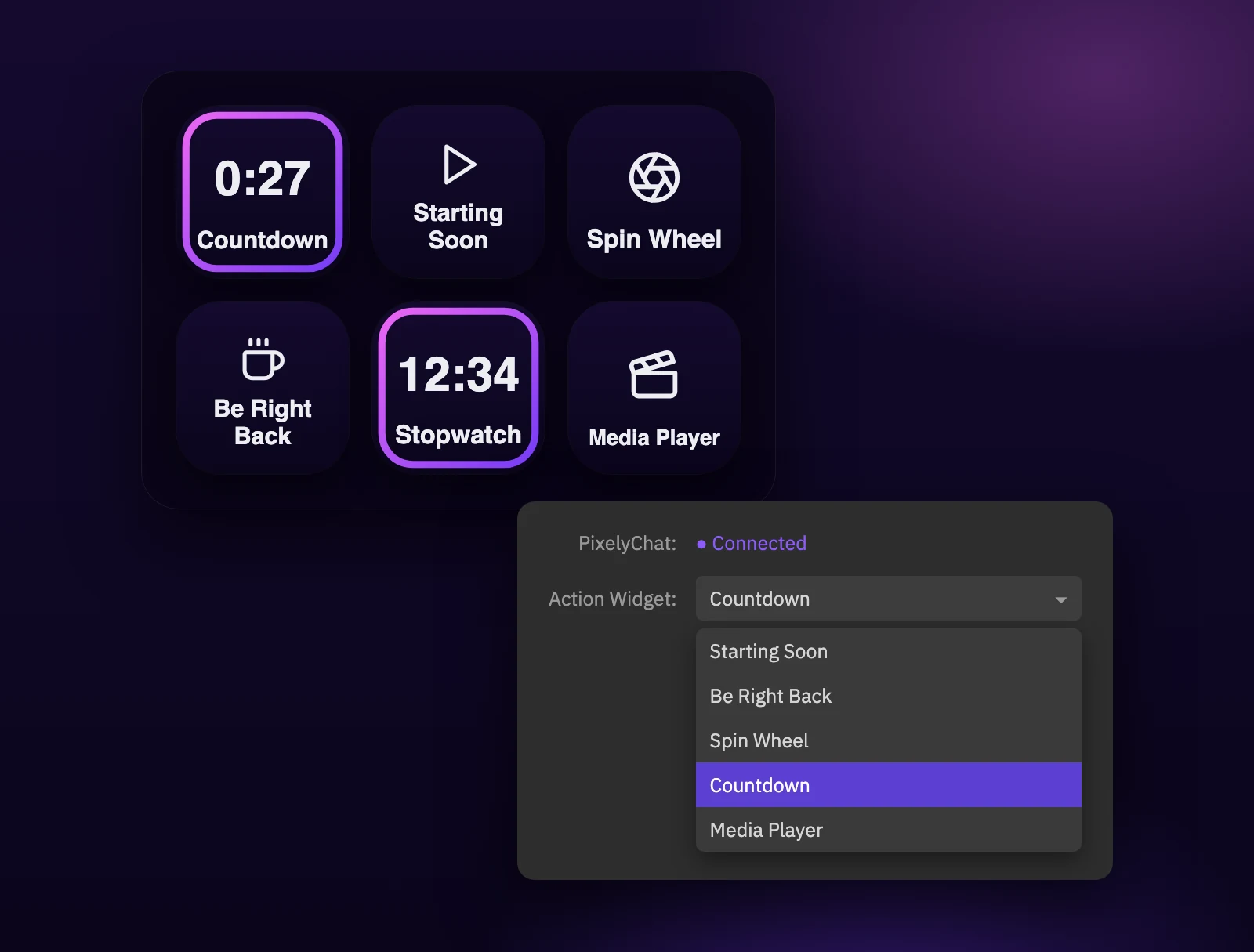
Stop hunting for buttons mid-stream
Starting your intro, taking a break or spinning the giveaway wheel usually means clicking through the app while viewers wait. With the PixelyChat plugin for Elgato Stream Deck, each of these is one key press.
One key per Action Widget
Put any of your Action Widgets on a key: Countdown, Stopwatch, Spin Wheel, Starting Soon, Be Right Back, Media Player and more. Press the key to start it, press it again to stop it.
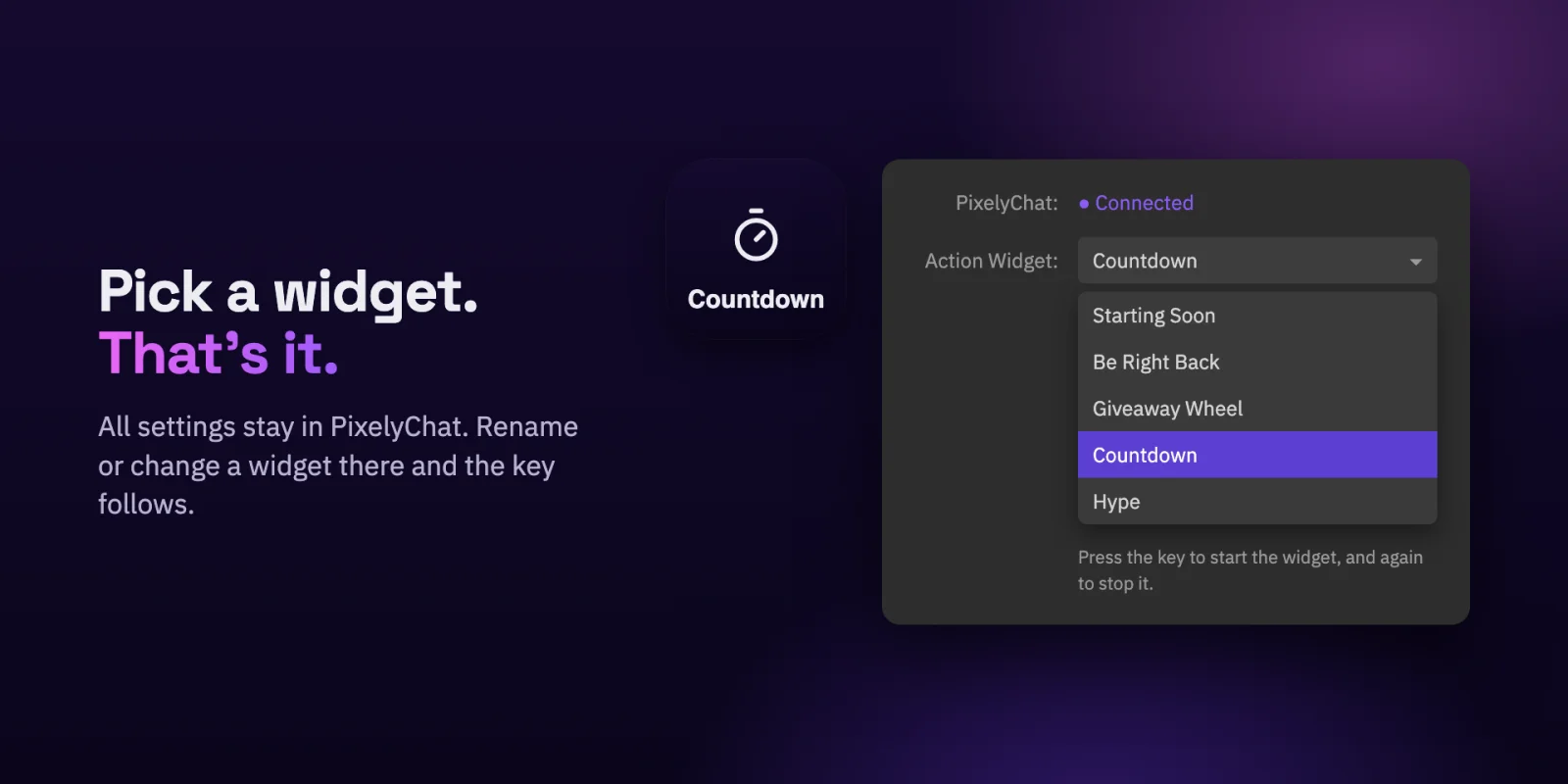
See what's running
Every key shows the widget's live status. Timers count down right on the key, and a key tells you when a widget is turned off in PixelyChat or when PixelyChat is closed. When PixelyChat starts again, the keys reconnect by themselves.
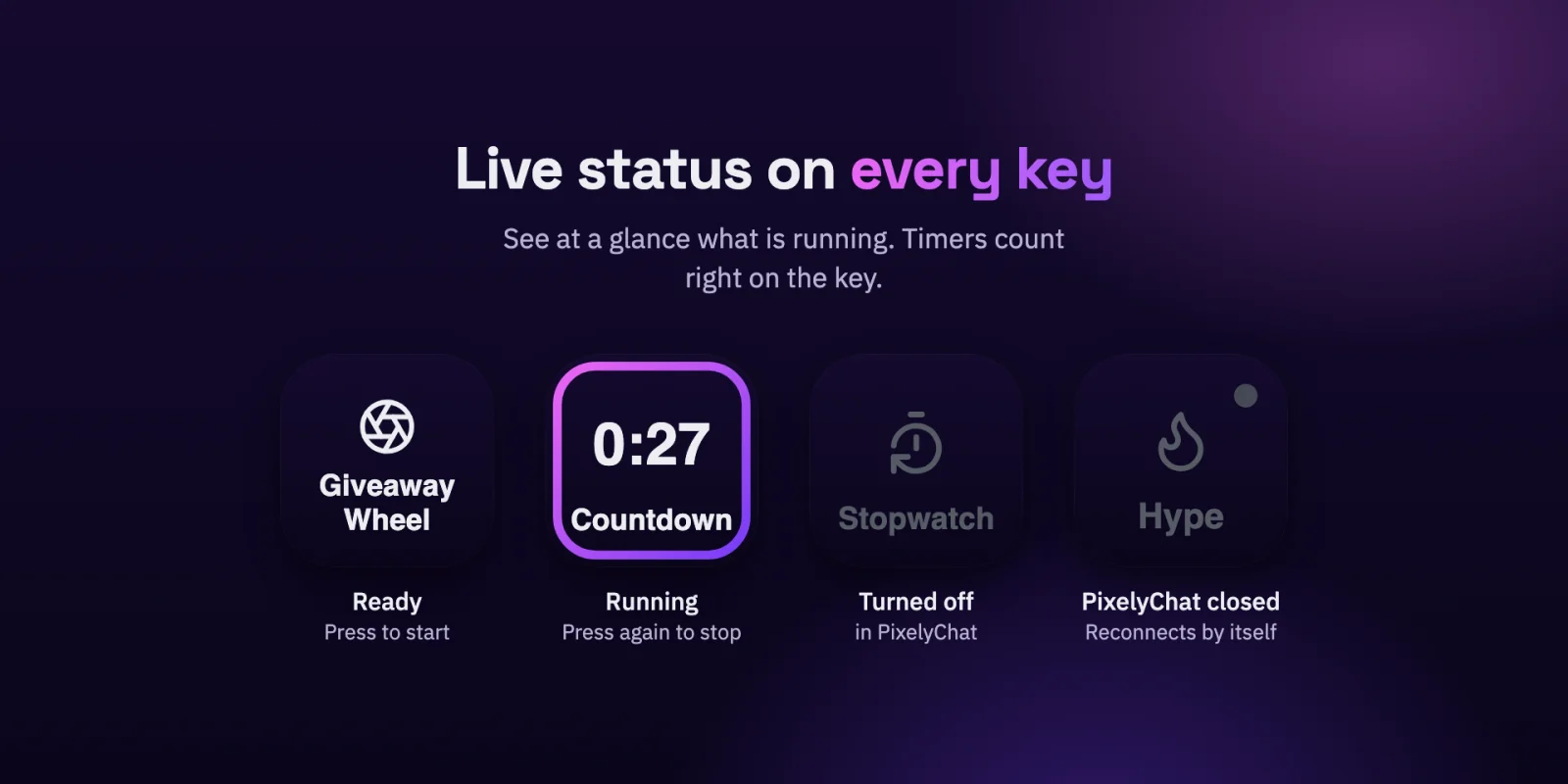
Settings stay in PixelyChat
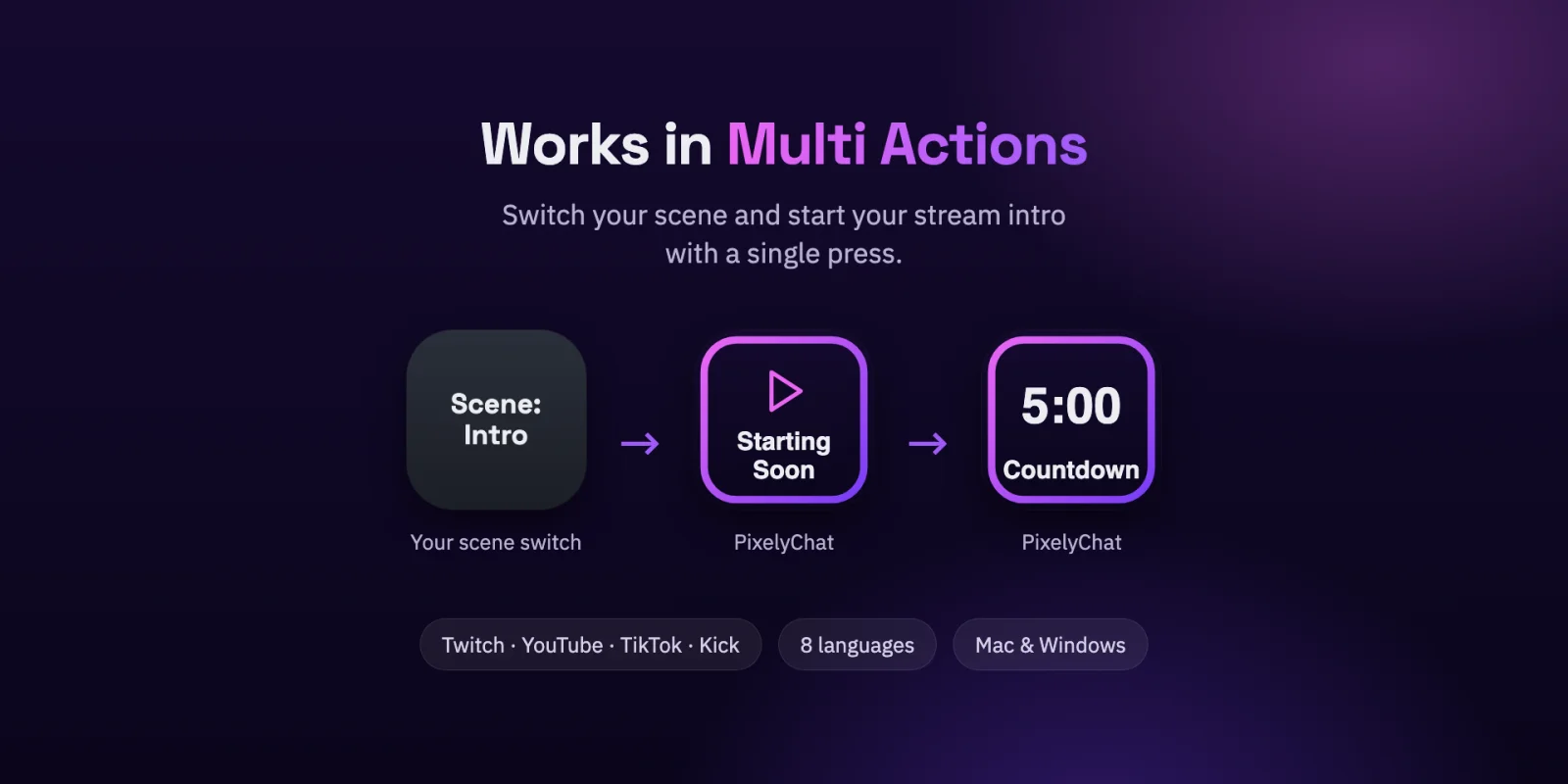
There is nothing to set up twice. Rename a widget or change its look in PixelyChat and the key follows. The keys also work inside Stream Deck Multi Actions, so one press can switch your OBS scene and start your Starting Soon screen and countdown together.
Try it
- Install the PixelyChat plugin from the Elgato Marketplace.
- In PixelyChat, turn on Stream Deck under Setup → Integrations → Stream Deck.
- Drag Trigger Action Widget from the PixelyChat category onto a key.
- Pick one of your Action Widgets.
- Press the key to start it, and again to stop it.
You can check the connection in PixelyChat under Setup → Integrations → Stream Deck. Action Widgets with a hotkey also work with Stream Deck's built-in Hotkey action.