 PixelyChat
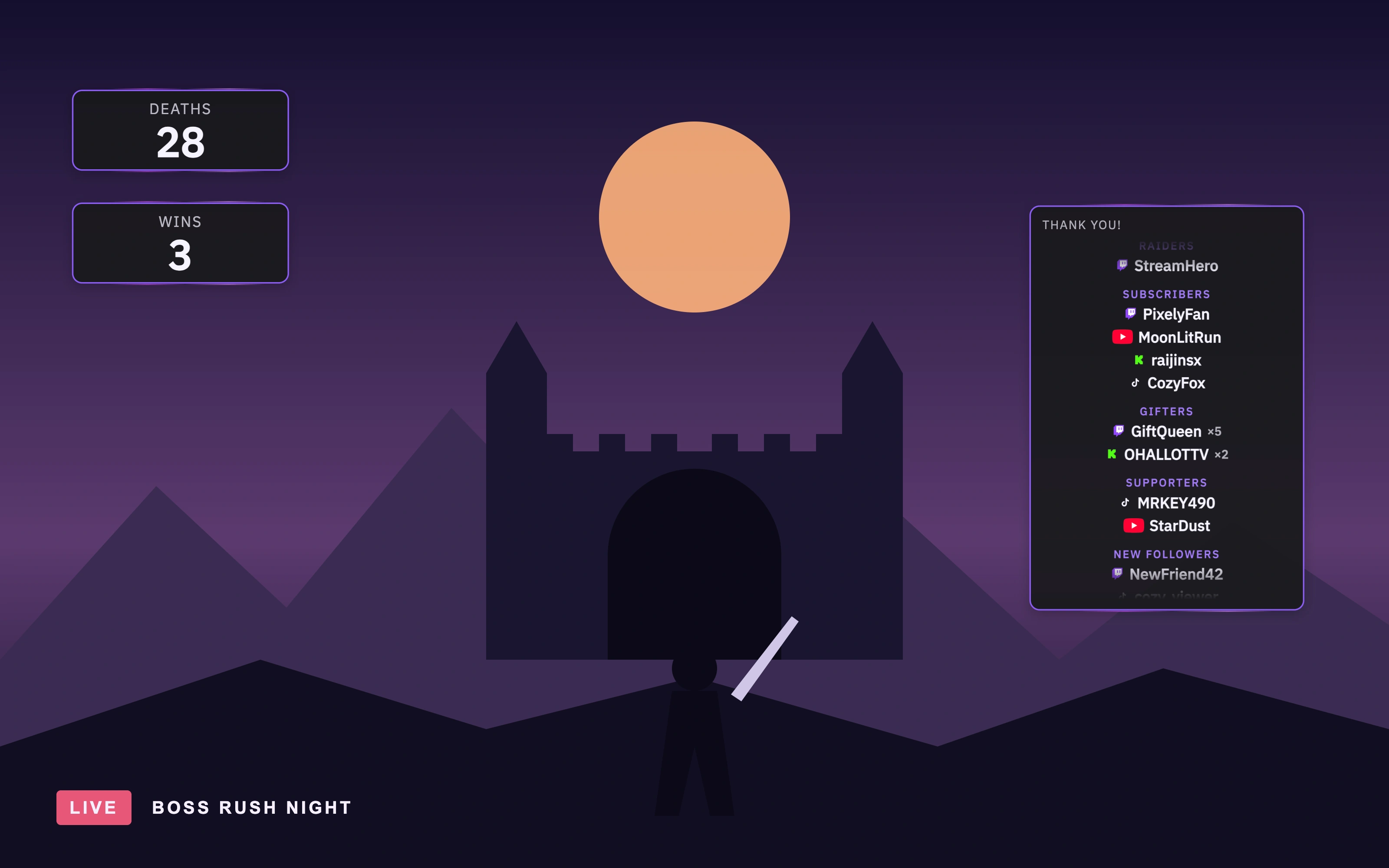
Keep score of the moments chat lives for.
“How many deaths is that now?” Every streamer has heard it. Some numbers become part of the show: the deaths in a brutal boss fight, the wins in a ranked night, the push-ups you owe chat, the coffees you’ve had since the stream started. The new Counter widget puts that number on screen and lets everyone play along.
Add as many counters as you like and give each one a name. The name becomes the label on your overlay, so Deaths, Wins and Push-ups can sit side by side, each with its own number, look and controls. Every change gets a little pop on screen, so nobody misses the moment it goes up.
Let chat keep score.
Give a counter a chat command and your community is in on it. Anyone can type !deaths to see the current count. Your moderators can keep it up to date for you with !deaths +, !deaths -, !deaths +5, !deaths set 10 and !deaths reset, so you can stay focused on the fight. The bot answers with your own reply text, like “💀 Deaths: 28 and counting”.
Counters also plug into the rest of PixelyChat. A Bot command, a Channel Point or Kick reward, or a Twitch Power-Up can raise, lower, reset or set a counter by any amount. A reward like “Make me do 10 push-ups” adds exactly 10 the moment a viewer redeems it.
One tap, one key, one press.
When you’re in the middle of a game, the counter should be the easiest thing on your desk to update. Use the −, + and reset buttons on the Dashboard or in the OBS dock, or set a global Increase hotkey and Decrease hotkey that work while your game has focus.
On your phone, Pilot shows each counter as a big tile with the current number: tap it to add one, with − and reset right underneath. Reset always asks first, so a stray tap never wipes your count.
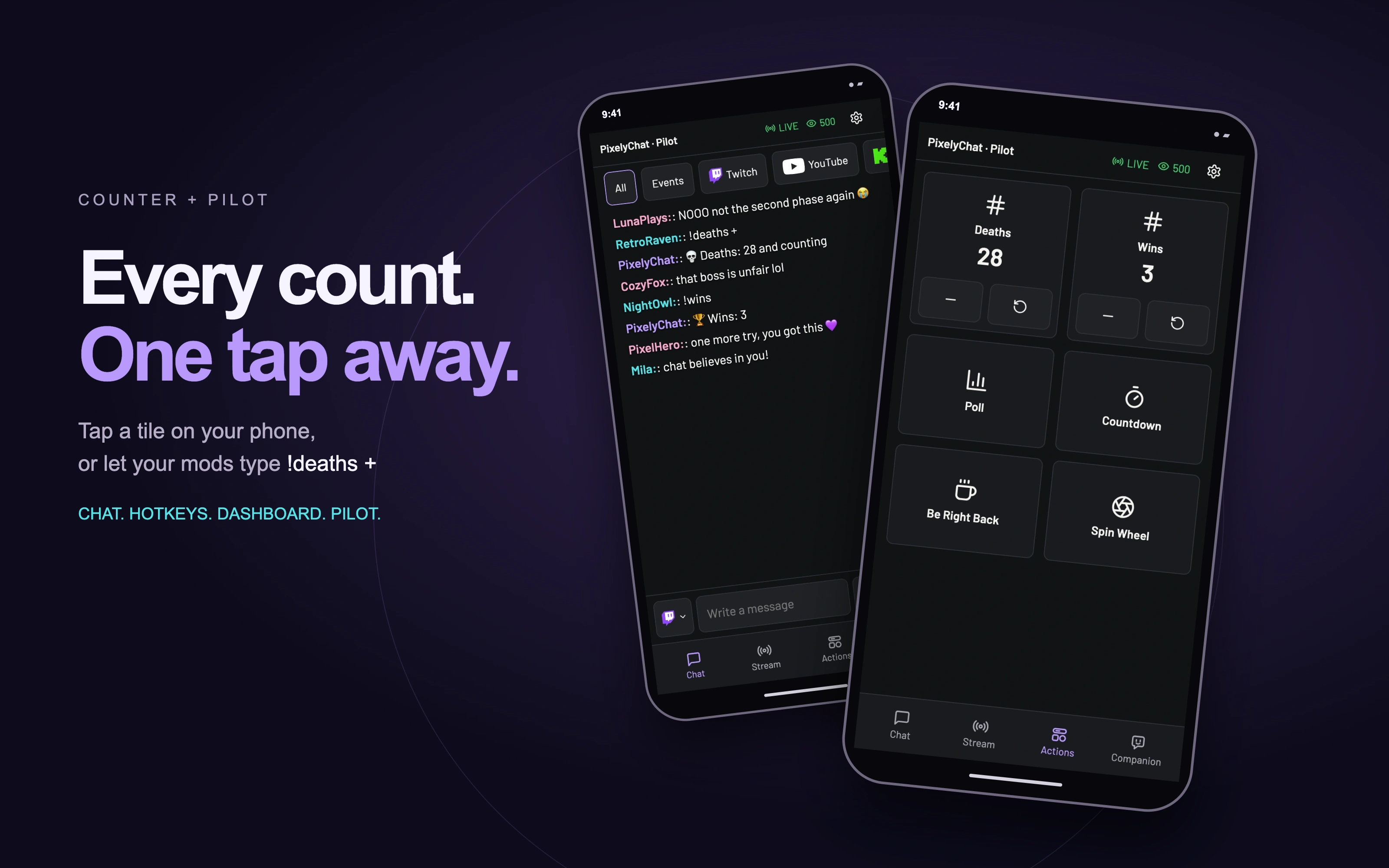
Using Stream Deck or Streamer.bot? The PixelyChat Stream Deck plugin has a Counter key that shows the live number and raises, lowers, resets or sets it. In Streamer.bot, run your own action every time a count changes, with the new and previous value ready to use.
Remembers exactly as long as you want.
Choose for each counter how long it keeps its number:
- Until a new stream starts: perfect for deaths in this run. The count survives an app restart in the middle of your stream and starts fresh when you go live again later.
- Always: for running totals like lifetime wins, which only change when you or chat change them.
- Until the app closes: for a quick count that is only meant for one session.
Live Credits: say thank you while you’re still live.
End credits are a great way to close a stream, but your supporters shouldn’t have to wait until the very end to see their names. Live Credits rolls them on screen during the stream: raiders, subscribers, gifters, supporters, new followers and your top chatters, from Twitch, YouTube, Kick and TikTok together.
New names join on the next pass, so the credits grow with your stream without ever jumping or restarting. They are the same names your Stream Ending credits show, and every new stream starts with a fresh list.
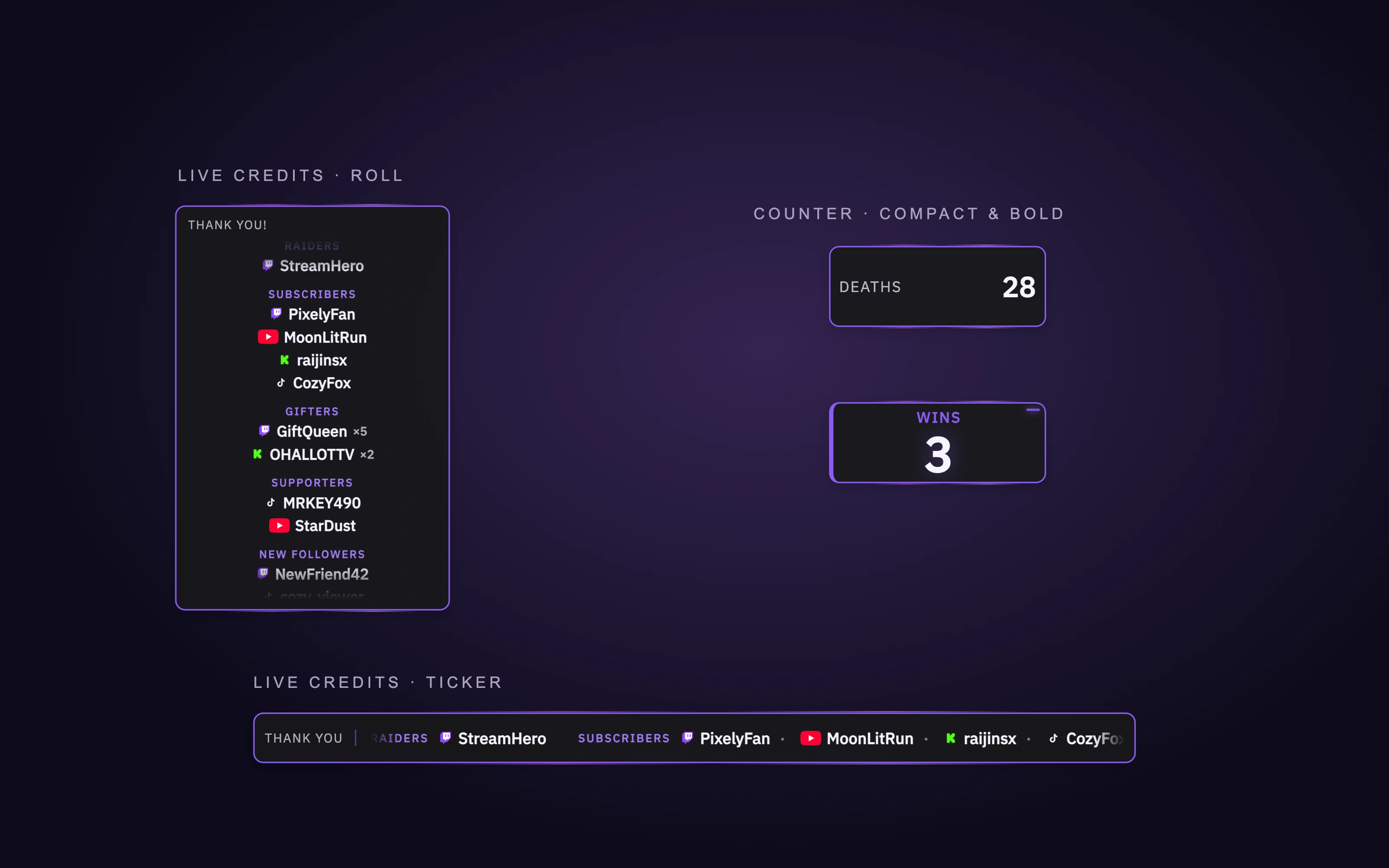
A roll for your sidebar. A ticker for your lower third.
Pick Roll to scroll names upward in a box beside your game, or Ticker for a bar where they glide across the bottom of your scene. Choose which sections to show, the scroll speed and whether to show platform icons. If everything fits, the credits simply stand still.
Both widgets follow your Scene Theme and come in the Modern, Compact and Bold styles, so they fit right in with the rest of your overlay.
Add them to your scene.
- Open Scene → Widgets.
- For a counter, choose Add Action Widget → Counter, give it a name and, if you like, a chat command.
- For the credits, choose Add Overlay Widget → Live Credits and pick Roll or Ticker.
- Place both in your Stream Scene and go live. Your counters are ready on the Dashboard and in Pilot.