 PixelyChat
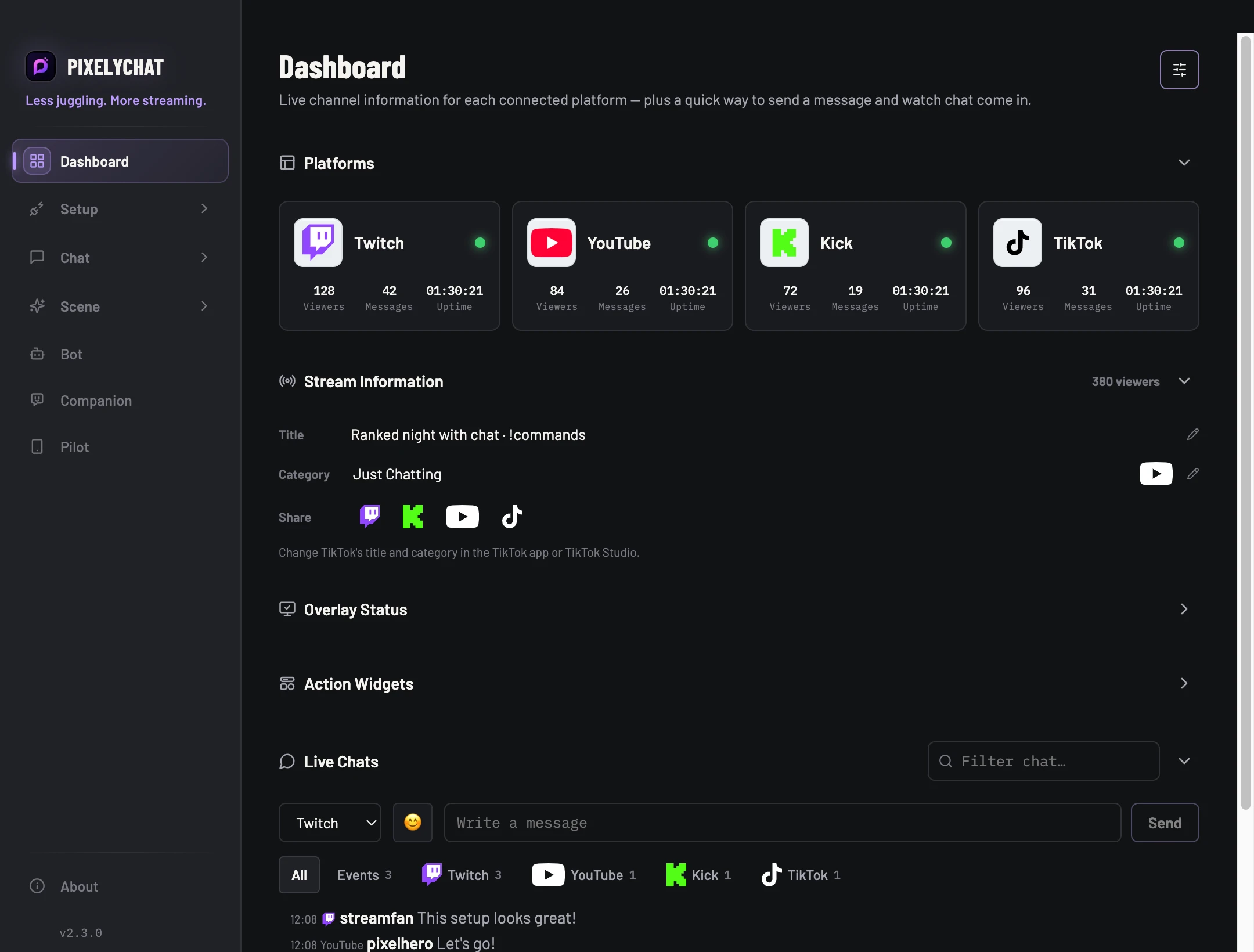
One post for the whole multistream.
Streaming to Twitch, YouTube, Kick or TikTok at the same time? Discord Live Sharing brings your live links together. When your usual sharing tools hand you one link at a time, PixelyChat can send one tidy announcement with a link for every platform you’re live on.
Your community can choose where to watch from a single post. The announcement can include your stream title, category and profile image, with a preview you can see before it goes out.
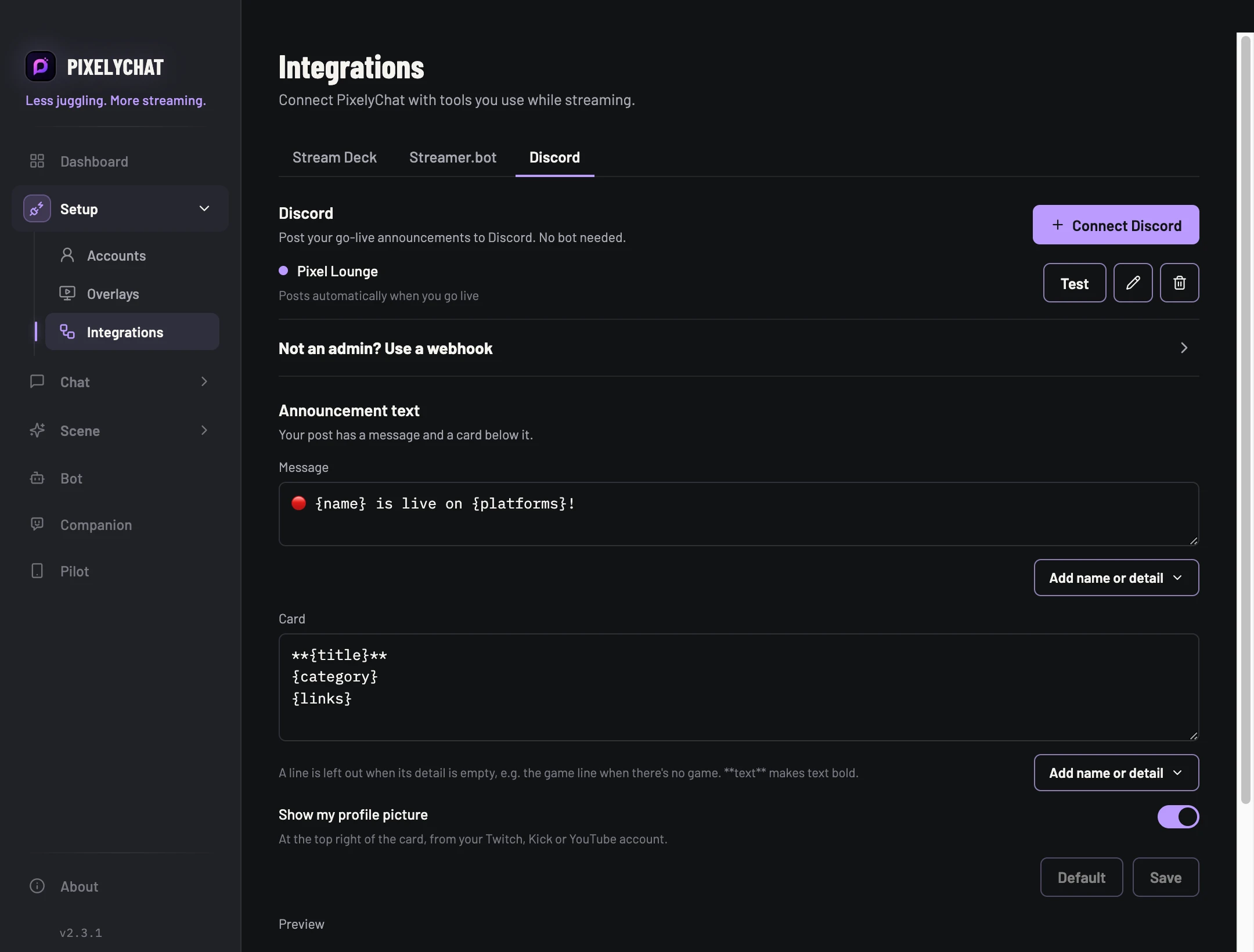
Connect Discord in Integrations.
Open Setup → Integrations → Discord to connect a Discord channel. PixelyChat can add a webhook through Discord’s channel picker, or you can add a webhook URL. Choose whether that channel should get automatic go-live posts, and personalize the announcement text and card.
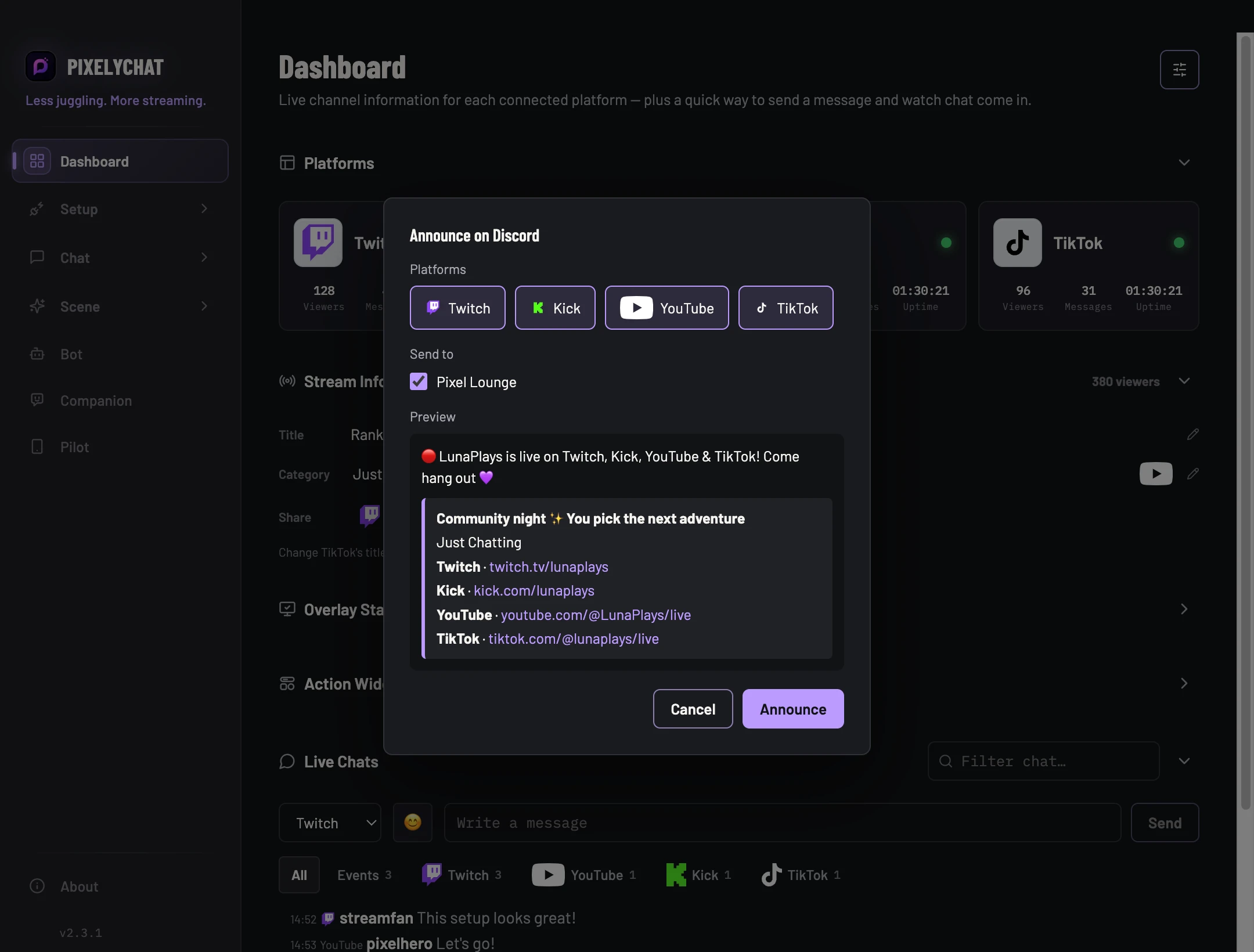
Send it from the Dashboard.
When you’re live, choose Announce on Discord… from the Dashboard. Your live platforms and connected Discord channels are selected for you; adjust them if you like, check the preview, then send. Your viewers get one post with the links together, even when you’re live in several places.
Prefer a hands-off start? Turn on automatic posting for a Discord channel in Integrations. PixelyChat announces when your stream goes live and updates the post when the stream ends.
Take your share links with you in Pilot.
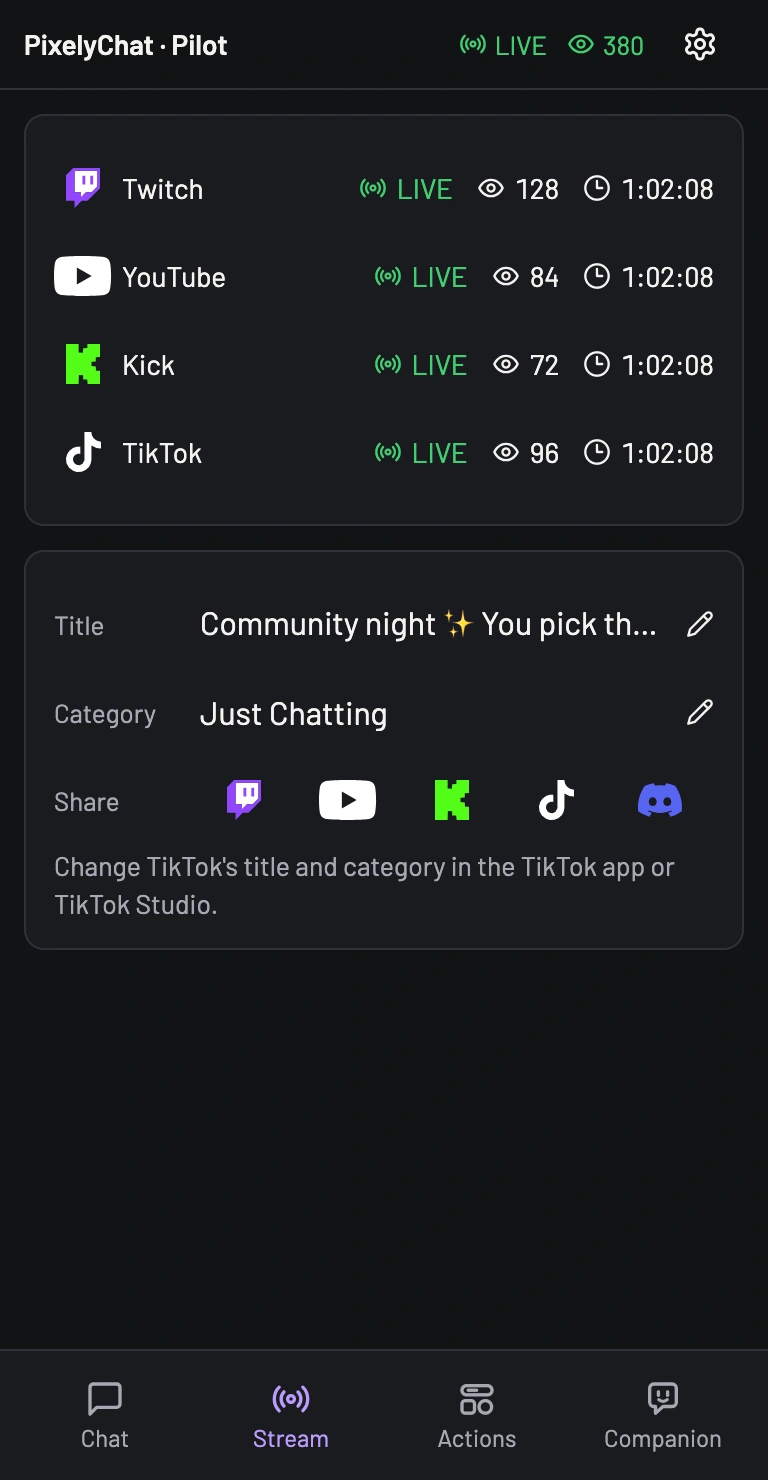
On your phone, Pilot’s Streams tab puts the same sharing shortcuts within reach. Tap a platform icon to copy or open its stream, or tap Discord to prepare the multistream announcement from your mobile browser.
Bring everyone to the same post.
- Connect Discord in Setup → Integrations → Discord.
- Go live on one or more platforms and choose Announce on Discord… on the Dashboard.
- Review the selected platforms, channels and preview, then announce.