 PixelyChat
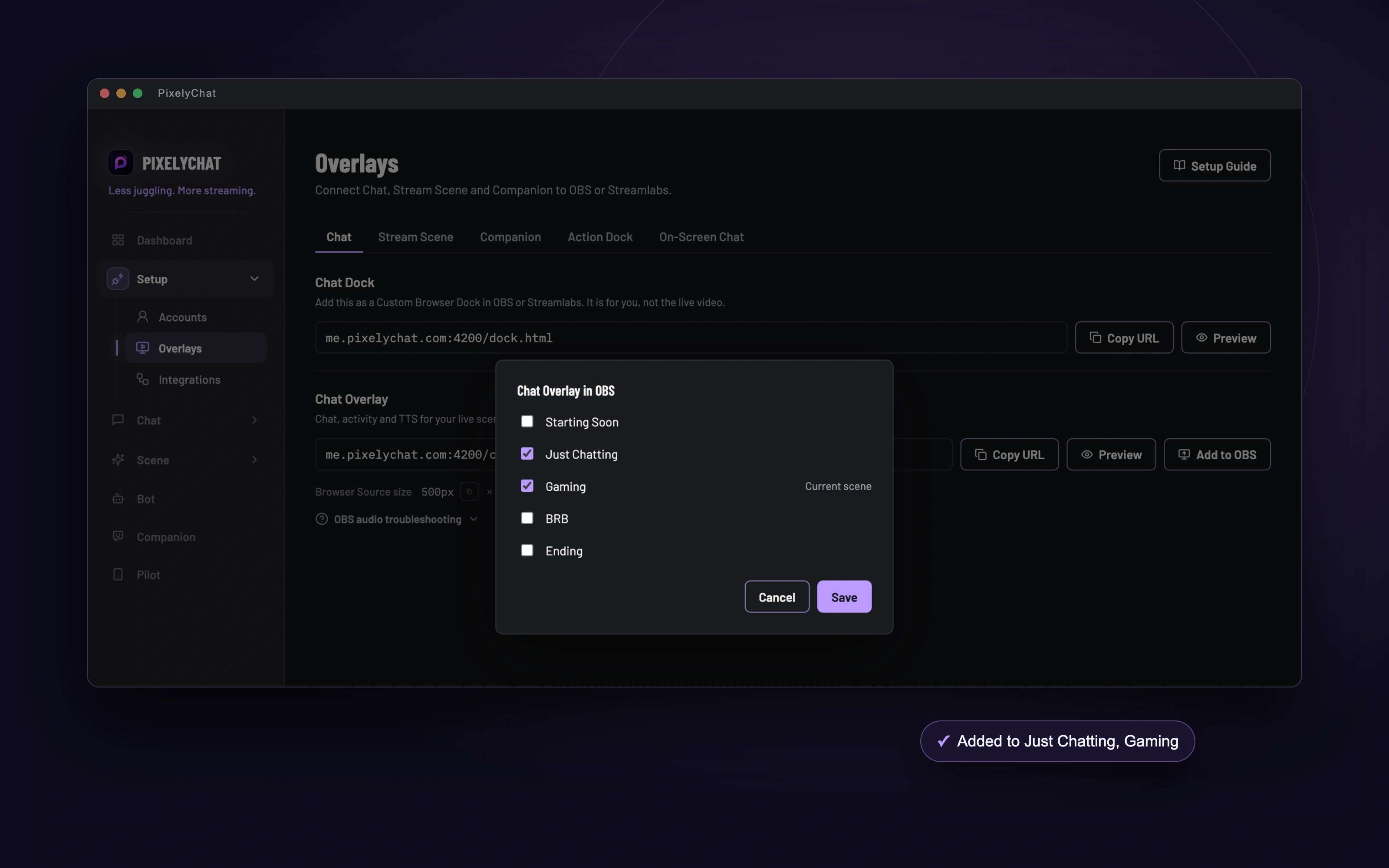
One-click overlays
Pick your scenes. PixelyChat adds the browser source with the right link, size and audio setting.
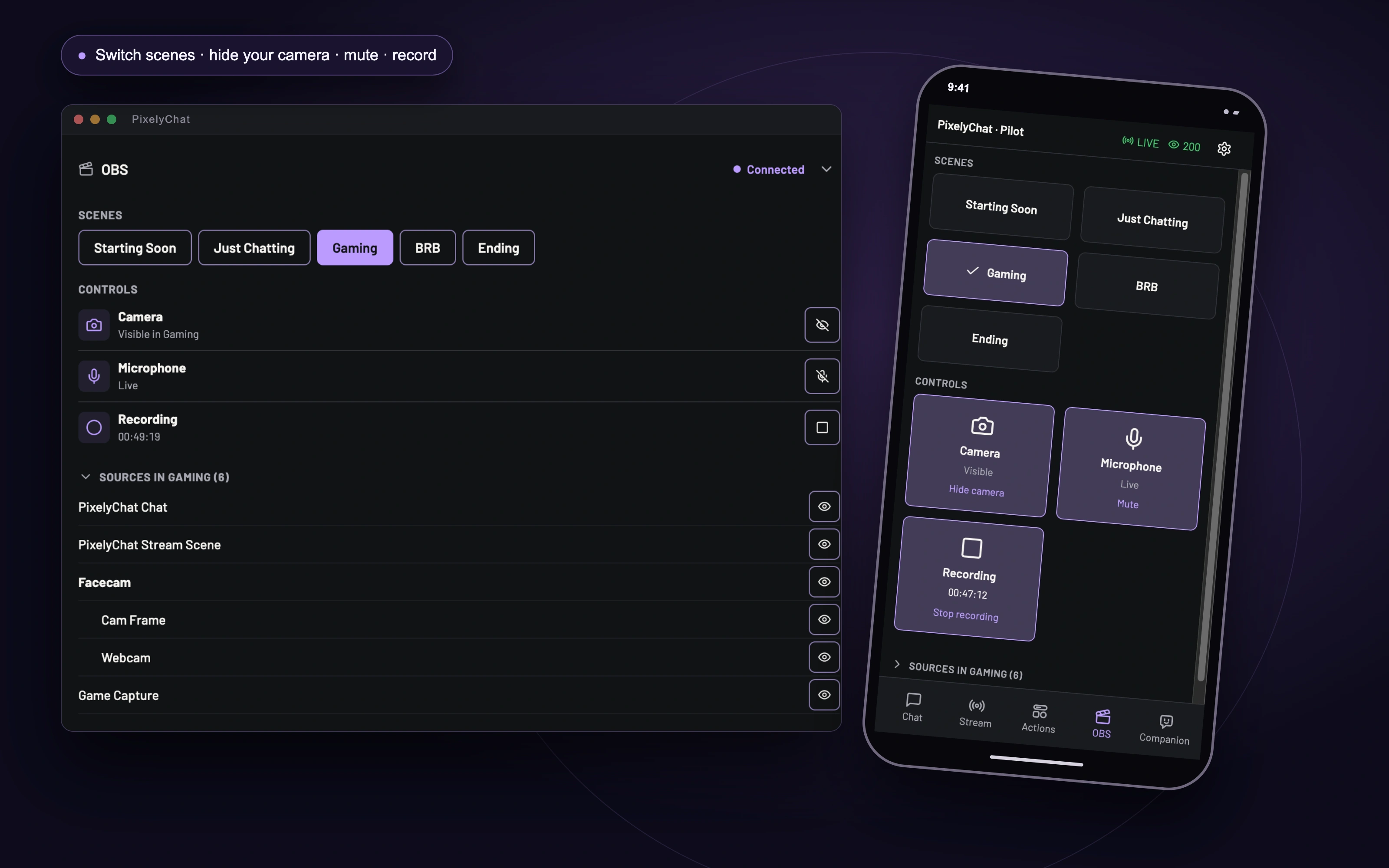
OBS on your Dashboard
Scenes, camera, mic, recording and every source in your live scene, right next to your chat.
OBS in your pocket
The same controls in Pilot on your phone. Switch scenes or hide your camera without touching your keyboard.
Connect once. Paste one password.
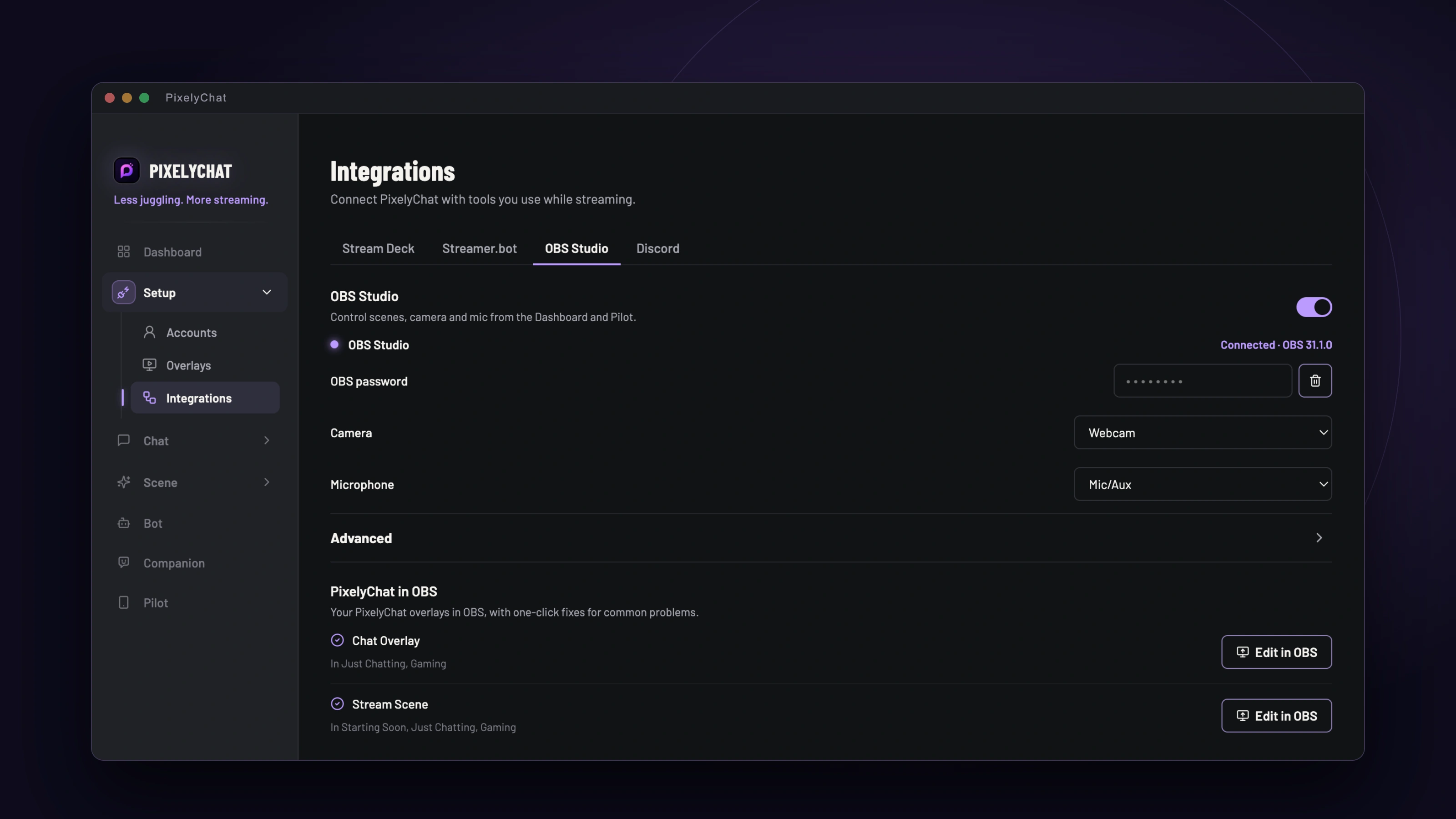
OBS Studio 28 and newer already include everything PixelyChat needs. There’s no plugin to install and no address to type. Open Setup → Integrations → OBS Studio, turn it on, and PixelyChat tells you exactly what to do next: enable the WebSocket server in OBS, or copy the password from OBS’s Show Connect Info window and paste it in. PixelyChat connects the moment you paste.
From then on it reconnects by itself whenever OBS starts. Pick which source is your camera and which input is your microphone, and you’re done. Until you turn the integration on, PixelyChat looks exactly the way it did before.
Overlays into OBS, in one click.
No more copying links, guessing browser source sizes or hunting for the right checkbox. Next to every overlay on the Overlays page there’s now an Add to OBS button. Tick the scenes you want, press Save, and PixelyChat creates the browser source for you: the right link, your chat box size or your stream resolution, and audio routed through OBS so alerts and TTS reach your stream.
Already added an overlay by hand? PixelyChat finds it and reuses it instead of creating a second copy. Want it out of a scene again? Untick the scene and save.
It also spots the usual mistakes.
Overlay silent on stream? Alerts playing twice? The PixelyChat in OBS check looks at your overlays in OBS and points out the problems streamers run into most, each with a Fix button where PixelyChat can sort it out for you:
- An overlay muted in the OBS mixer
- Sound that isn’t controlled by OBS, so it never reaches your stream
- A Stream Scene that doesn’t match your resolution
- Two copies live in the same scene, playing everything twice
- A vertical copy, for example on Aitum Vertical, playing alerts and TTS a second time
Your OBS controls, right on the Dashboard.
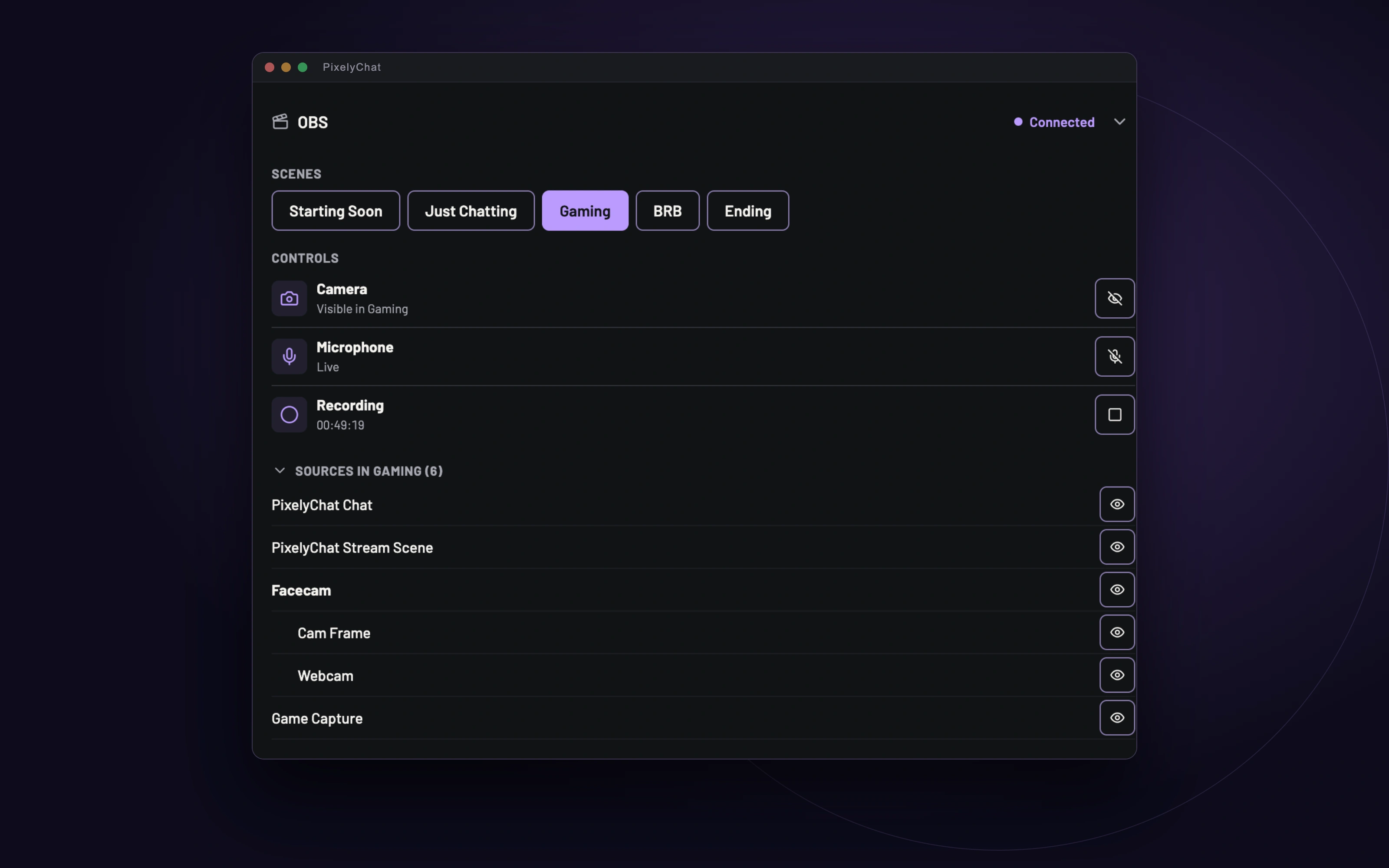
The new OBS section on the Dashboard puts the things you reach for during every stream next to your chat. Switch scenes with one click. Hide your camera in the live scene, even when it sits inside a group. Mute your mic, and start or stop recording with the timer always in view.
Need more? Open Sources to see everything in your live scene and show or hide any of it, groups included. If OBS starts dropping frames or your stream reconnects, a warning appears right there. When everything is fine, it stays quiet.
And in your pocket with Pilot.
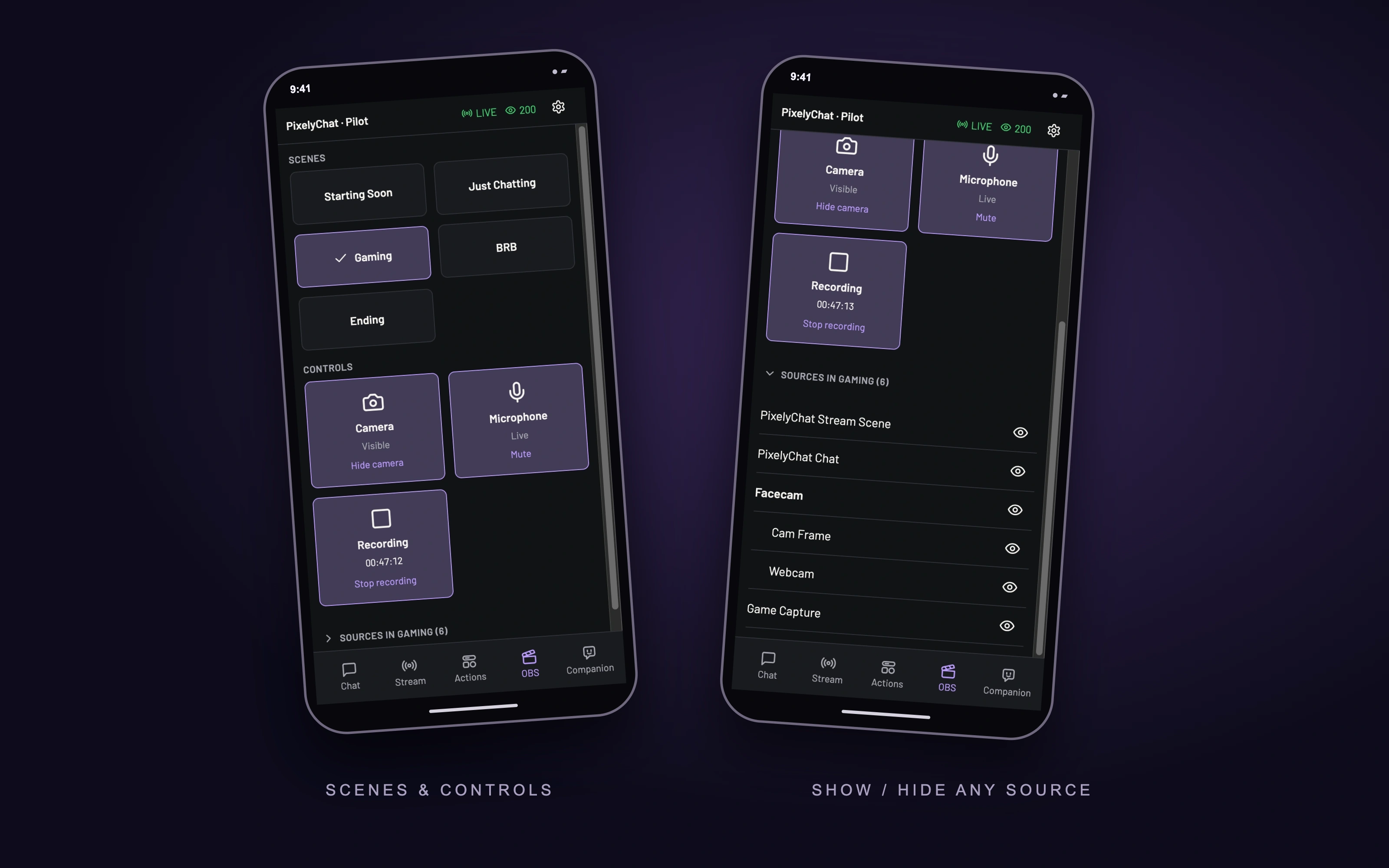
Pilot, PixelyChat’s phone control page, gets its own OBS tab. Big, touch-friendly buttons switch scenes, hide your camera, mute your mic and run your recording, and the source list works the same way as on the Dashboard. Prop your phone up next to your monitor and keep your game, and your keyboard, to yourself.
Every tap sends exactly what you want to happen, so a double tap or an old screen can’t flip things back. Changes you make in OBS itself show up on your phone right away.
Scenes that follow your stream.
Your Action Widgets can now switch OBS scenes for you. Let your Starting Soon countdown go straight to your Gaming scene when it ends. Have Be Right Back switch to your BRB scene and take you back to where you were when you return. Set it once in the widget’s settings and it works however you start the widget: from the Dashboard, Pilot, a Stream Deck key, a hotkey or a channel point reward.
Ready in a minute.
- Open Setup → Integrations → OBS Studio in PixelyChat and turn it on.
- In OBS, open Tools → WebSocket Server Settings → Show Connect Info and copy the password.
- Paste it into PixelyChat. Then add your overlays with Add to OBS and find your controls on the Dashboard and in Pilot.