 PixelyChat
 Viewer interactions
Manage a Game Queue
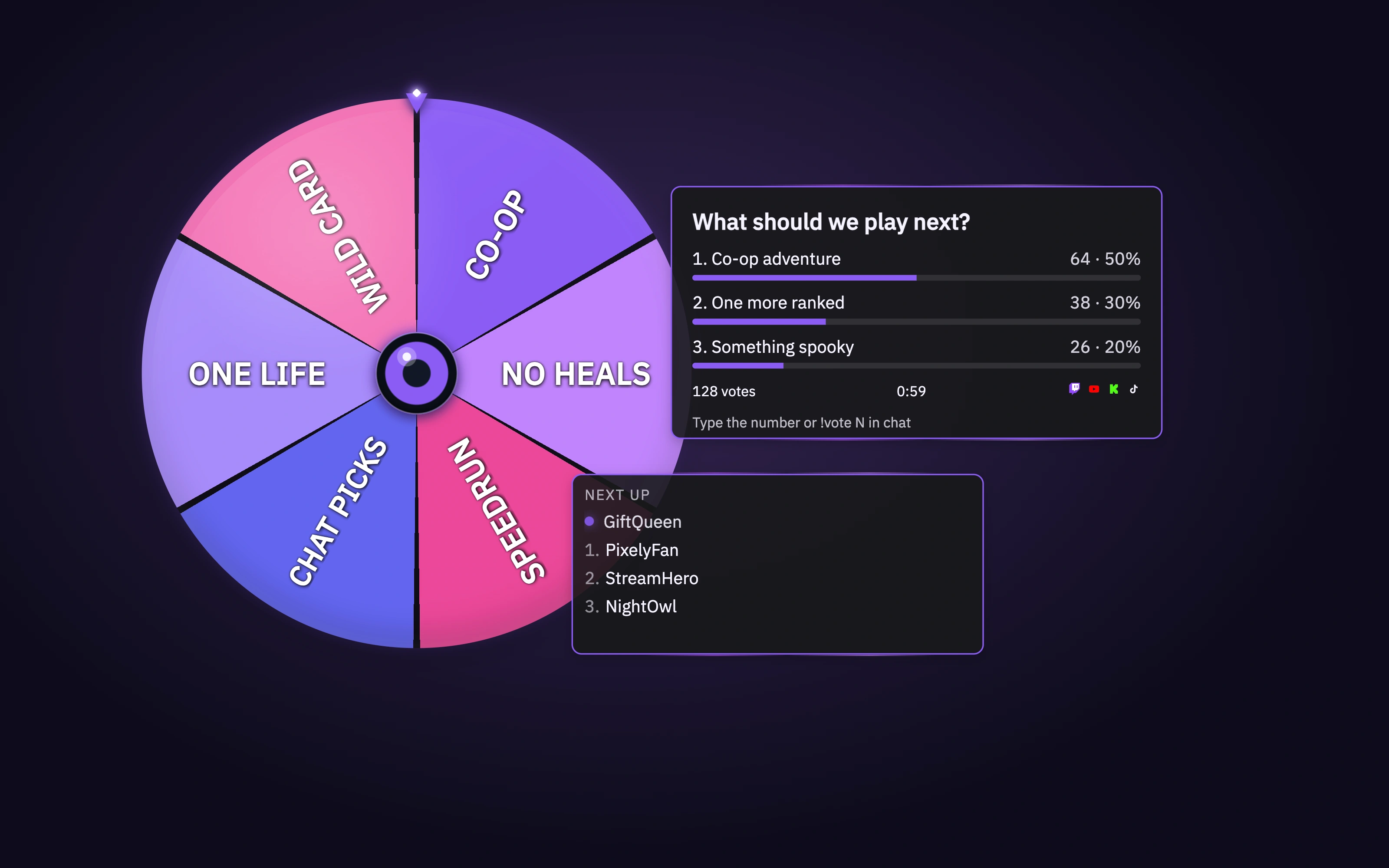
Viewers join with !join and leave with !leave. Advance players from the Dashboard.
Before you start
Enable Game Queue and add its on-stream source. Decide how many people you will invite at a time.
Invite viewers into your next game
- Open the queue editor and configure its join behavior and appearance. Save your settings and position the queue in your scene.
- Start/open the queue using its controls and invite a viewer to type !join in a connected chat.
- Check that the viewer appears, then use the queue controls to advance to the next player when you are ready. Verify the change in OBS.
Check the result
A real join appears and the next-player control updates the queue. If joining fails, check whether the queue is open, the platform is connected and the viewer already has an entry.