 PixelyChat
Viewer interactions
Rewards & Power-Ups
Turn channel point redemptions and TikTok gifts into sounds, media and on-screen reactions.
Before you start
- Twitch, Kick or TikTok is connected in Accounts.
- The Stream Scene source is in OBS. See OBS & Streamlabs.
Create a reward
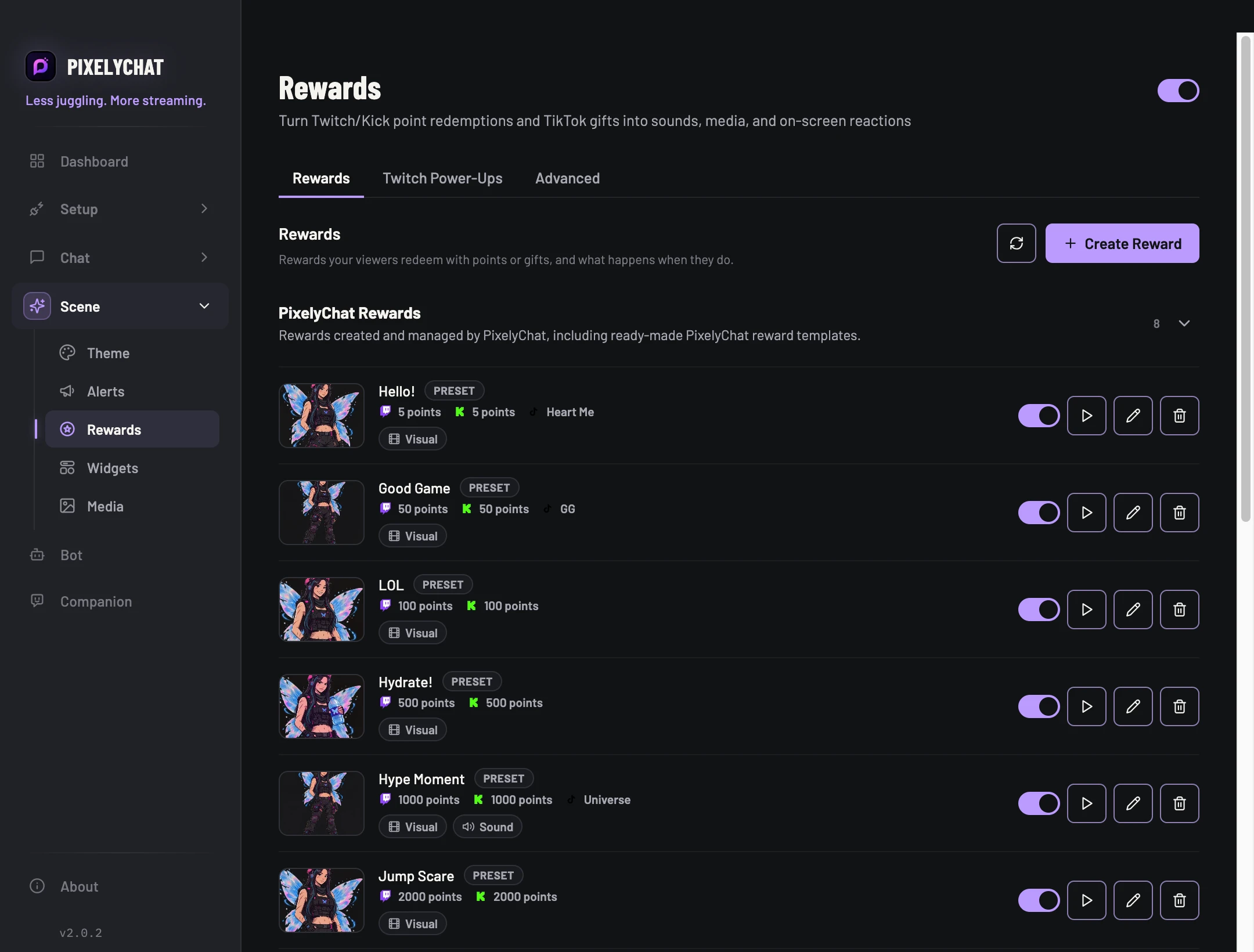
- Open Scene → Rewards and click Create Reward, or pick one under Start with a template.
- Under Platforms, choose where it shows up. Twitch and Kick use a Channel Point reward; TikTok uses a Gift.
- Under What Happens, pick a sound and an image or video, and set its Position on stream.
- Optional: Read Aloud reads the viewer's message aloud. TikTok can't be used with Read Aloud — there's no text to read from a gift alone.
- Set a Cooldown and any limits, then click Save Reward.
Test it
- Click Test on the reward. Save the reward before testing it.
- When you are ready, redeem it once for real on your channel.
Refunds
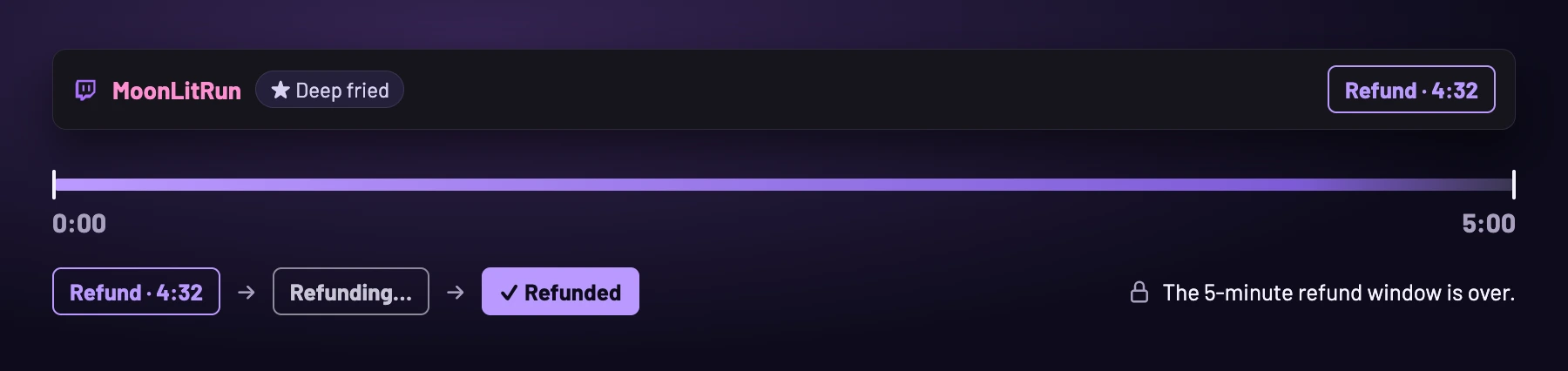
Redemptions of the Twitch and Kick rewards PixelyChat created can be refunded for 5 minutes. The reaction still plays straight away; the points only go back if you refund.
- Find the redemption in Live Chats on the Dashboard, in the Chat Dock or in Pilot.
- Click Refund. The button counts down the time that is left and shows Refunded once Twitch or Kick has returned the points.
- On Twitch you can also refund in your creator dashboard's Reward Requests queue.
- After 5 minutes PixelyChat completes the redemption. From then on it can't be refunded, not even on Twitch.
- PixelyChat refunds by itself when a reward couldn't do what the viewer paid for: blocked by its cooldown or limits, a game that can't start, an Action Widget that is missing or fails, a full reaction queue, or an OBS effect that can't run.
- TikTok gifts, Twitch Power-Ups and rewards created by other apps can't be refunded.
- If PixelyChat was closed when someone redeemed, it completes that redemption later, without a refund.
Let viewers mess with your camera
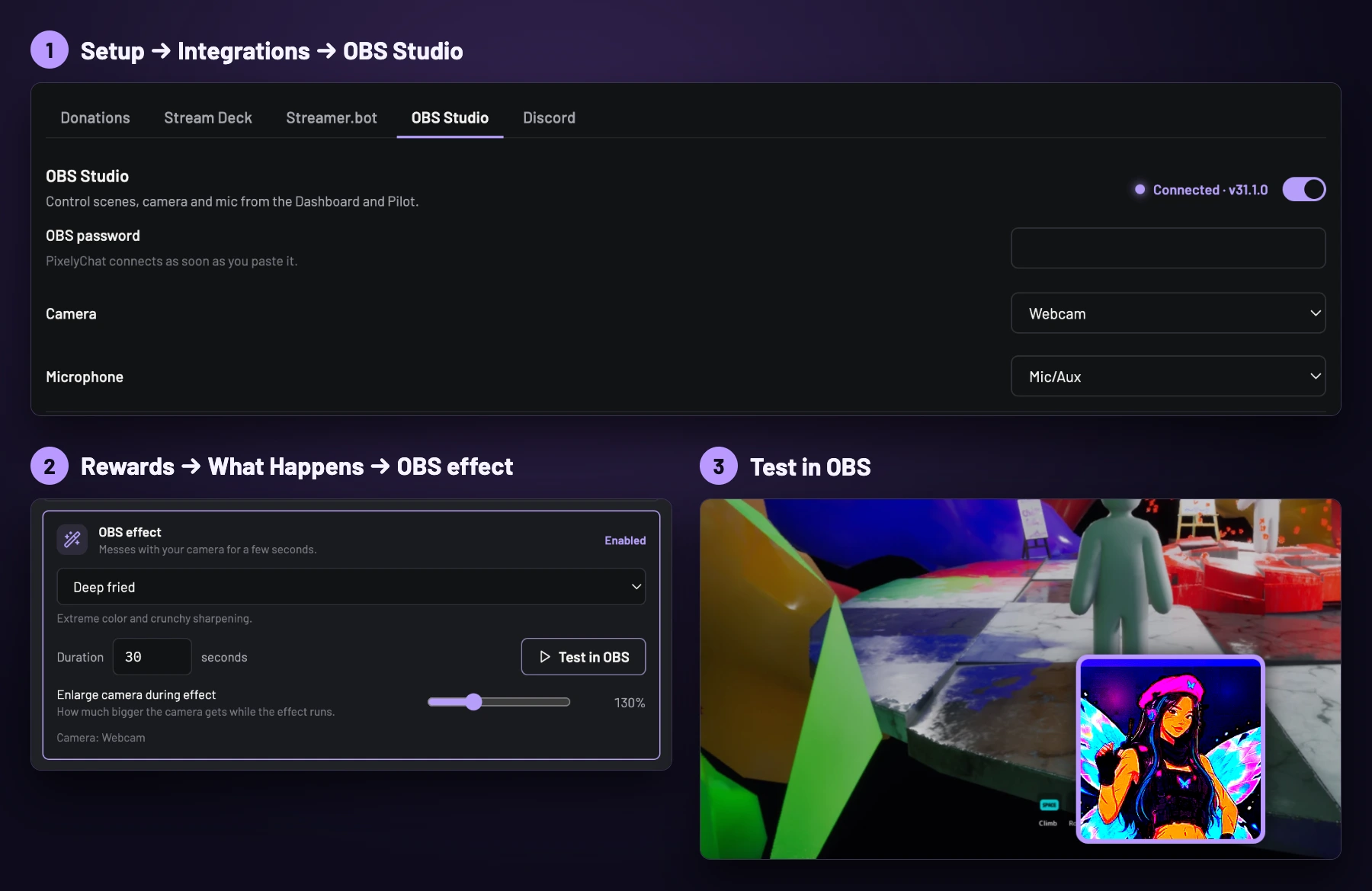
With OBS effect, a reward changes your camera in OBS for a few seconds and then puts it back. It uses filters that come with OBS Studio, so there is nothing extra to install.
Set it up
The effect needs the OBS integration. Until it has connected once, the reward editor doesn't show OBS effect.
- Open Setup → Integrations → OBS Studio, click the switch next to OBS Studio and paste your OBS password. See OBS & Streamlabs.
- Under Camera, pick your webcam.
- Open a reward, go to What Happens and click OBS effect.
- Pick an Effect and a Duration. Enlarge camera during effect also makes the camera bigger while the effect runs.
- Click Test in OBS to see it on your stream. While it runs, the button turns into Stop.
- Click Save Reward.
The effects
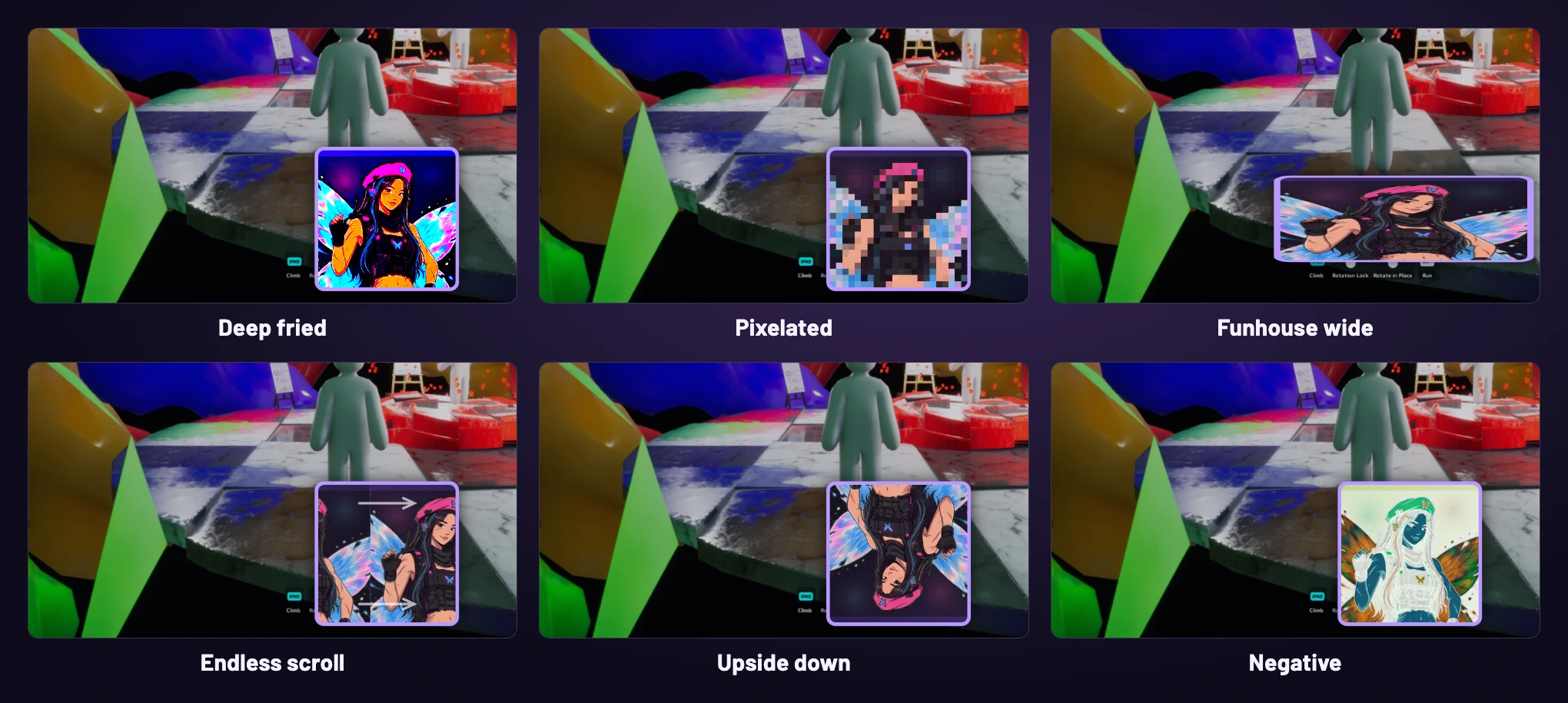
- Random: A different camera effect each time.
- Deep fried: Extreme color and crunchy sharpening.
- Pixelated: The camera turns into a chunky mosaic.
- Funhouse wide: Absurdly wide and flat. Live scene only.
- Endless scroll: The camera picture keeps sliding sideways.
- Upside down: The camera turns upside down. Live scene only.
- Negative: Inverted, photo-negative colors.
While you stream
- One effect runs at a time. The others wait their turn, and one that waits longer than 4½ minutes is refunded.
- The OBS section on the Dashboard and in Pilot shows the running effect. Its ✕ ends it and refunds the ones waiting.
- The camera has to be visible in the scene that is live. When an effect moves the camera, its group or nested scene moves with it, frame included.
- While OBS isn't connected, rewards that only run an OBS effect (an alert message or sound is fine) are hidden from viewers on Twitch and Kick. They come back when OBS connects. A reward that also does something else stays, and its redemptions are refunded.
Twitch Power-Ups
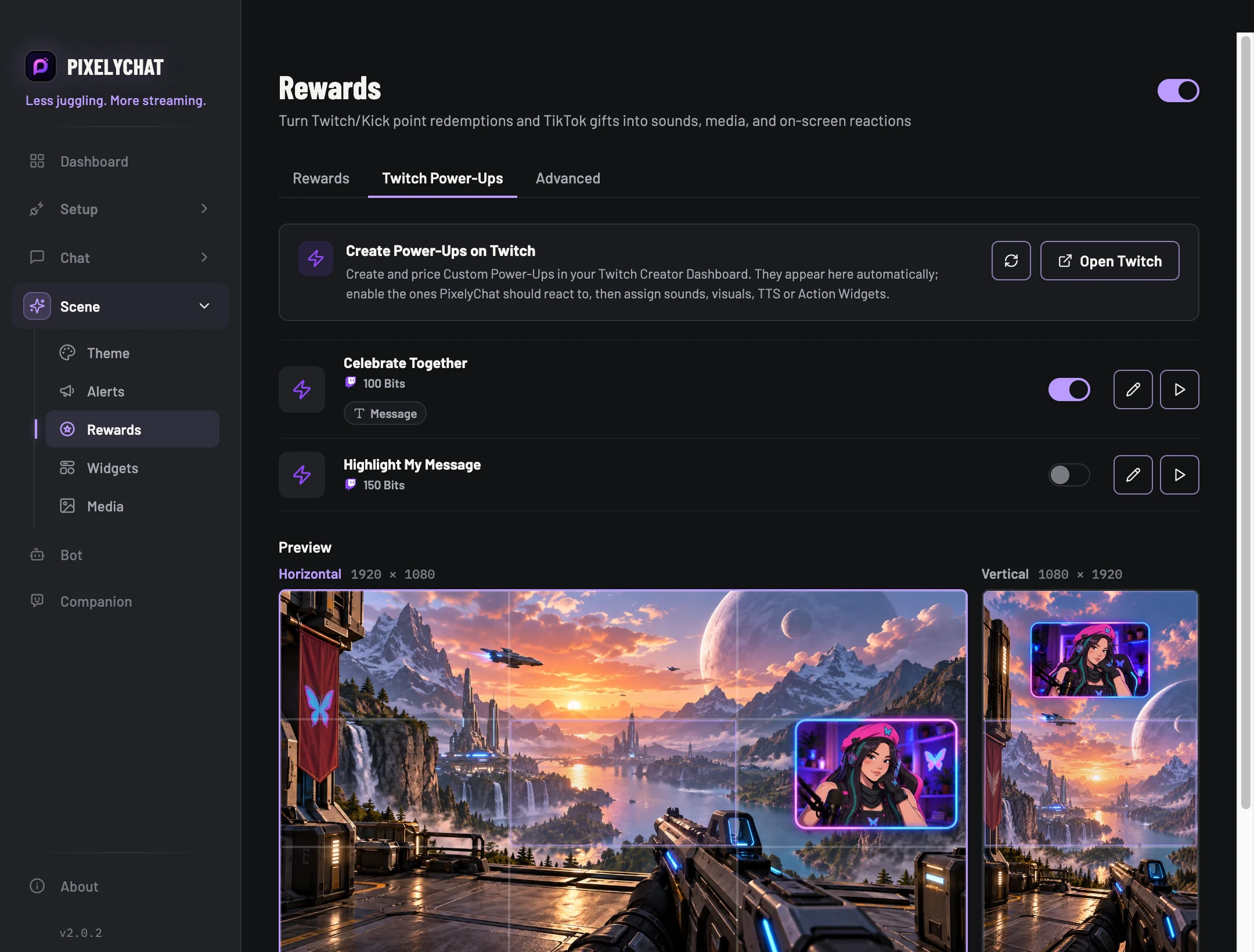
The Twitch Power-Ups tab lists your Power-Ups so you can give them a reaction too. Power-Ups are created and priced on Twitch; PixelyChat only reacts to them.
Busy streams
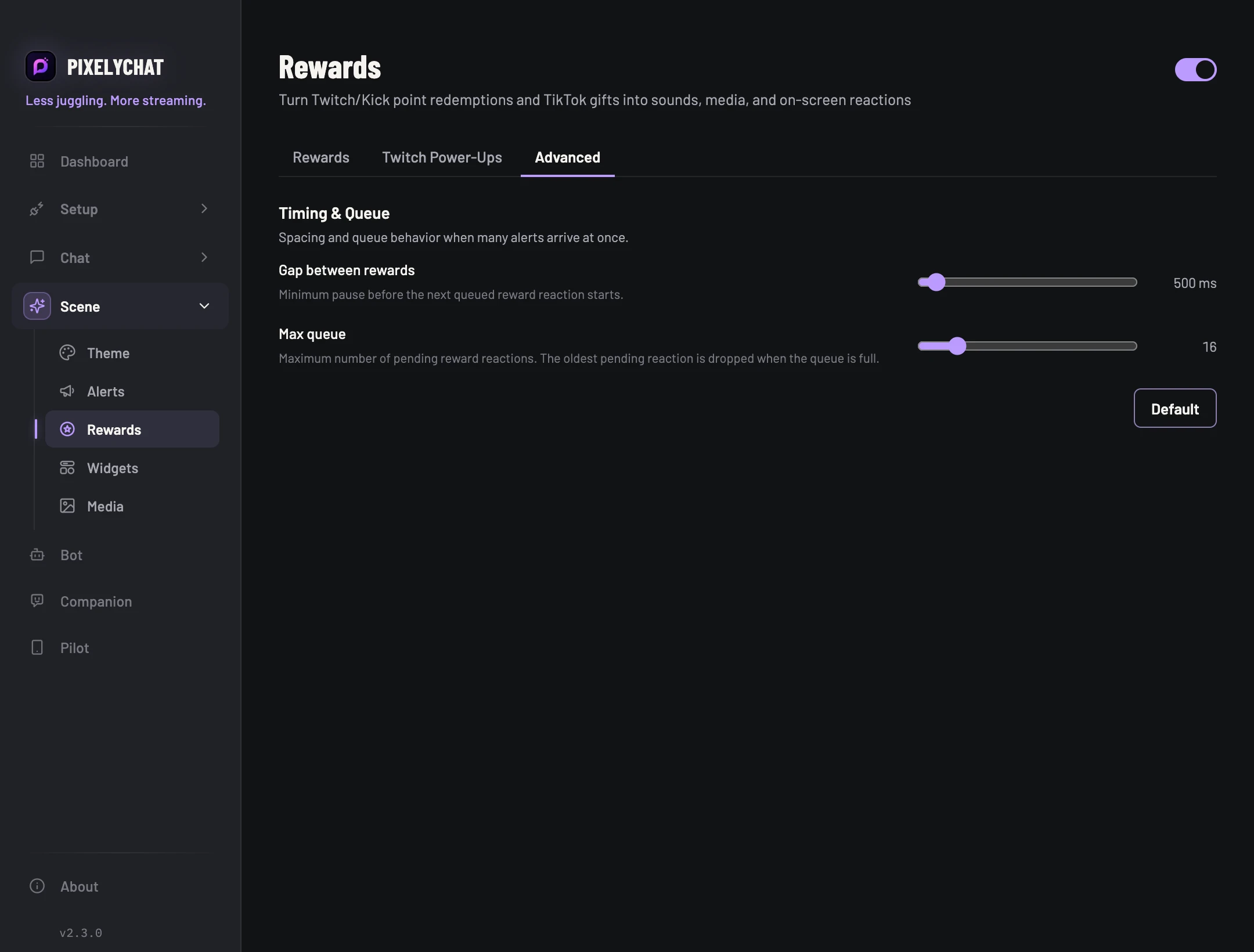
On Advanced, Timing & Queue controls what happens when several viewers redeem close together.
Check the result
You should see: A test and a real redemption both play your reaction in OBS.
If it doesn't work
- The test works but redemptions don't: check that the platform is connected and the reward is turned on there.
- Each TikTok gift can trigger only one reward.
- No sound in the recording: see Troubleshooting.
- A reward is missing on Twitch or Kick: OBS isn't connected. Rewards that only run an OBS effect come back as soon as it connects.
- The OBS effect doesn't show: the line at the bottom of the effect card says why. Usually the camera isn't visible in the live scene, or another camera is picked under Camera.
- There is no Refund button: the 5 minutes are over, or the reward wasn't created by PixelyChat.