 PixelyChat
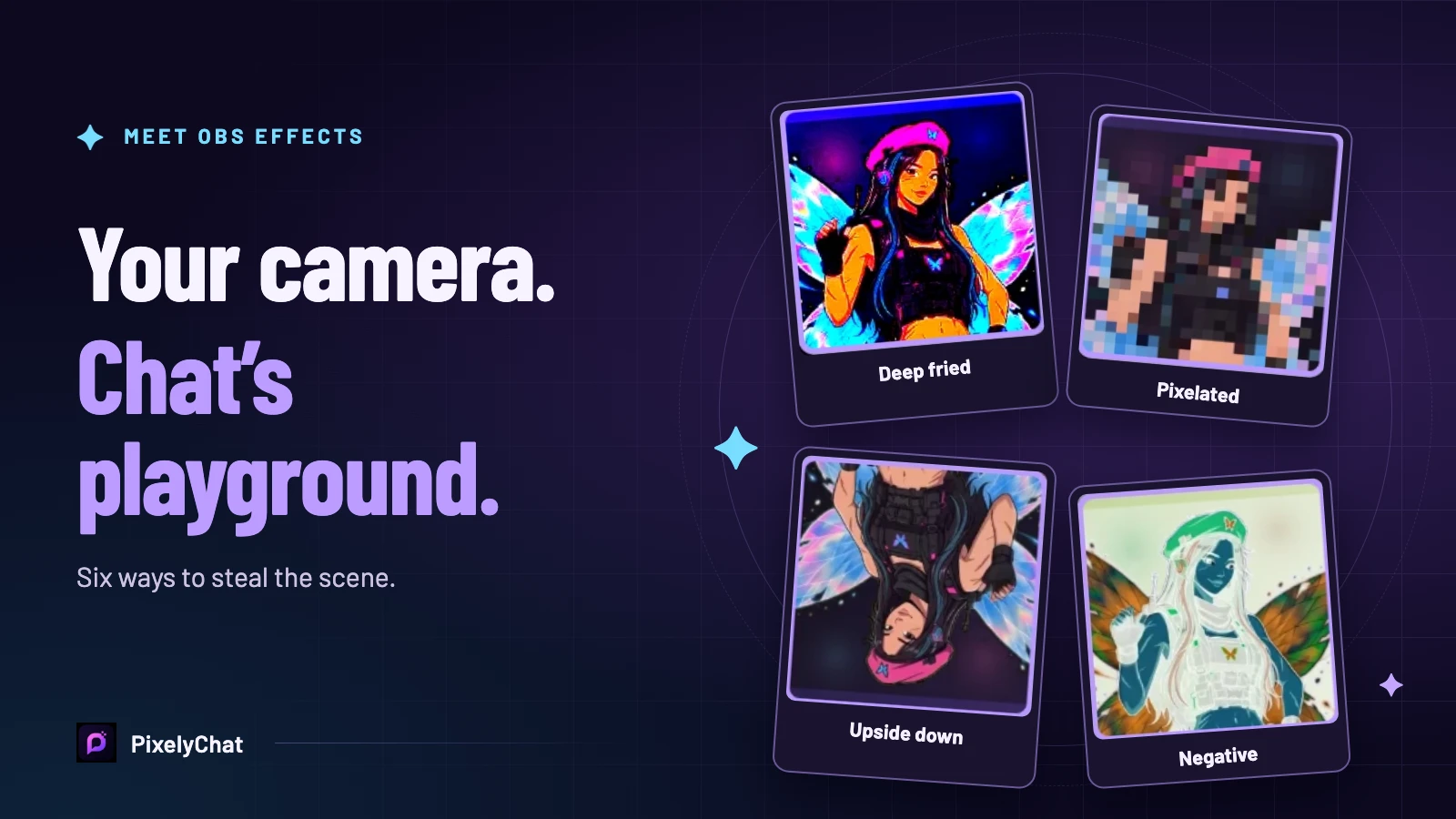
You’re lining up the perfect play. Chat has other plans. One reward later, your facecam is a crunchy, oversaturated masterpiece. Or a handful of pixels. Or you’re suddenly upside down. With OBS Effects, your camera becomes part of the fun your viewers can set off.
Six ways to steal the scene.
Turn a reward into a camera effect that plays right in OBS, then puts your camera back when the timer ends. It uses filters built into OBS Studio 28 or newer. No extra OBS plugin to install.
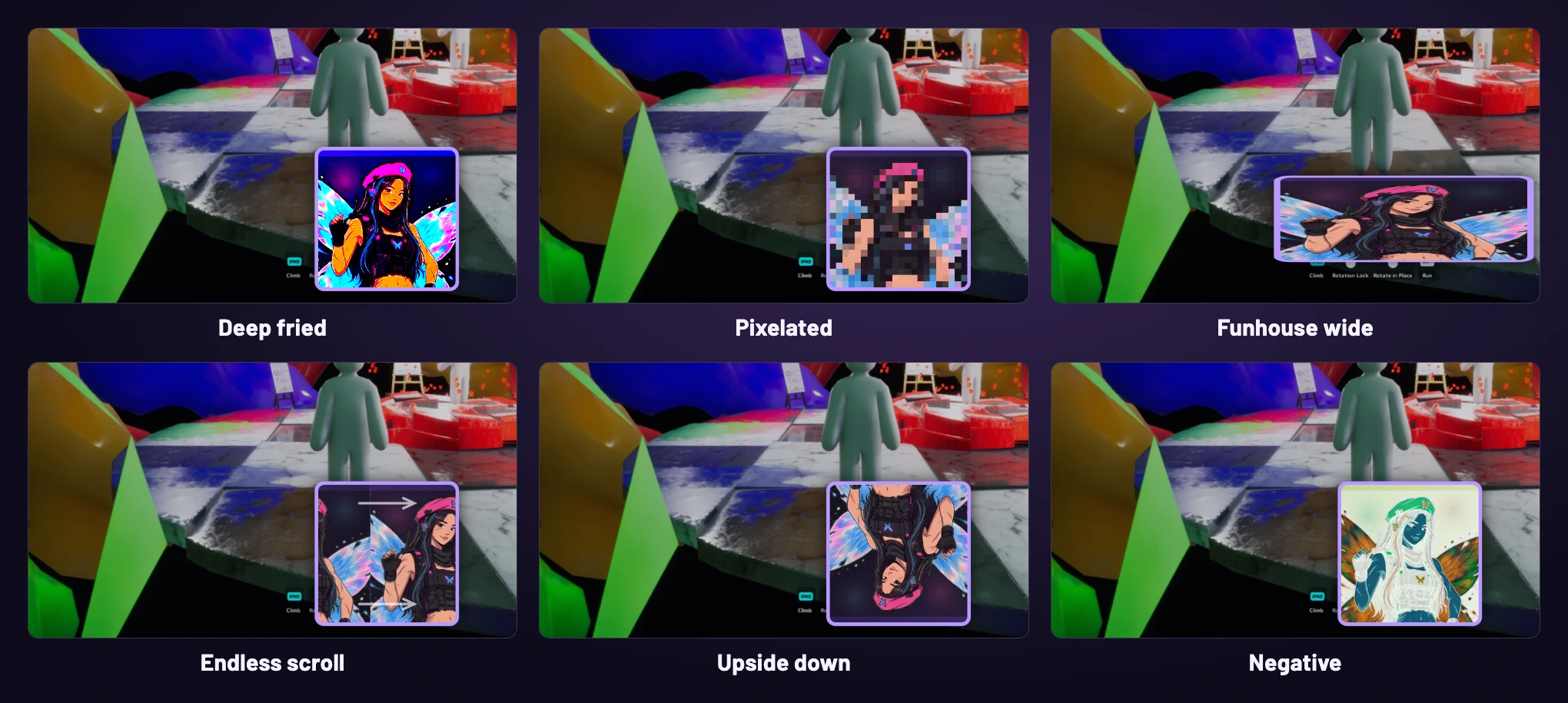
- Deep fried
- Extreme color and crunchy sharpening.
- Pixelated
- The camera turns into a chunky mosaic.
- Funhouse wide
- Absurdly wide and flat. Live scene only.
- Endless scroll
- The camera picture keeps sliding sideways.
- Upside down
- The camera turns upside down. Live scene only.
- Negative
- Inverted, photo-negative colors.
Can’t decide? Pick Random and let each redemption surprise you with a different effect.
Big reactions. You’re still in control.
Choose the duration and use Enlarge camera during effect to make the moment even harder to miss. Effects take turns instead of piling up. The OBS section on the Dashboard and in Pilot shows what’s running; its × button ends the effect and refunds the ones waiting.
Connect OBS. Pick a reward. Let chat loose.
Connect your camera
In OBS, open Tools → WebSocket Server Settings and enable the server. In PixelyChat, open Setup → Integrations → OBS Studio and turn it on. Copy the password from OBS’s Show Connect Info window and paste it into PixelyChat. Once connected, select your webcam under Camera.
Make the reward
Open a reward in Rewards, then choose What Happens → OBS effect. Pick an Effect and a Duration, and optionally enlarge the camera. Click Test in OBS to see it in action, then Save Reward.
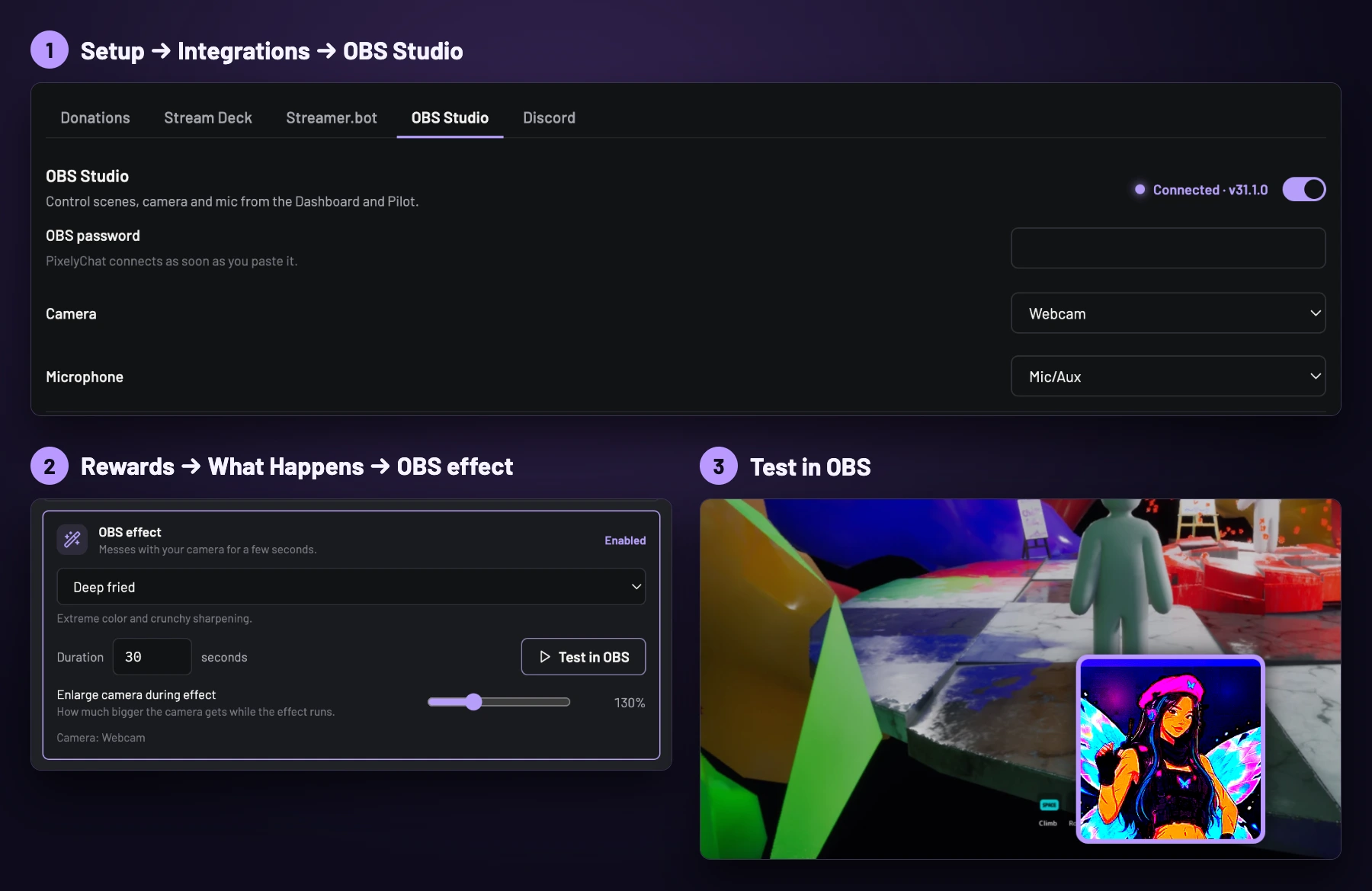
Connect OBS at least once to reveal OBS effect in the reward editor. Your camera must be visible in the live scene. Test in OBS runs the real effect, so viewers will see it if you’re live.
See the full effects setup guideAlso new: give their points back.
You can now refund channel points for Twitch and Kick right from PixelyChat. Find a redemption in Live Chats on the Dashboard, in the Chat Dock or in Pilot, and click Refund. The countdown shows how much of the five-minute window is left; Refunded confirms the points are back.
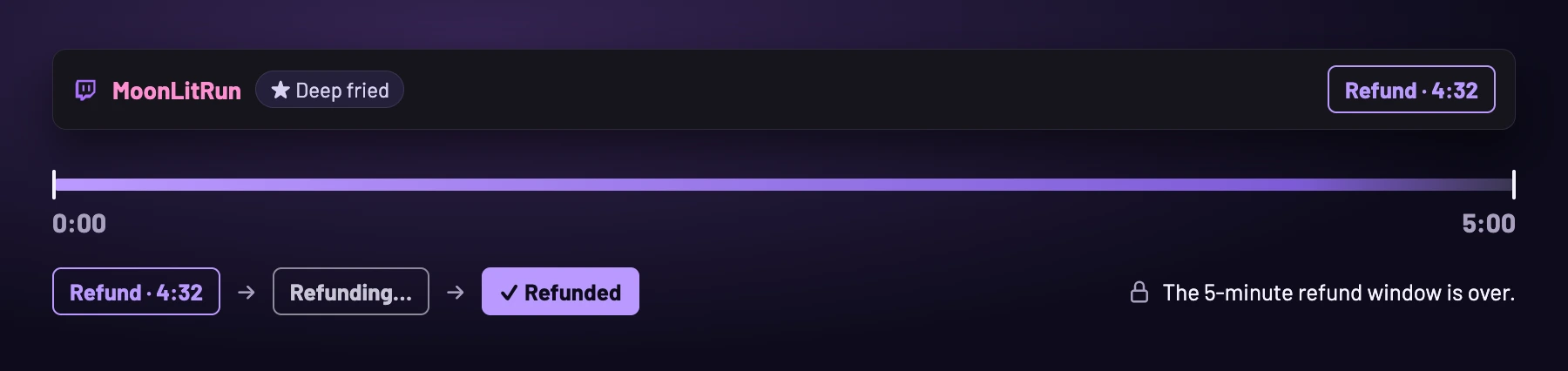
If a reward can’t do what the viewer paid for, PixelyChat refunds it automatically, including an OBS effect that can’t run. The reaction otherwise plays straight away; refunding returns the points.
Refunds apply to Twitch and Kick rewards created by PixelyChat. After five minutes, the redemption is completed and can no longer be refunded. TikTok gifts, Twitch Power-Ups and rewards created by other apps aren’t eligible.
Also new: your chat, your rules.
Let chat mess with your camera, not your community. The new Bot → Moderation tab brings Block Spam and Banned Words together. Add your own words or phrases and keep matching messages out of PixelyChat chat, overlays, TTS and Companion.
Open Bot → Moderation, turn on Banned Words and click its pencil to add your list. Choose Delete the message, Delete + time out or Delete + ban. With Warn first on, the first offence gets a deleted message and a warning; another within 10 minutes triggers your chosen action.
The bot needs to be a moderator in your channel to delete messages, time viewers out or ban them. On TikTok, matching messages are hidden only inside PixelyChat.
Set up bot moderation