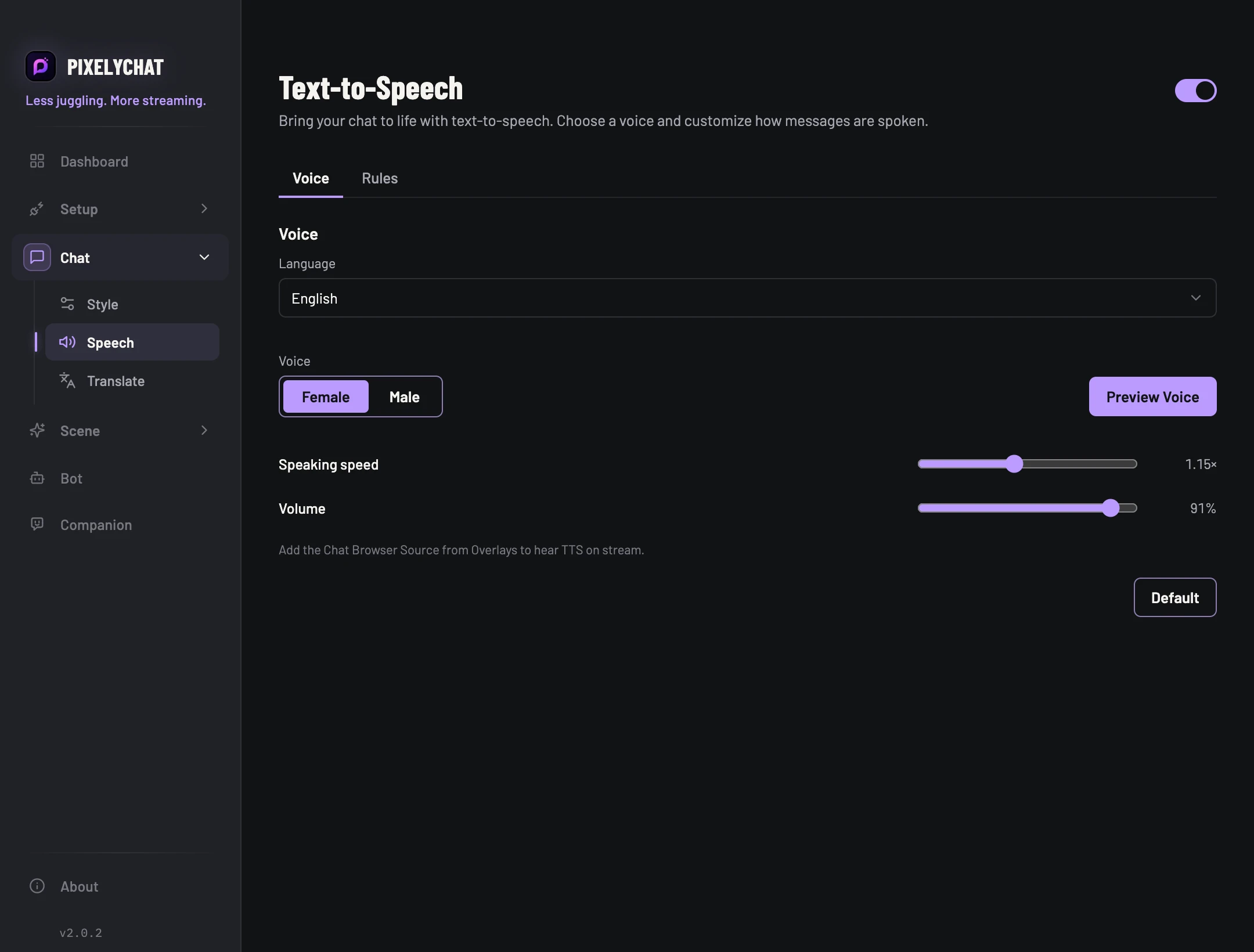
Voice
Select language, regional accent, voice, speaking speed and volume. Preview the voice before you go live.
 PixelyChat / Manual
Chat & moderation
Choose a voice, control what gets read and keep TTS close to live when chat gets busy.
You need an incoming chat connection. For viewers to hear TTS, also add the Chat Browser Source to your streaming software.
The permitted message is spoken once and is audible in the recording. If preview works but messages are silent, check audience and skip rules. If local audio works but the recording is silent, check the Chat source and OBS mixer. Use queue limits if speech falls behind chat.
Select language, regional accent, voice, speaking speed and volume. Preview the voice before you go live.
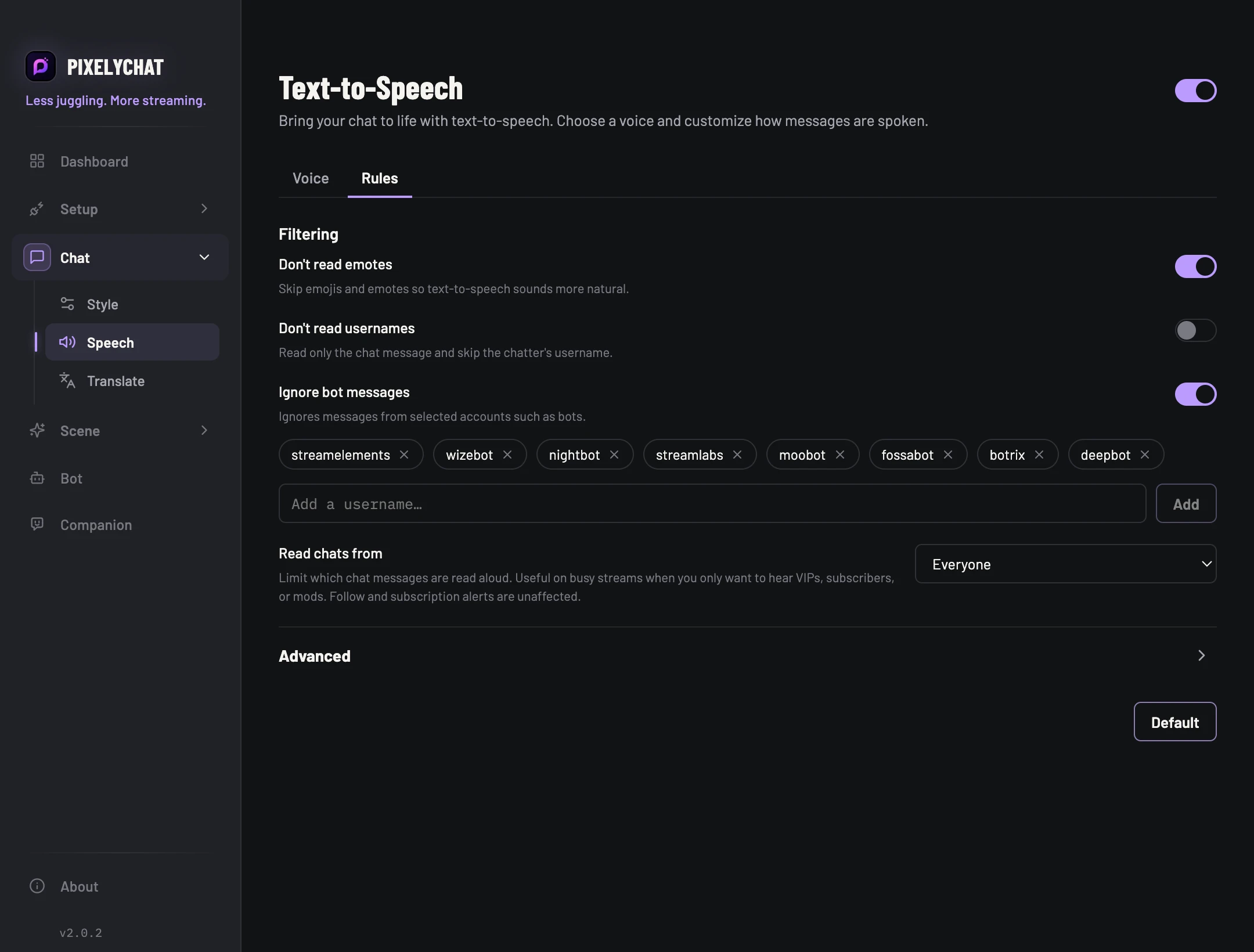
Skip emotes, usernames or selected bots, and limit speech to everyone, subscribers/VIPs/moderators, or moderators only.
Set a maximum queue, minimum message length and repeated-message window so speech stays relevant instead of reading old spam.
Add the Chat Browser Source from Overlays. That browser source carries the viewer-facing chat and the TTS audio into OBS/Streamlabs.