 PixelyChat
 Stream appearance
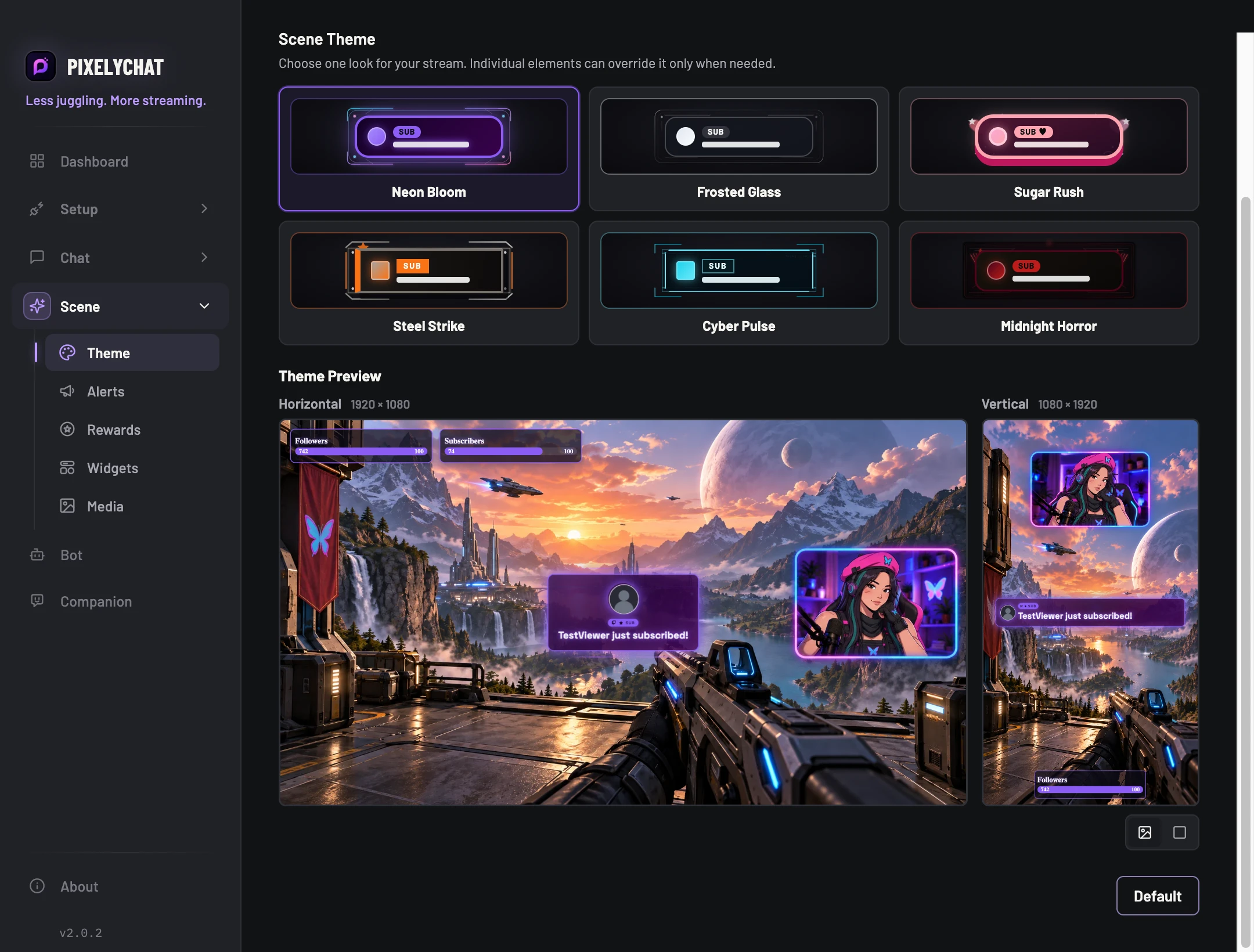
Scene Theme
One shared visual system can style Alerts, Rewards, Widgets and Specials so the whole stream feels intentional.
Before you start
Add the Stream Scene Browser Source and enable an alert or widget you can preview. Chat styles have their own settings under Chat.
Give your scene a consistent appearance
- Open Scene Theme and select a built-in theme, or install one from the Theme Library.
- Adjust the shared colors and typography. Keep individual elements using the scene theme when you want them to match.
- Preview an alert and a widget, then inspect them in OBS at your stream resolution. Check contrast, text size and placement over your actual background.
Check the result
Both elements follow the theme. If one looks different, inspect its local style override. If chat looks unchanged, configure its separate Chat Overlay style. Keep layout checks separate for horizontal and vertical scenes.
Settings and further help
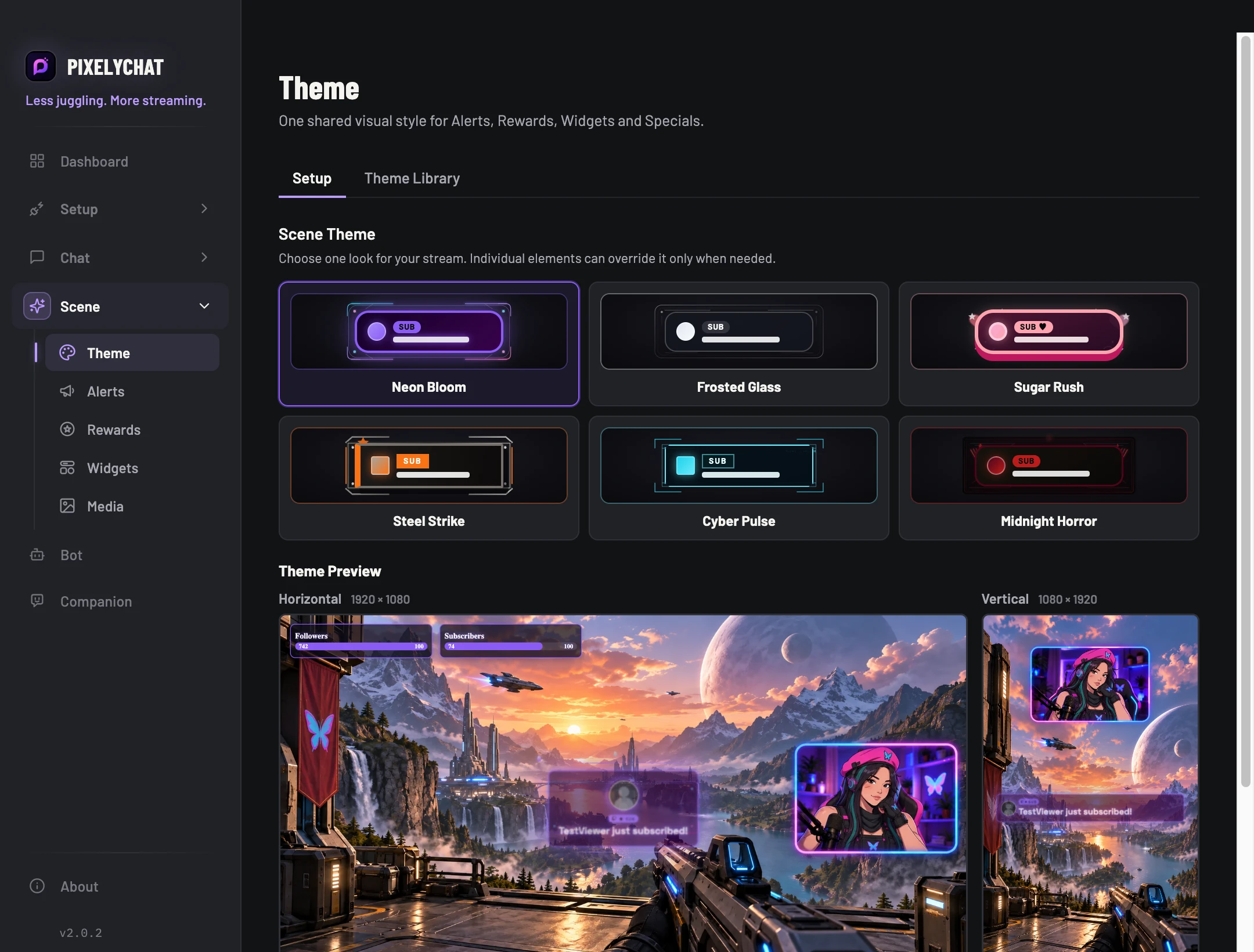
Start global. Override only when you mean to.
Pick the Scene Theme first. Elements inherit it automatically, and individual Alerts, Rewards, Widgets or Specials can switch to a local override when a specific item needs a different look.
SetupUse built-in and installed themes.
Theme LibraryBrowse installable PixelyChat/community themes.
Shared StyleApply typography and color adjustments on top of the theme.
Creator ToolsValidate, import/export and create Theme v2 packages without cluttering the normal workflow.