 PixelyChat
 Chat & moderation
On-Screen Chat
See chat and events on top of your game without alt-tabbing. Only you see it; it is not a Browser Source and not part of your stream.
Before you start
Use a windowed or borderless game. On-Screen Chat is a desktop window for your own use; it is different from the viewer-facing Chat Browser Source.
Read chat over your game
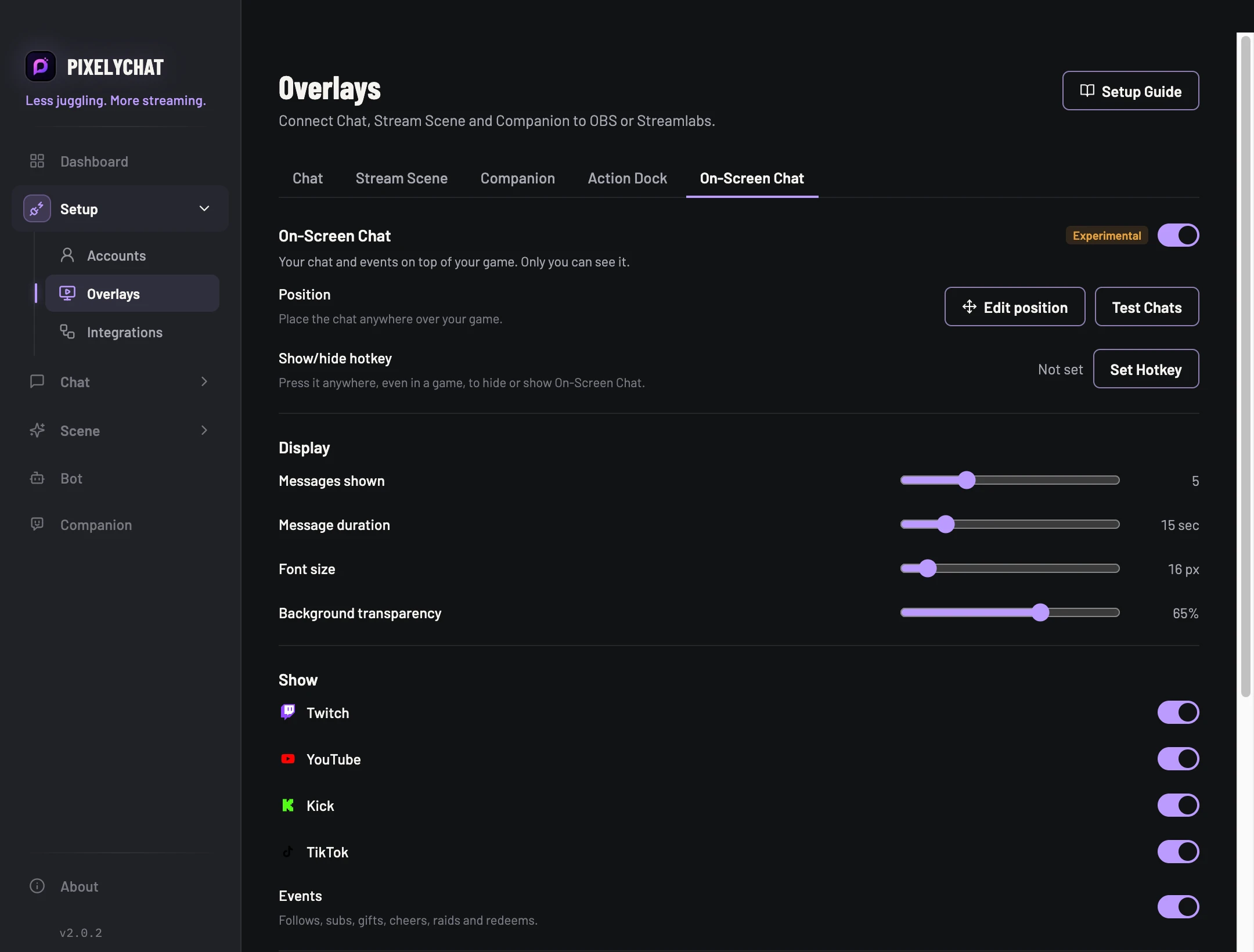
- Open Overlays → On-Screen Chat and enable it. Use Edit position to move and resize the window, then select Done.
- Set a readable font size, message duration and the platforms/events you want to see. Assign a show/hide hotkey.
- Use Test Chats, return to the game and test the hotkey. Record a short clip with your actual capture method to check what viewers see.
Check the result
Messages appear above the game and the hotkey hides them. Exclusive fullscreen can cover the window. On macOS, Display Capture includes it; capture the game window/app to keep it private. On supported Windows versions, check Hide from screen capture.
Settings and further help
Chat over your game, for your eyes only.
Turn it on under Overlays → On-Screen Chat. New messages and events appear in a small window on top of your game and fade out after a few seconds. Clicks and key presses still go to the game, and the window hides itself whenever no messages are left.
On-Screen Chat is an ordinary window that stays on top, so it works over games in windowed or borderless fullscreen. A game in exclusive fullscreen can cover it. While messages are on screen, the game cannot use its fastest fullscreen mode, which can add a little input latency and pause G-Sync/FreeSync. For competitive games, use a short message duration or hide it with the hotkey.
With Game Capture or Window Capture in OBS it never appears on stream. On Windows 10 (version 2004 or newer), Hide from screen capture also keeps it out of Display Capture. On macOS, capture only the game window or app, because Display Capture includes it.