 PixelyChat
 Control & automation
Control your stream with Pilot
Turn your phone or tablet into a free PixelyChat control deck. Read chat, moderate, trigger Action Widgets and update your stream from your mobile browser.
Before you start
Keep PixelyChat running on your computer. Connect your phone or tablet to the same local network. The computer can use Ethernet while the phone uses that router’s Wi-Fi.
Pilot runs in your mobile browser. It does not need a separate phone app, and it does not provide access from outside your local network. The desktop app currently labels Pilot experimental.
1. Pair your phone
- Open Pilot in the PixelyChat sidebar and switch on Enable.
- Under Connect your phone, scan the displayed QR code with your phone’s camera and open the link in your browser.
- Your phone asks you to confirm on the computer. In PixelyChat, check the device shown in the connection request and select Allow.
- Check Connected Device on the computer. Your phone should now display Pilot’s tabs.
The desktop page shows the phone as connected, and Pilot opens on the phone. If there are no chat messages yet, that does not mean pairing failed.
2. Read and manage chat
- Open Chat on the phone. Use the platform and activity filters to choose what appears.
- To reply, choose a supported platform, enter your message and send it.
- Tap a chat message to open its available actions. Choose the action you need and check the confirmation before changing live chat.
Moderation depends on the connected platform and your account’s permissions. TikTok is read-only; the same buttons will not be available for every message.
Ask a viewer to send a message. Confirm you see it on both the computer and the phone. Open its action menu to inspect the available controls.
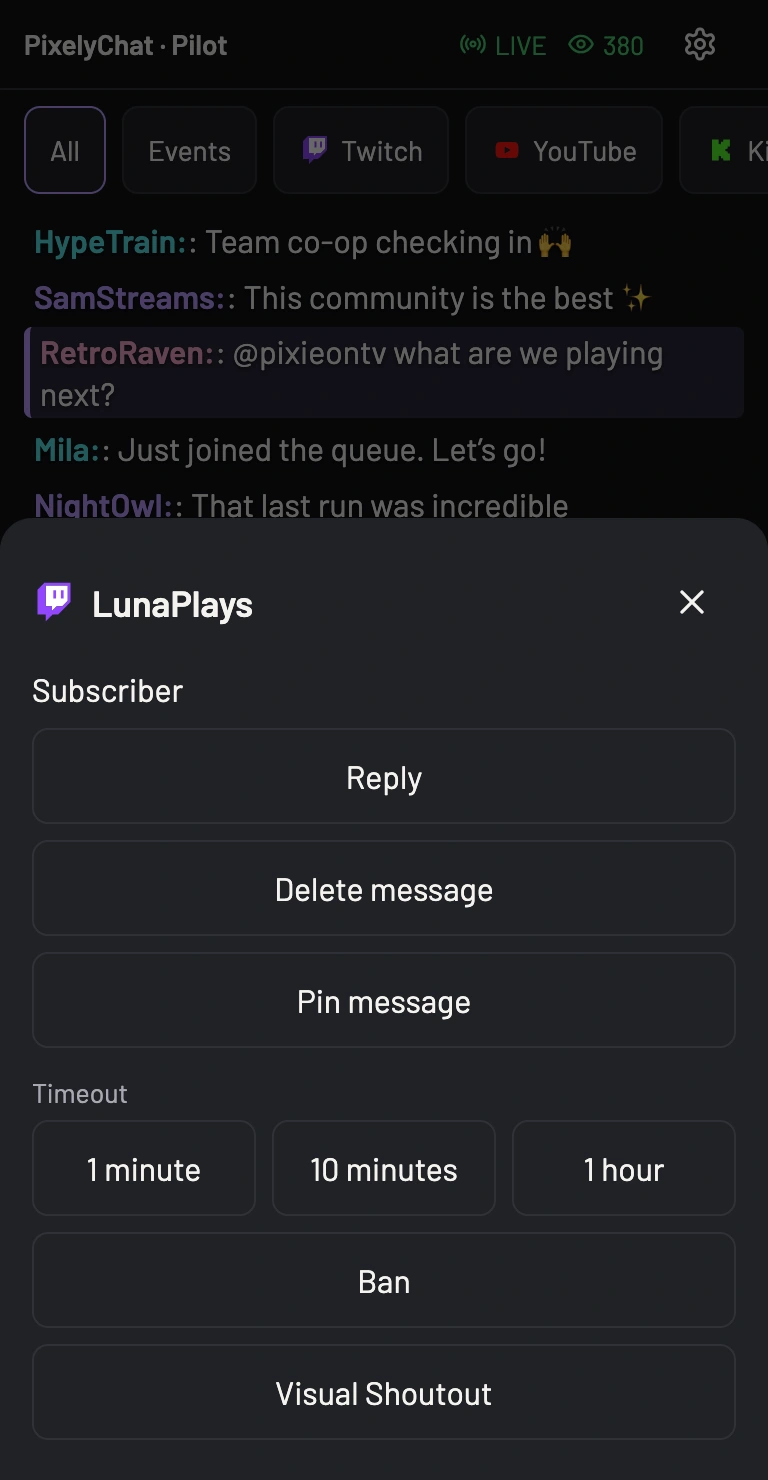
3. Run an Action Widget
- Configure and enable a widget in PixelyChat on the computer. For a first example, follow Run your first poll.
- On the phone, open Actions. Enabled Action Widgets appear here.
- For Poll or Spin Wheel, choose the saved template you want before starting it.
- Use the widget’s control and watch its status or timer. Check your OBS preview for the viewer-facing result.
Pilot is the remote control. An on-stream widget still needs its Browser Source in your streaming scene.
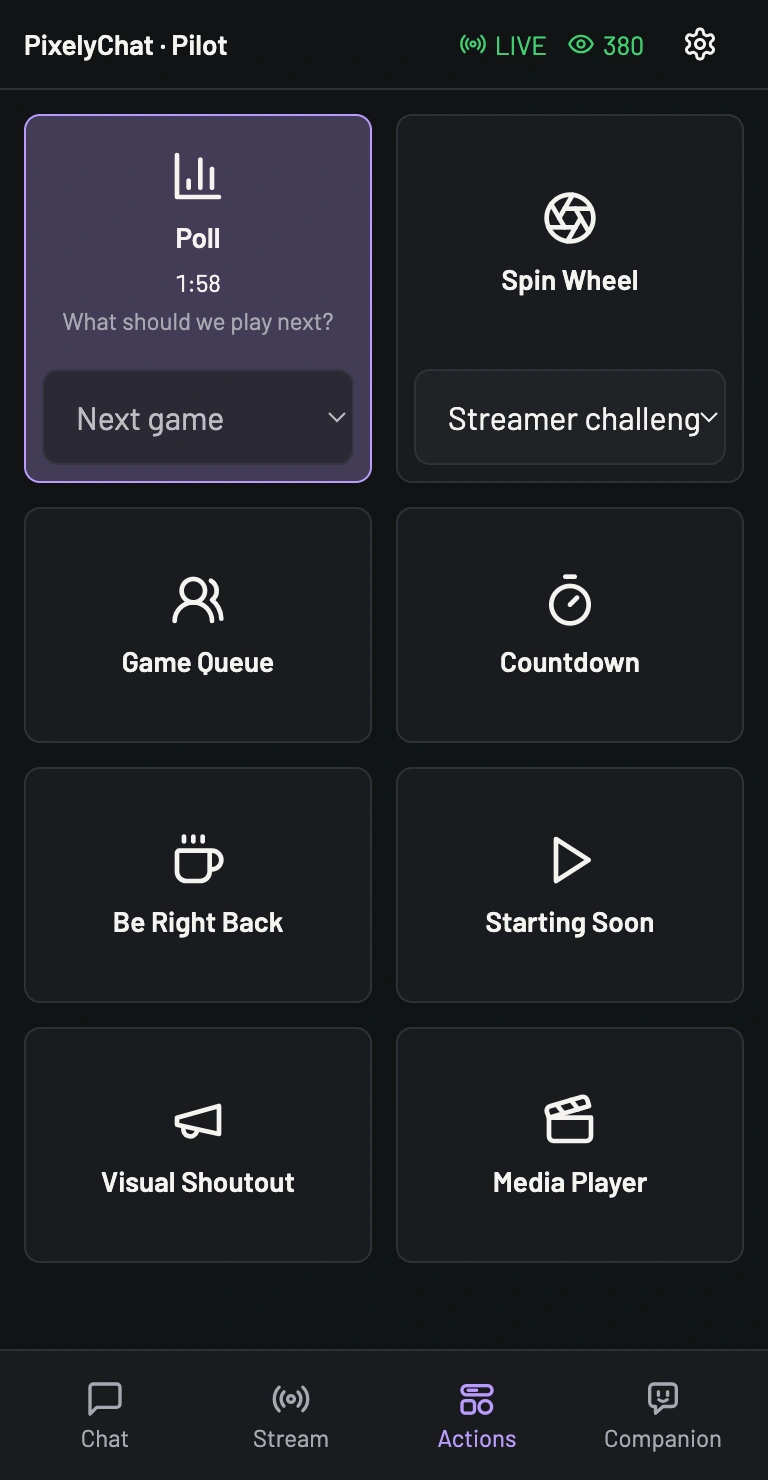
4. Update stream details
- Open Stream to see platform status, viewer counts and stream details.
- Use the title or category controls available for the platform you want to update.
- Make your change and select Update. Check the displayed details after the request completes.
Available fields vary by platform. For a YouTube category change, Pilot directs you to YouTube Studio.
The Companion tab lets you send a message to your configured Companion. If you use Hold to Talk · PC Mic, it uses the computer’s microphone, not the phone’s.
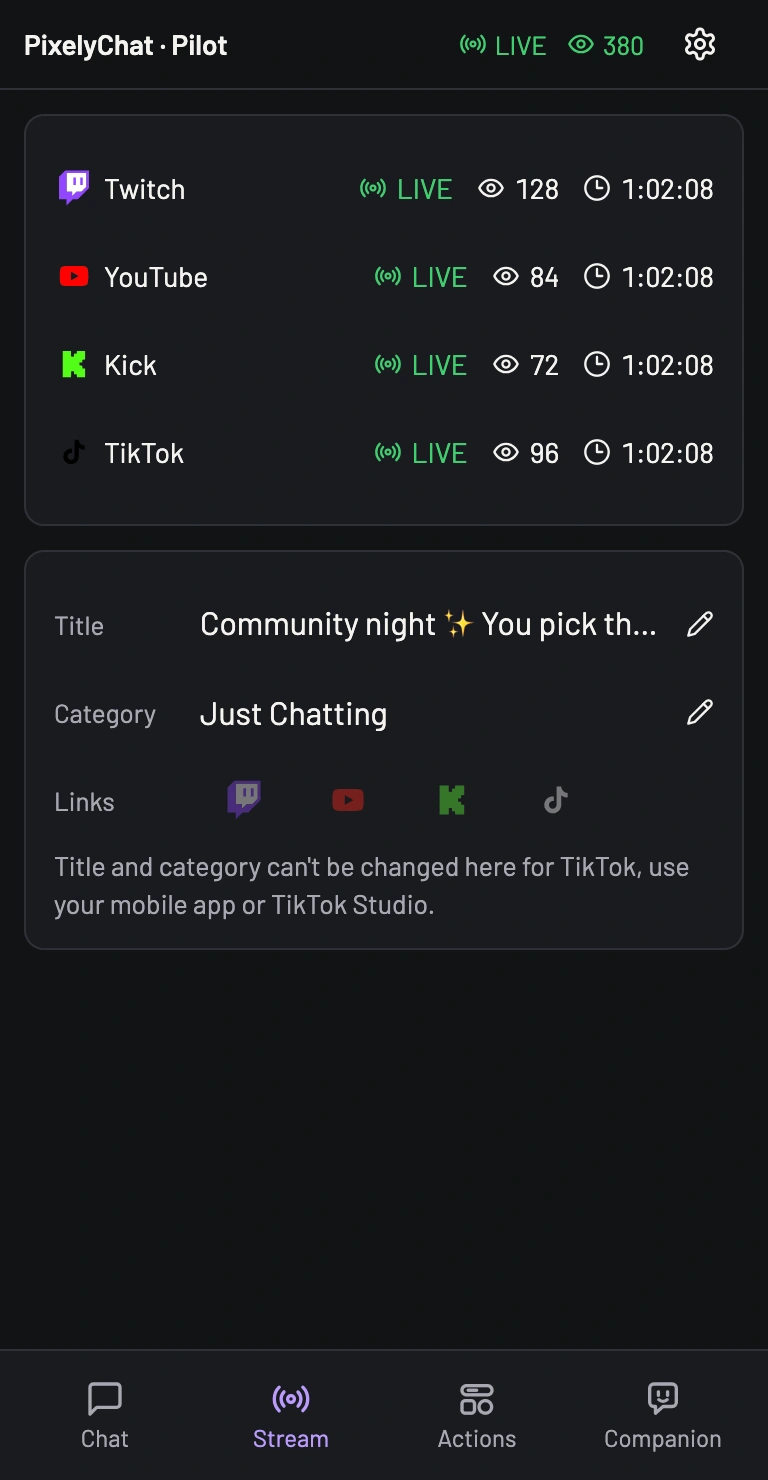
Make it useful every stream
In Pilot’s Setup, try Keep screen awake. Browser support varies, and it can use more battery. Keep Pilot visible while relying on it.
You can add Pilot to your home screen using your browser’s share or menu options. Follow the instructions shown in Pilot for your phone.
To revoke access, open Pilot on the computer and select Disconnect under Connected Device. Pairing again requires scanning the QR code and approving the phone again. Switching Pilot off makes it unavailable until you enable it again.
If your phone cannot connect
The QR link will not open
Confirm Pilot is enabled and both devices use the same local network. A guest Wi-Fi network may prevent devices from reaching one another. On Windows, allow PixelyChat on Private networks in Windows Firewall.
If the computer has multiple network connections, open Pilot’s Advanced settings and choose the Network interface for the network your phone uses. Scan the new QR code.
“Confirm on your PC” stays on screen
Return to the computer and approve the pending device request. If the code expired or pairing was denied, scan the current QR code from the desktop Pilot page.
The phone disconnects or keeps reconnecting
Check that the computer is awake, PixelyChat is still running and the phone has not switched away from your Wi-Fi. If the phone was revoked or replaced, pair it again from the computer.
Actions is empty, or a command gets no confirmation
Enable the widget on the computer first. If a request times out, check the widget’s state on the computer or in OBS before trying again: the action may already have completed.